Articles in this section
Vimeo: How to add Vimeo video in media
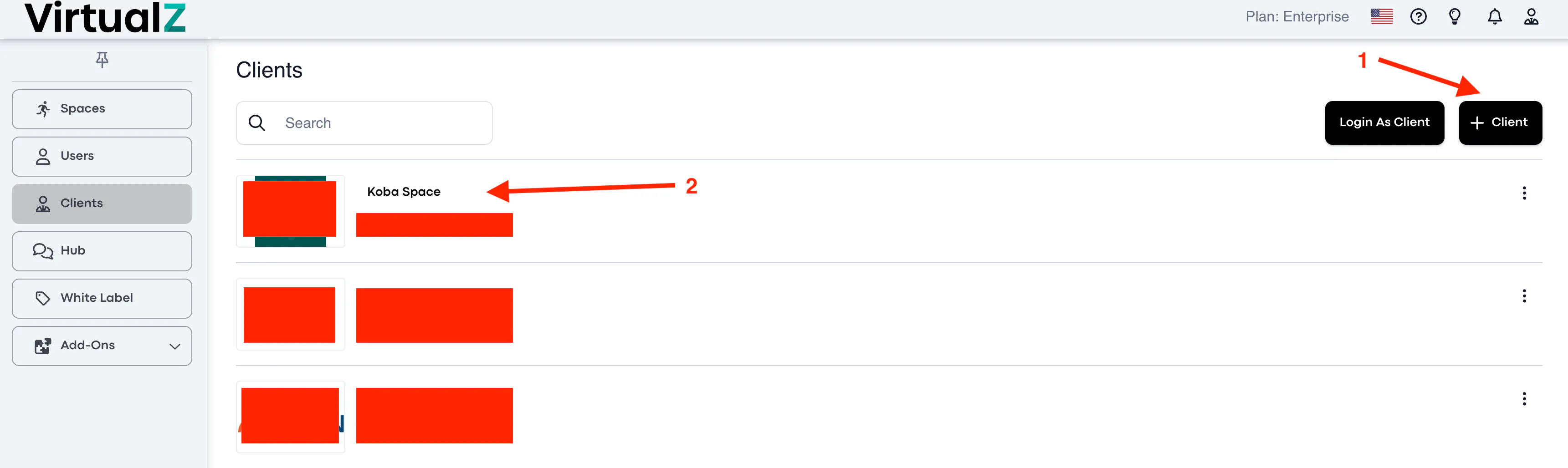
To use Vimeo links in the Media section of your tours, you'll first need to either create a new Client account (1) or select an existing one (2) in your profile:
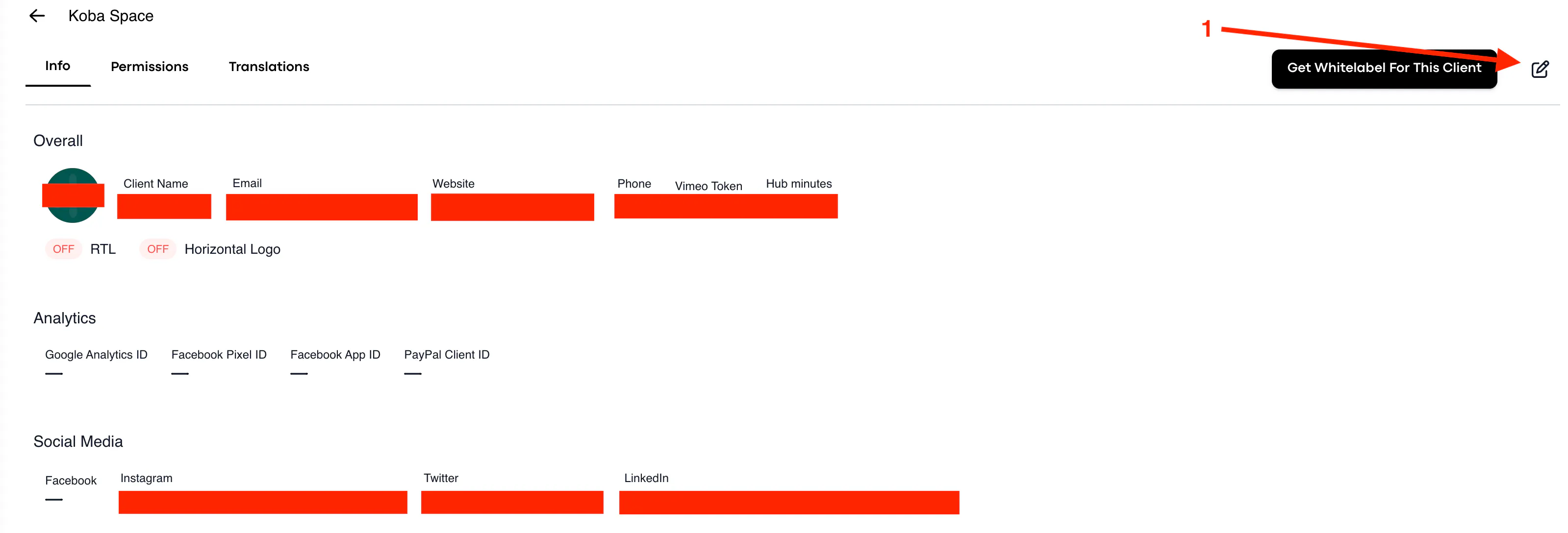
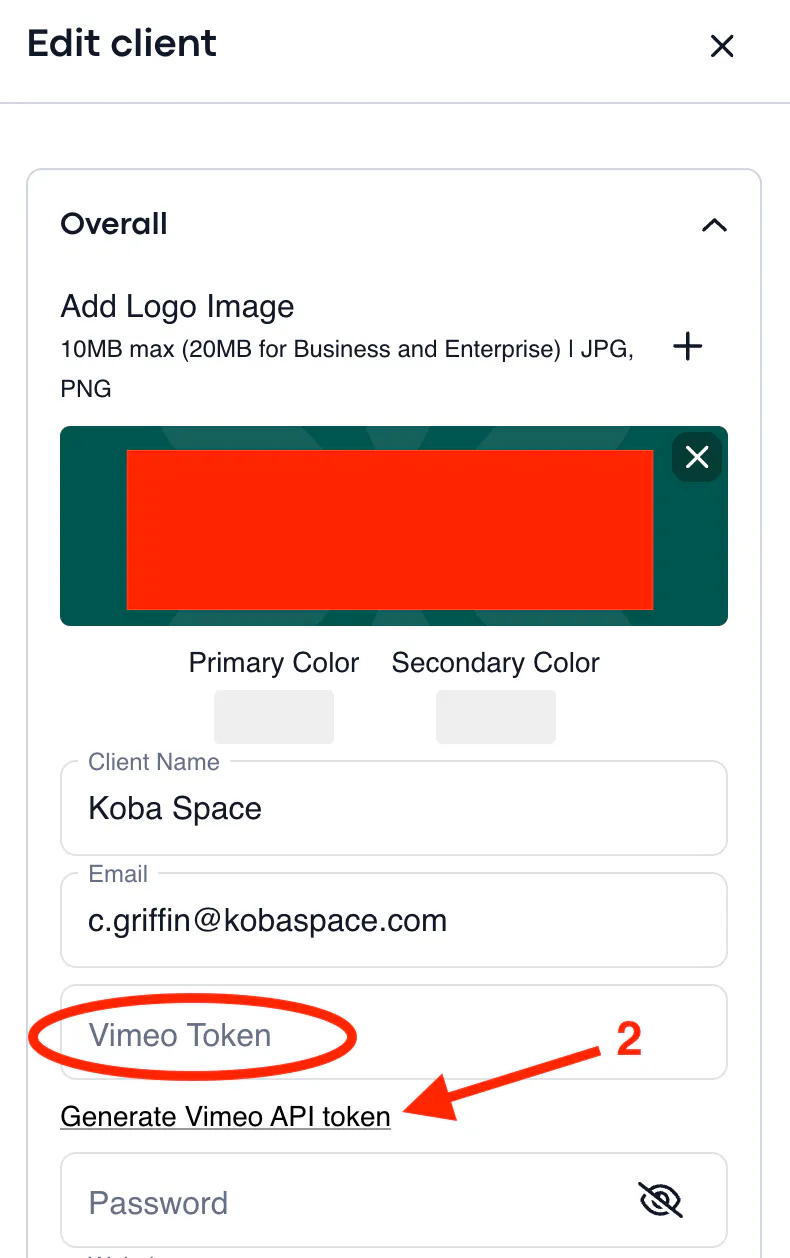
Once the Client account is set up, open their profile, click the pencil icon (1) to edit, and Generate a Vimeo API token (2) to link the Client's Vimeo account to the Treedis platform:
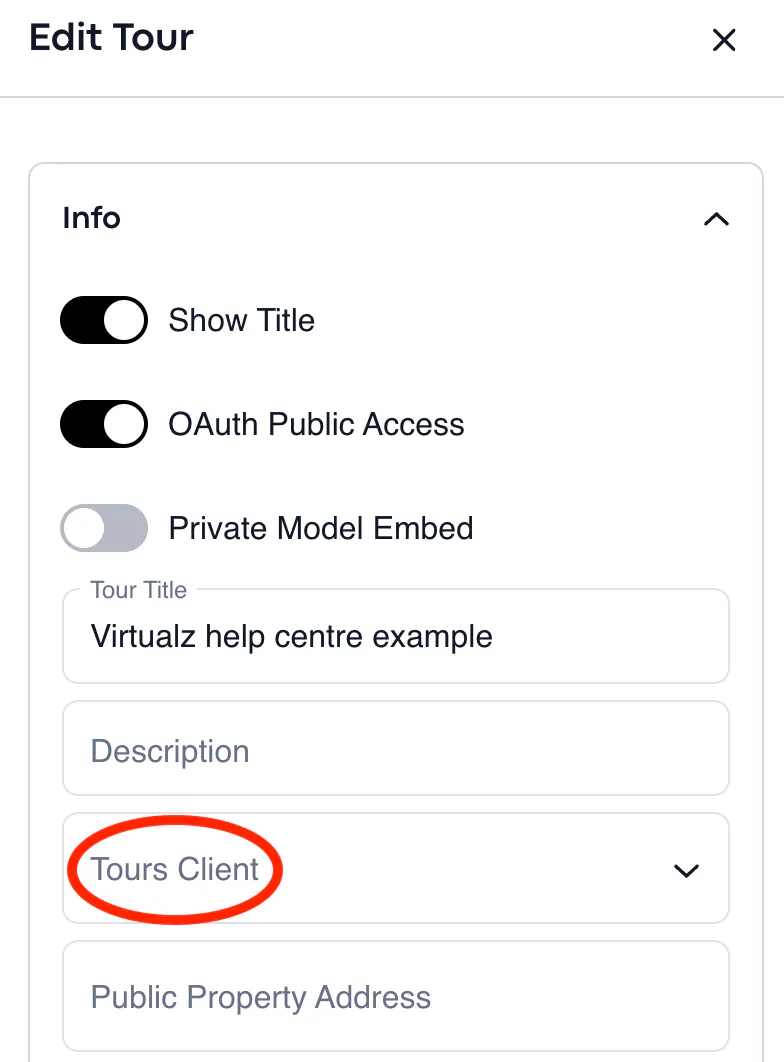
Next, assign the Client to the tour where you'll be using Vimeo links. To do this, go to the tour's Manage section, find the Info tab, click Edit, select the appropriate Client, and save your changes:
Once assigned, you’ll be able to incorporate Vimeo videos into your tours using the Media feature:
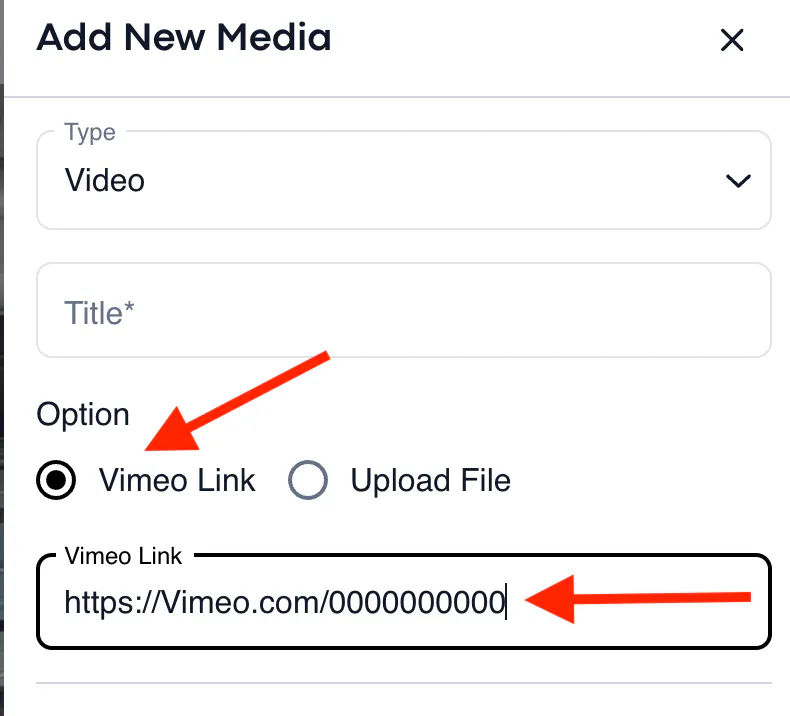
NOTE to ensure the Vimeo videos you plan to use are set to Public in the Vimeo account. Additionally, make sure the video link does not include symbols like ?share=copy at the end. Above is an example of the supported link format on the Treedis platform.