Articles in this section
HUB: How to arrange a call
HUB is a great solution for those who want to dive into the world of 3D tours and explore it together with other viewers without physically attending the place of meeting. It's impressive that agents can show an apartment to a potential client without visiting the exact flat or the museum guide can show an exhibition inside the virtual museum tour.
Preparation Steps for Scheduling a HUB Call:
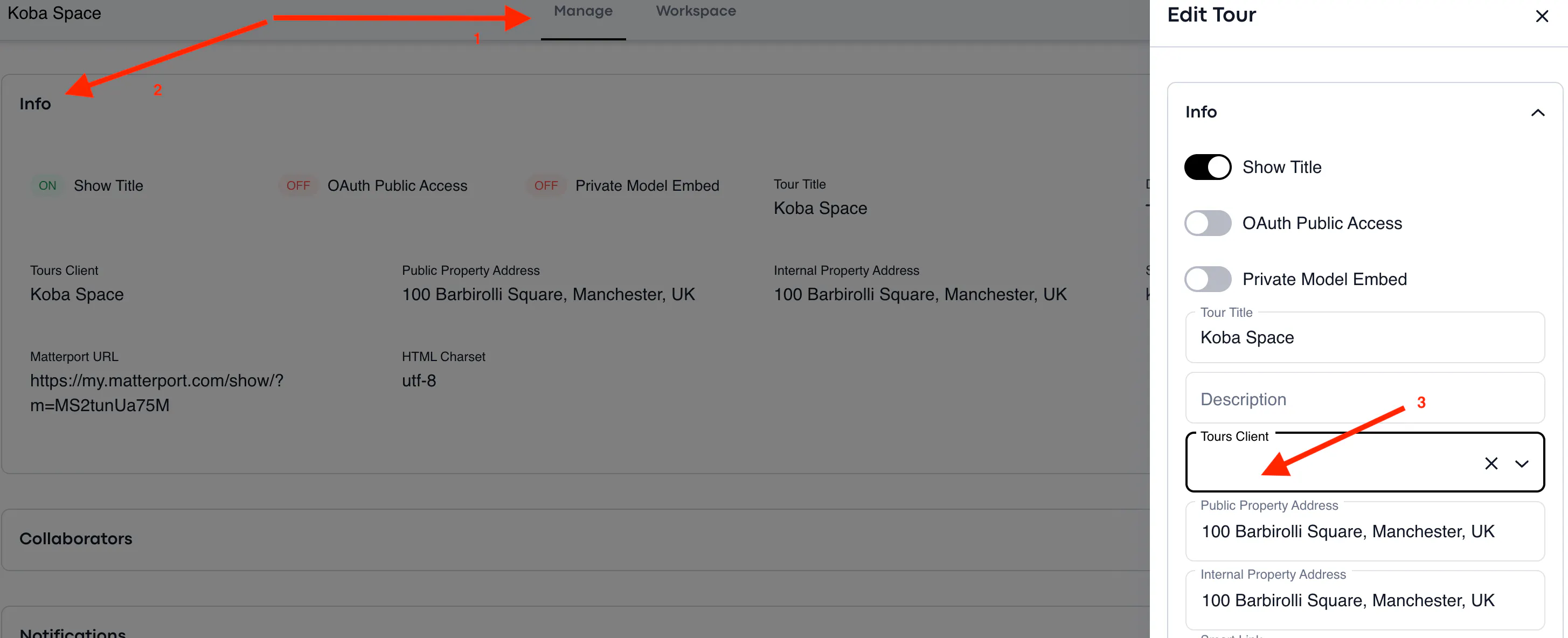
It is necessary to assign a Client to the tour, since the Client is the one who should have minutes to be used for HUB calls. To assign a Client, select the tour > go to Manage (1) section > Info (2) > add a Client to the tour (3):
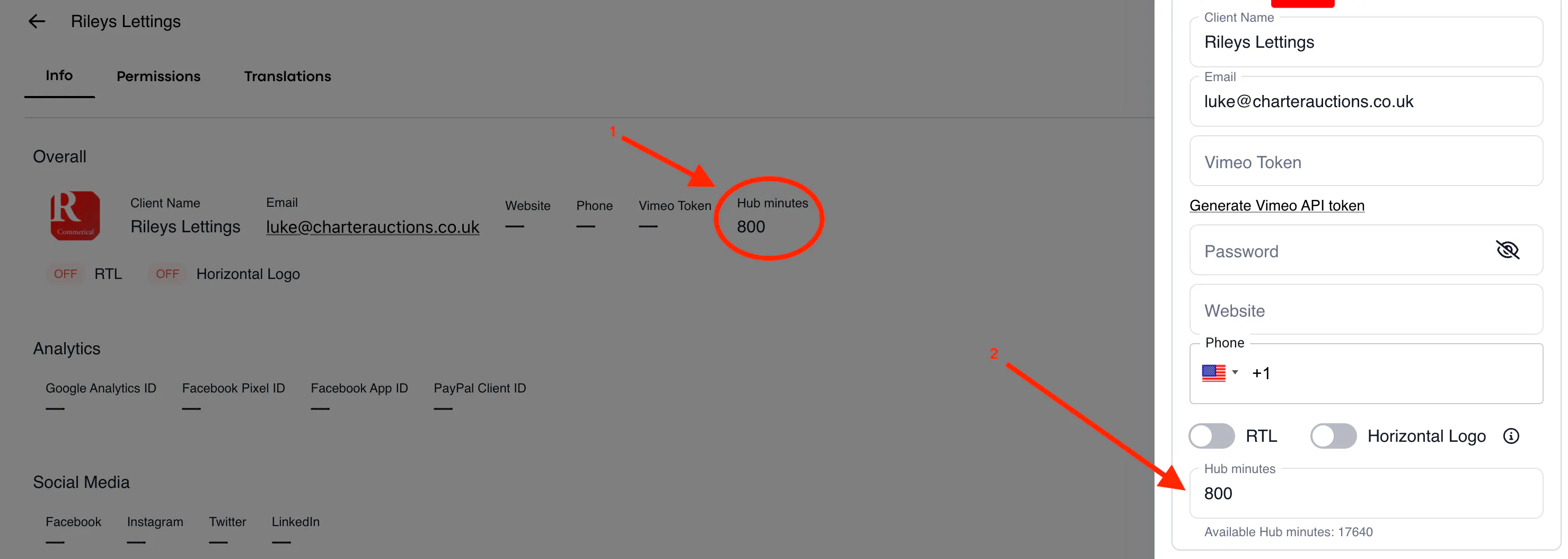
Make sure to add enough HUB minutes (1) to your Client in the client's profile edit section: Client > Edit (2) > HUB minutes (3) > save the changes:
Steps to Arrange a HUB Call [Option 1]
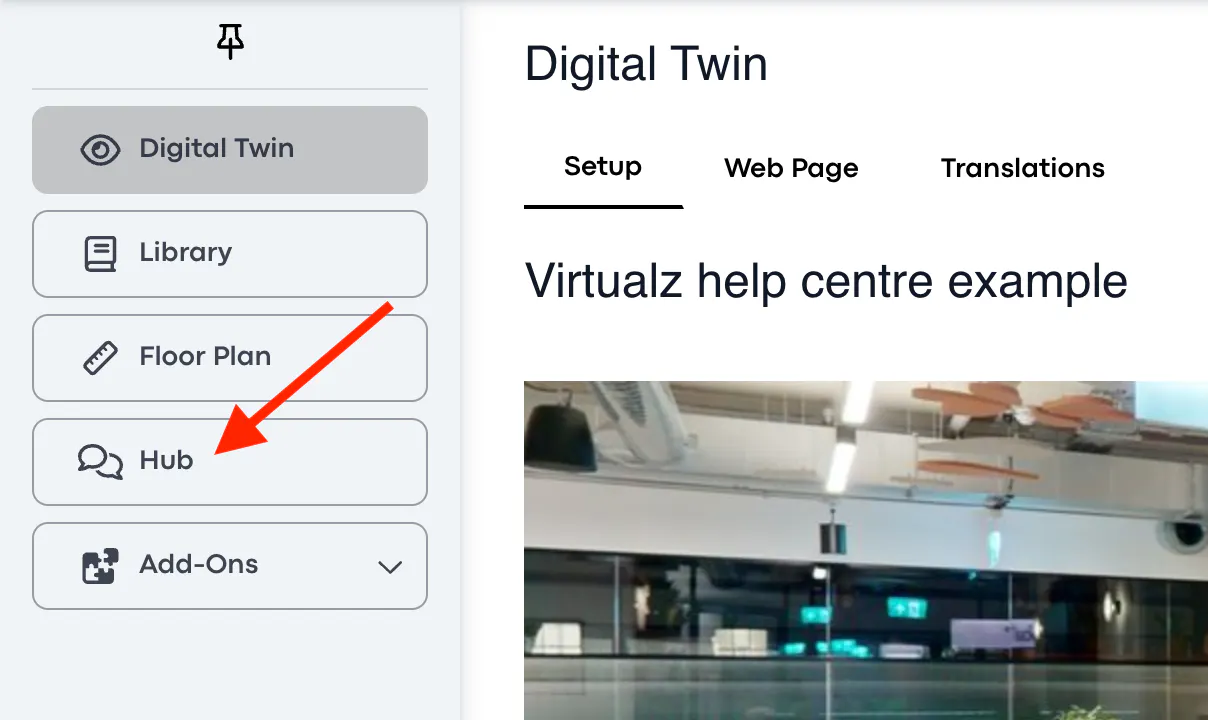
Choose the tour where you want to organize a call and go to the HUB section on the left sidebar:
Here you are offered an option to have a Video call or an Audio call. Once you decide, manage the tour settings and click Save:
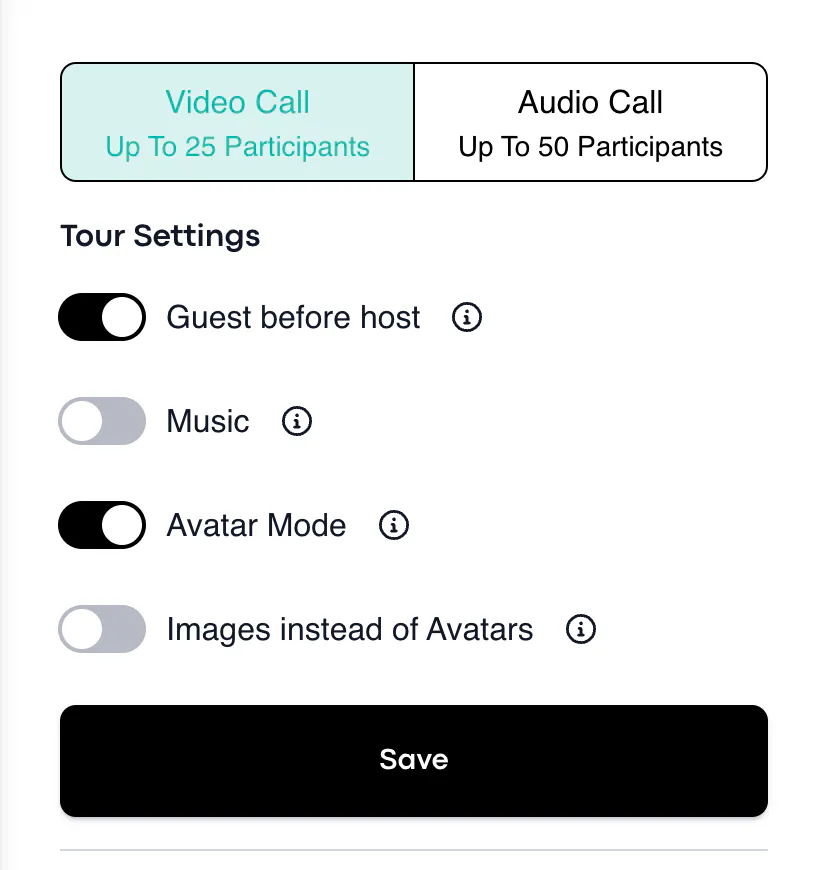
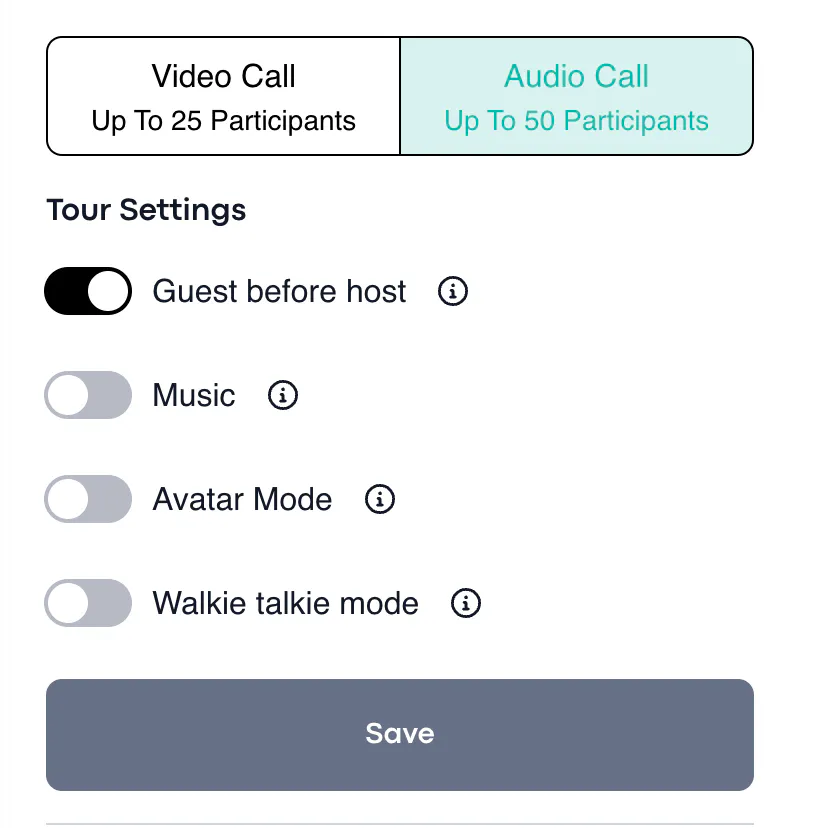
Tour Settings:
Guest before host - enable this toggle if you allow your Guests to join the meeting without a Host (you can join later);
Music - enable this option in case you want to have the tour music ON during your meeting;
Avatar Mode - all participants will need to set the Avatars before joining the call (Avatars are available for Business and Enterprise plan users); more information on Avatars here: HUB: Avatars;
Images instead of Avatars - instead of 3D avatars, participants will be offered to upload their images to be represented in the call.
Walkie-talkie mode - chat participants have to press and hold a specific button to speak.
Once you are ready with the settings, copy the Host link for yourself to enter the HUB call and the Guest link to share with the other participants:

How to Arrange a HUB Call [Option 2]
Another option to organize a HUB call is to open the HUB section on your admin panel and then select the Client and the Tour to assign to it:
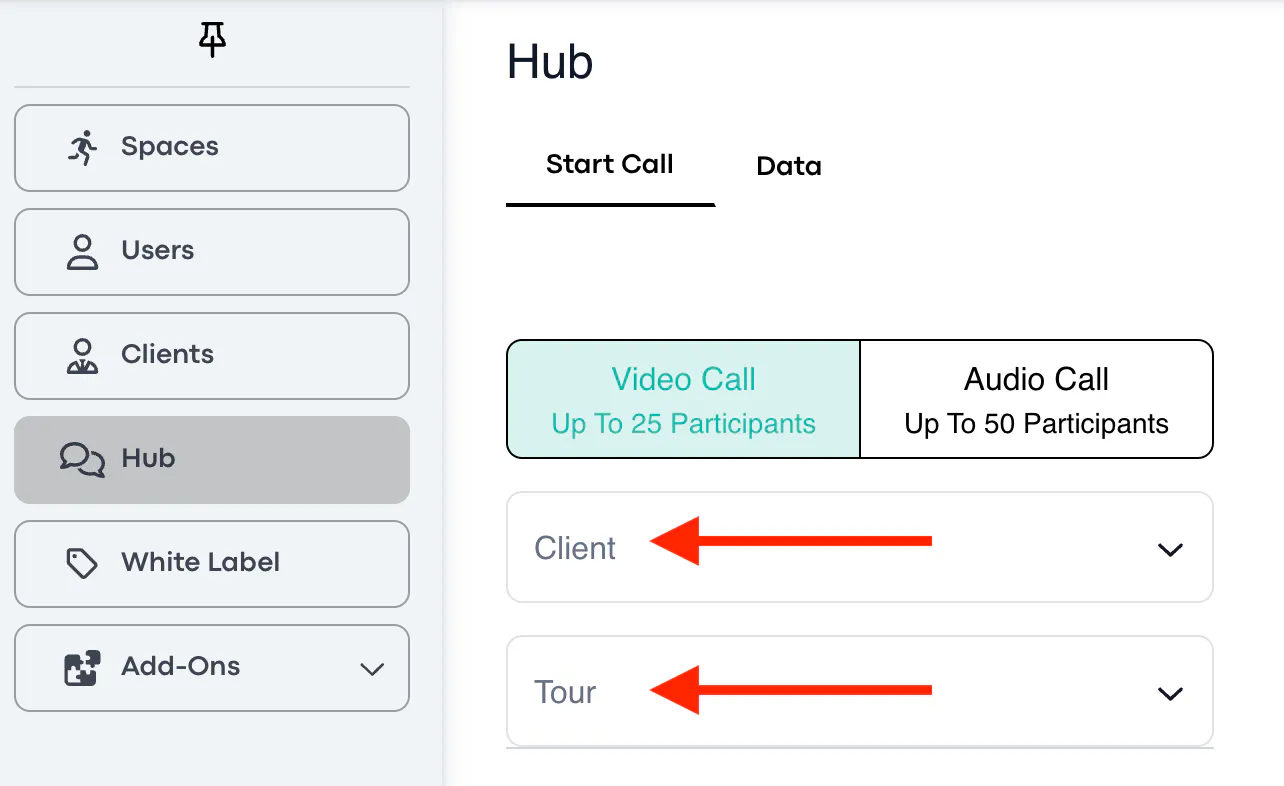
Pick the needed tour settings (the same way as demonstrated above) > save > copy the Host and Guest links to join the meeting.
Also, some additional useful information is available here: HUB: FAQ