Articles in this section
- How to add a tour to the system using the Matterport link?
- How to add a tour to the system if I don't have Matterport tour link?
- CGI: General overview
- Private Model Embed (PME)
- Who is User, Client, Agent and Collaborator
- Can I merge several spaces / tours into 1?
- How to get a deep link for location in the tour?
- How to Zoom in/out on the tour?
- Can I translate my tour into different languages?
- How to add music to the tour?
- Can I add the image / pdf file to the Burger Menu?
- Floor Plan: How to order?
- How to change the password?
- How to collect Leads from the tour?
- How to activate the Registration form for Experience tour?
- Types of Tour Error: Troubleshooting Steps
Who is User, Client, Agent and Collaborator
There are 4 types of account management on the Virtualz platform: User, Client, Agent and Collaborator.
User is the Account Administrator who has registered his/her own account on the Virtualz platform. User (Account Admin) is considered the owner of the tour(s) who has the highest level of access on the platform and uses own login credentials to access the account.
Client is a client, an employee or partner of the User. User, being the Admin, can create a separate account for his/her Client and open the permissions to the tours, so a Client can have an access to view and edit the tour on the own client's profile. The Client has limited access to the platform as the Client can only work with spaces that were opened for him/her by User. The Client is not able to add the new tours, activate the subscription plans and/or Virtualz add-ons.
Agent is an employee or partner of the Client. The Admin being logged in to the Client's profile can create a separate account for his/her Agent and provide an access to the Agent either as the tour viewer or the tour editor. These configurations are managed on the Client’s account. The Agent has the least access on the platform as the Agent can't access the Workspace and can only work within a Manage section.
Collaborator is another User who has its own Virtualz account under any type of the paid plan (Growth / Business / Enterprise). Collaborator status means that this User was invited as a collaborator to help manage and/or edit the space together with the tour owner.
Client's Account
How to Create a Client?
User (Account Admin) can create a client in the Clients tab: click on "+ Client" > fill in the requested information > save.
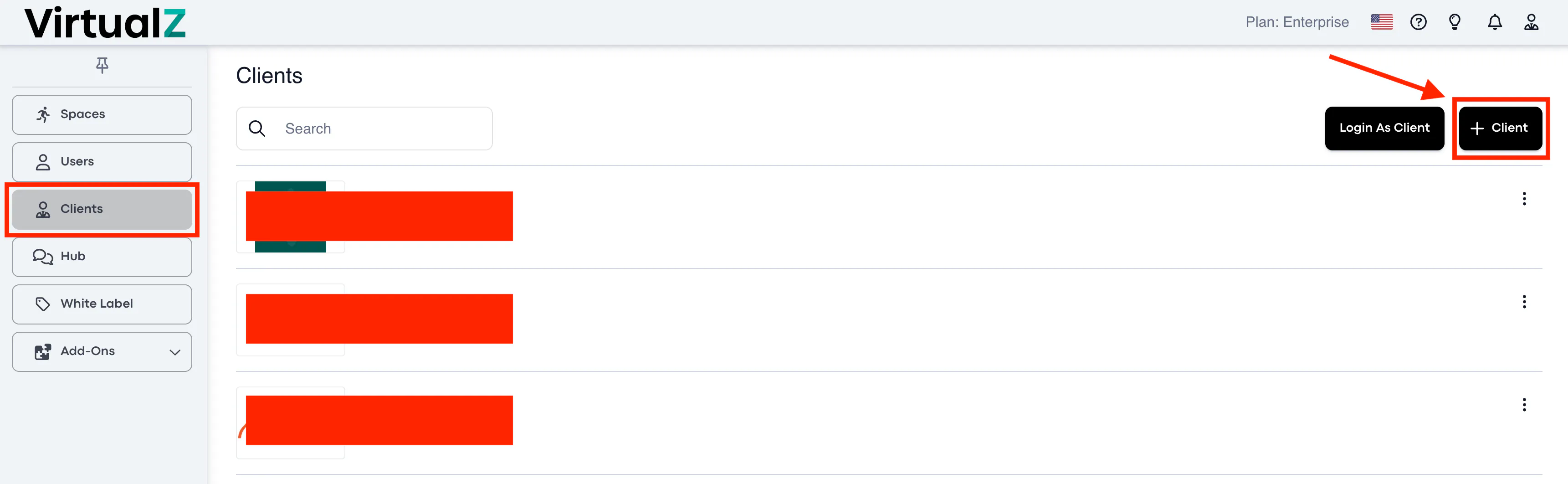
How to Login as Client?
Once the client is created, click on the button "Login as Client", and the system will redirect you to the Client's login page.
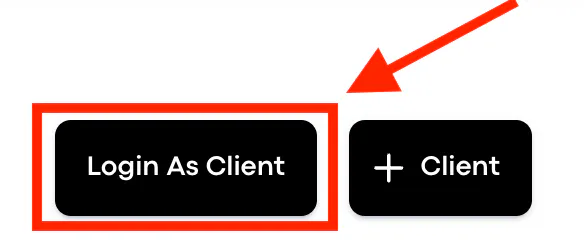
The login link for a Client differs from the one you (Admin) use to log in. Here is the correct link you must share with your Client along with the credentials that you have created for your Client to log in to the system.
Note: If the User (Admin) has the White-labeled account, then the login link should start with User's White Label domain instead of my.Virtualz.com.
How to Make the Tour Visible on the Client's Account?
1. Assign a Client to the needed tour: open the space > go to Manage section > Info > Add a Client to the Tour:

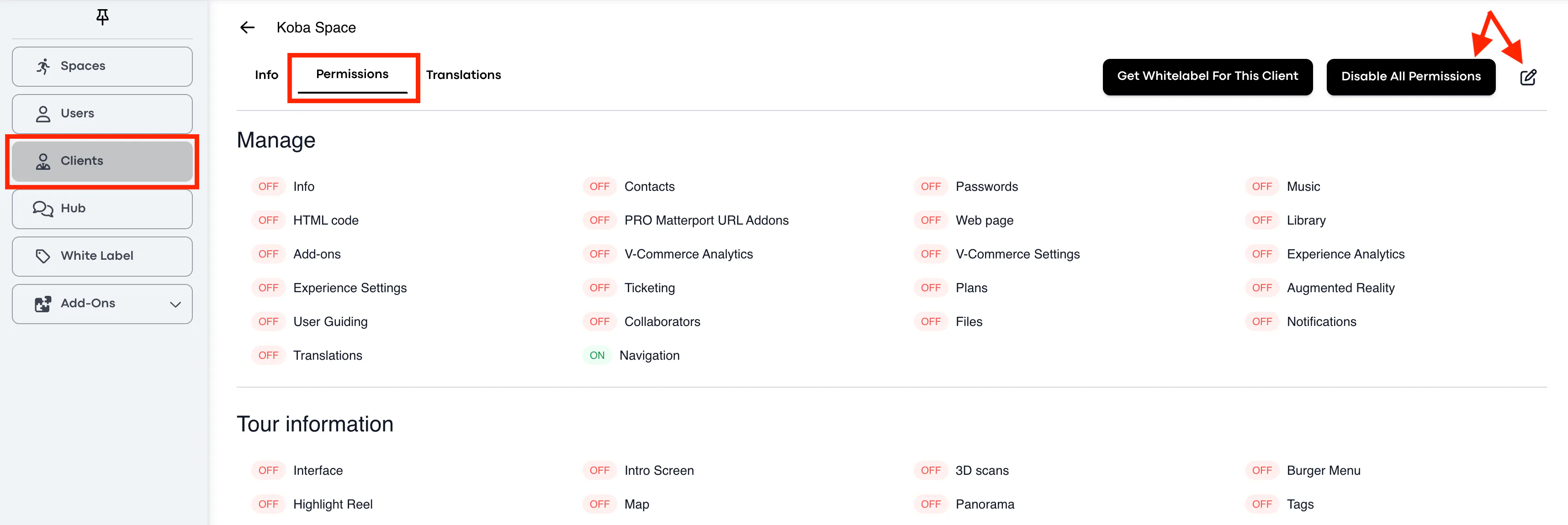
2. Open the permissions to your Client: go to the Clients tab > select the Client > Permissions > decide what features and functionality you want the Client have an access to:
Agent's Account
How to Create an Agent?
User (Admin) should firstly:
1. Make sure to have a Client created.
2. Go to Permissions > click to edit > enable permission for the Client to create the "Agents":
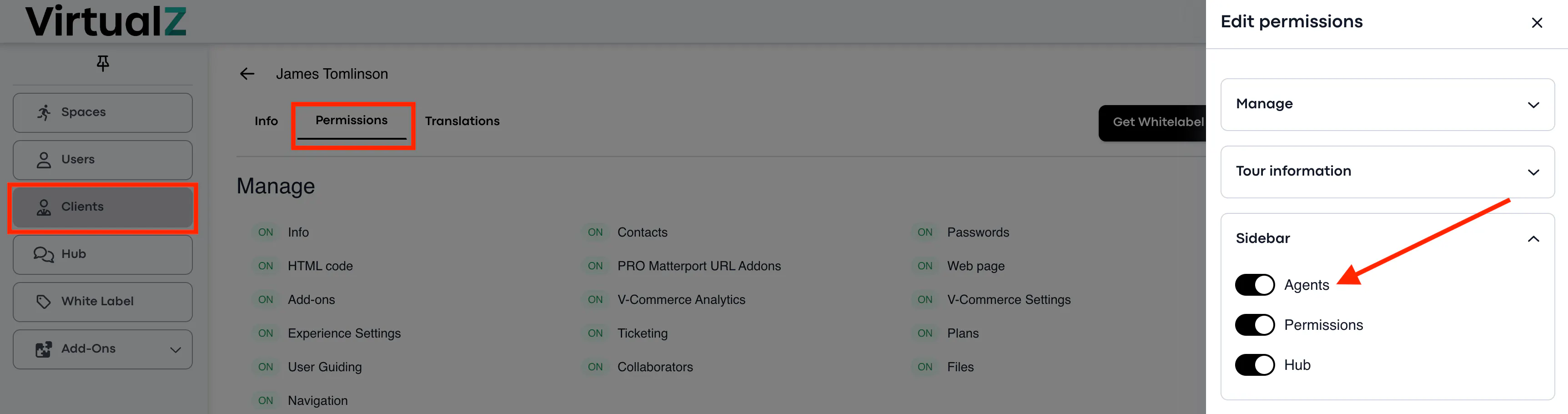
3. Since the Agents can be managed from the Client's profile > log in as Client > in the "Agents" tab click on “+ Agent” > fill in the requested information > save.

How to Login as Agent?
Once the Agent is created on the Client's profile, click on the button "Login as Agent", and the system will redirect you to the Agent's login page.
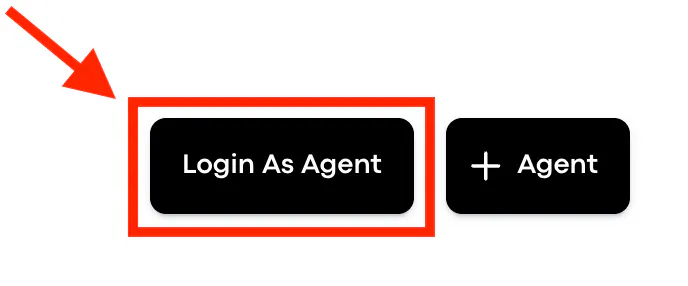
The login link for the Agent differs from the one a User (Admin) and a Client use to log in. Here is the correct link to share with the Agent along with the credentials created for Agent to log in to the system.

Note: If the User (Admin) has the White-labeled account, then the login link should start with User's White Label domain instead of my.Virtualz.com.
How to Make the Tour Visible on the Agent's Account?
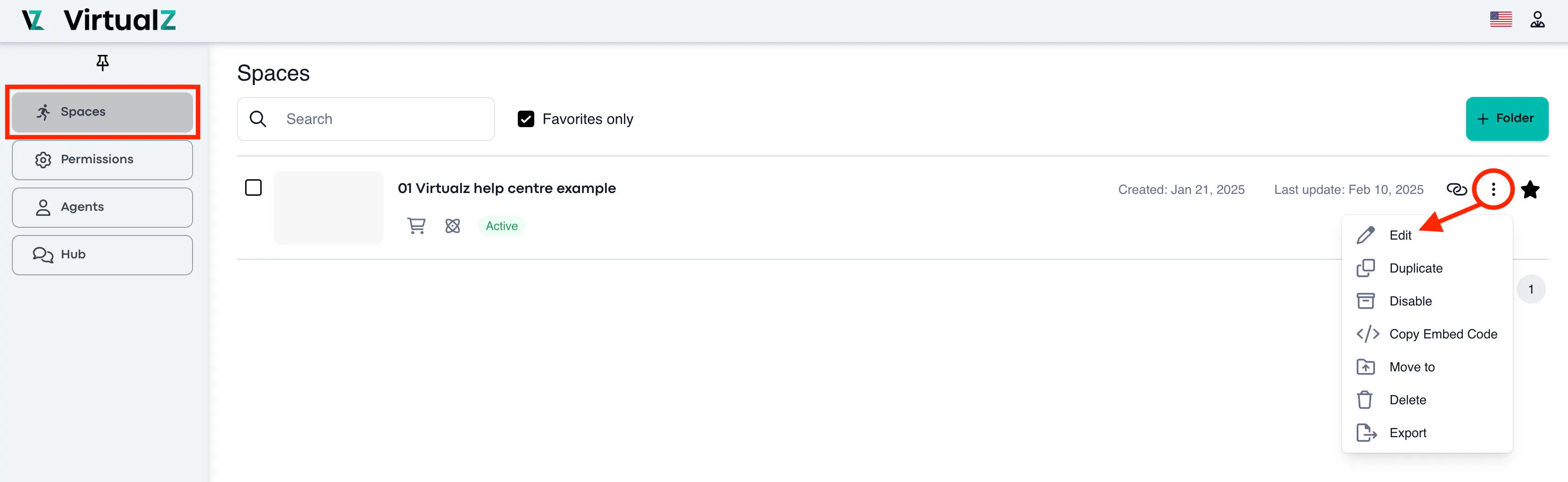
1. Being logged in to the Client page > go to Spaces > choose the needed tour and click on 3 dots to edit:
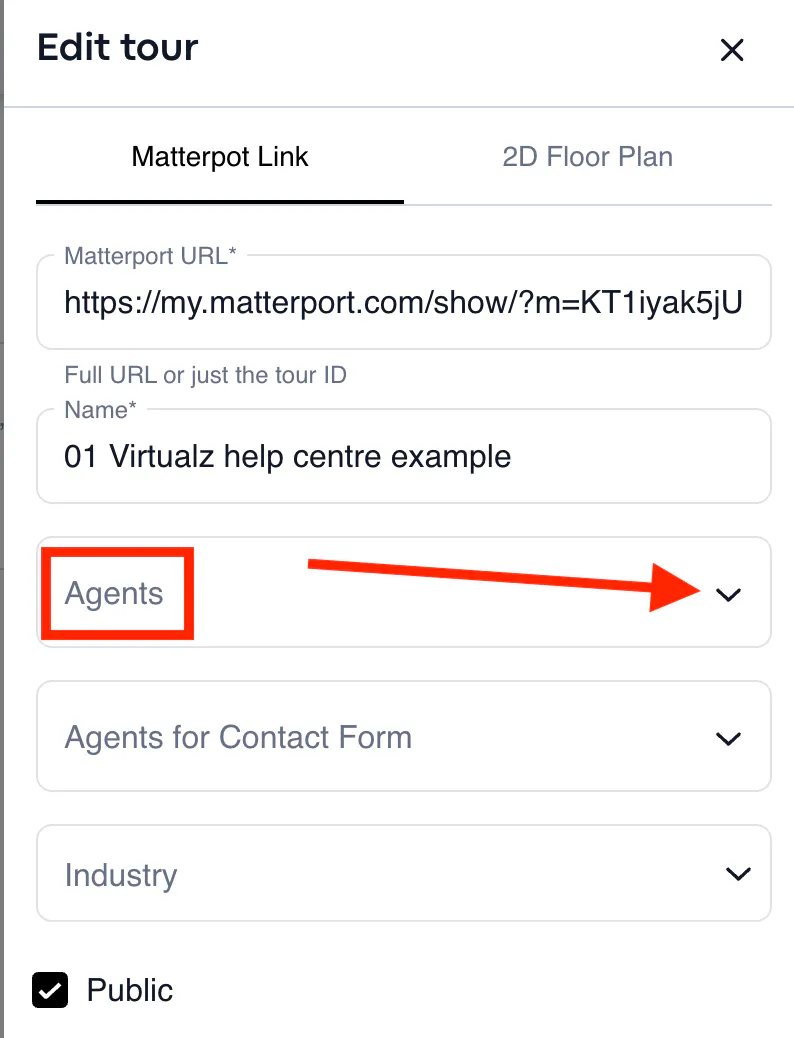
2. Assign the Agent to the space. It will make the space visible on the Agent’s account.
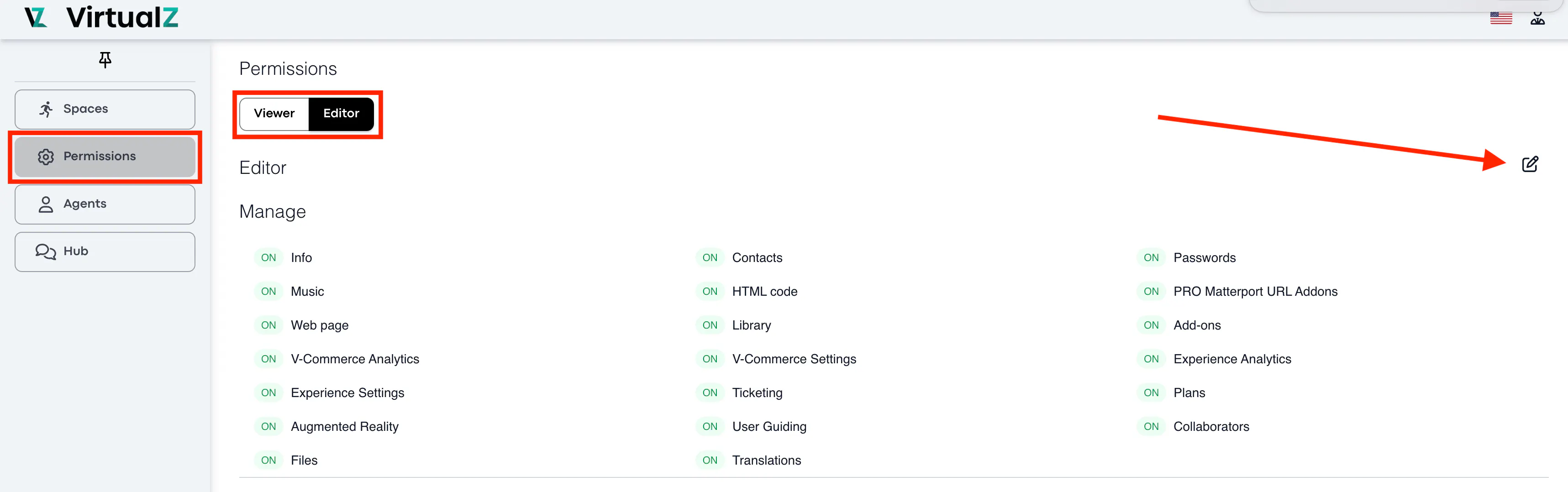
3. Open the permissions for the Agent: either a "viewer" or "editor", you can also decide on specific functionality that should be available for the Agent:
Collaborator Status
Collaborator is another User who has its own Virtualz account. Collaborator status means that this User was invited as a collaborator to help manage and/or edit the space together with the tour owner. The account under the Free plan can't be added to the tour as a Collaborator.
How to Add a Collaborator to the Tour?
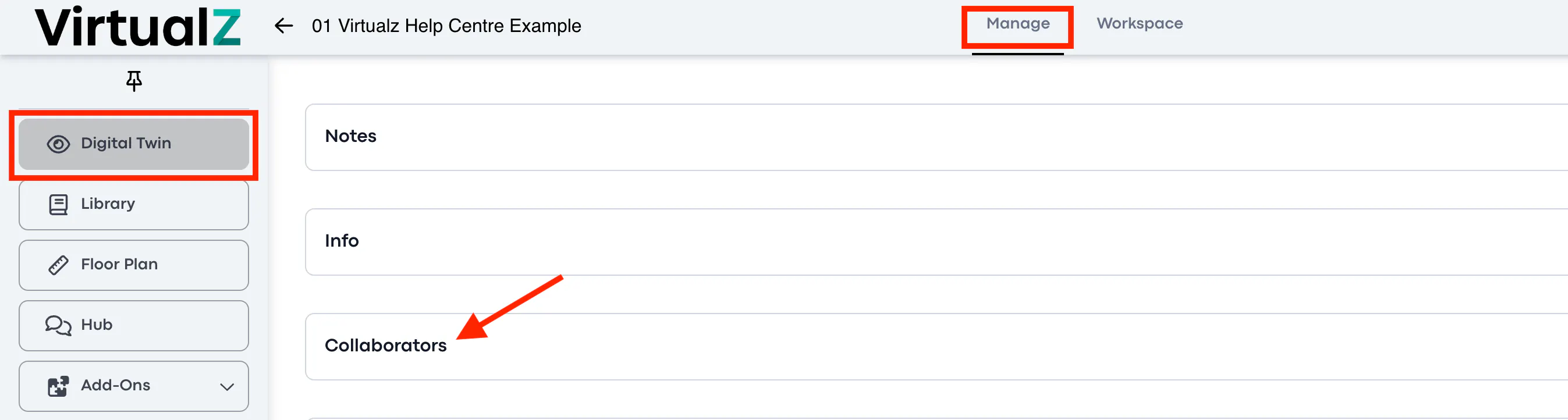
Select a tour you would like to add a collaborator to > Manage > scroll down to the tab "Сollaborators" and click on the pencil to edit:
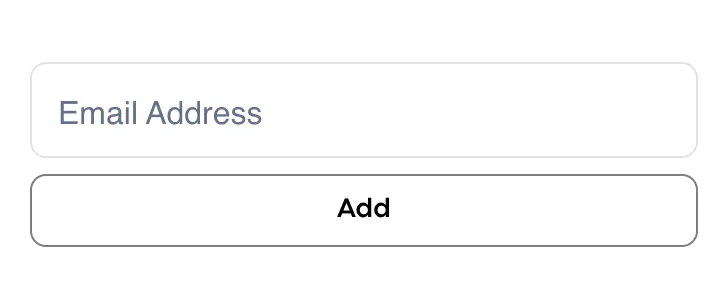
Insert the e-mail address associated with the account of another Virtualz User you would like to add as a Collaborator and click “Add”:
Now, the tour will appear in the collaborator's account so you will be able to manage and edit the project together. All changes done in the tour will be visible to the tour owner.
- Admin can add as many collaborators to the tour as allowed by Admin's subscription plan.
- Collaborator should have any type of the paid plans except for Free plan.
- Collaborators can make edits to the tour according to their own subscription plan, and not the plan of Admin.