Activating V-Commerce
To activate the V-Commerce add on, take the following steps:
1. Login to your VirtualZ Account and Find the Add On
Once logged in, you'll notice a dropdown menu on the left with a list of add ons. This is where you'll find V-commerce.
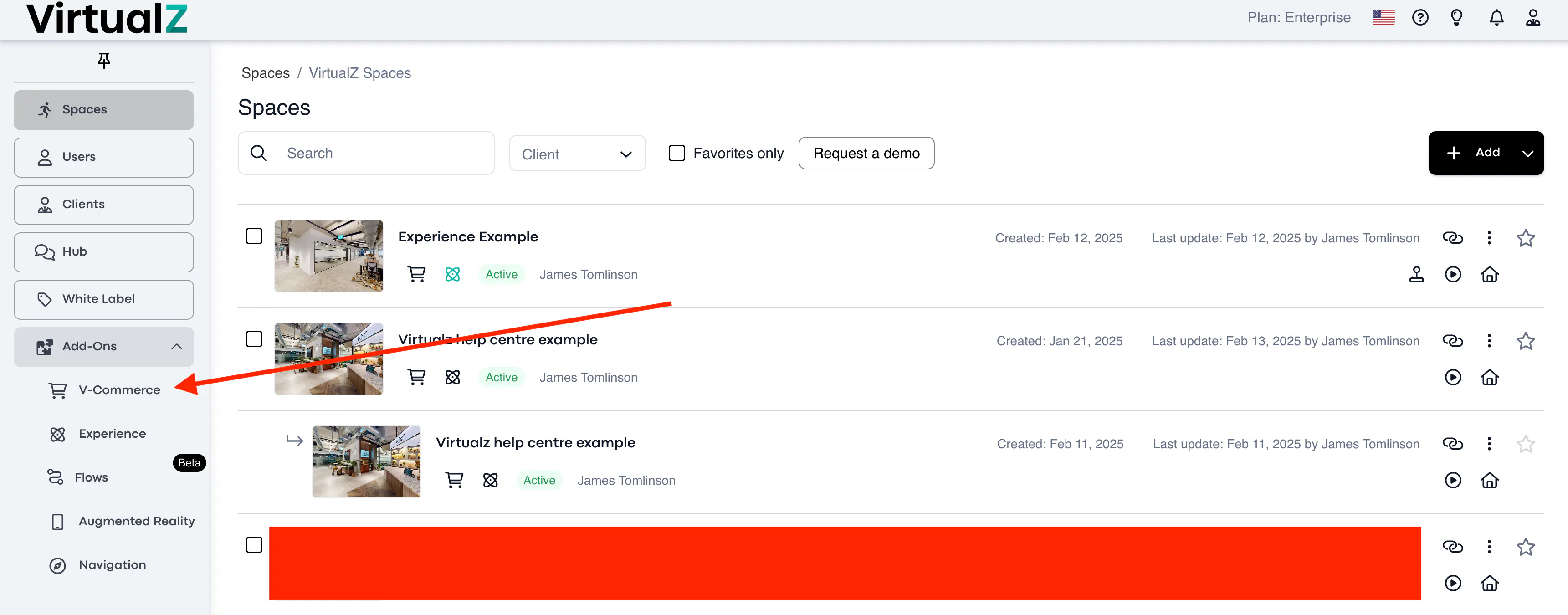
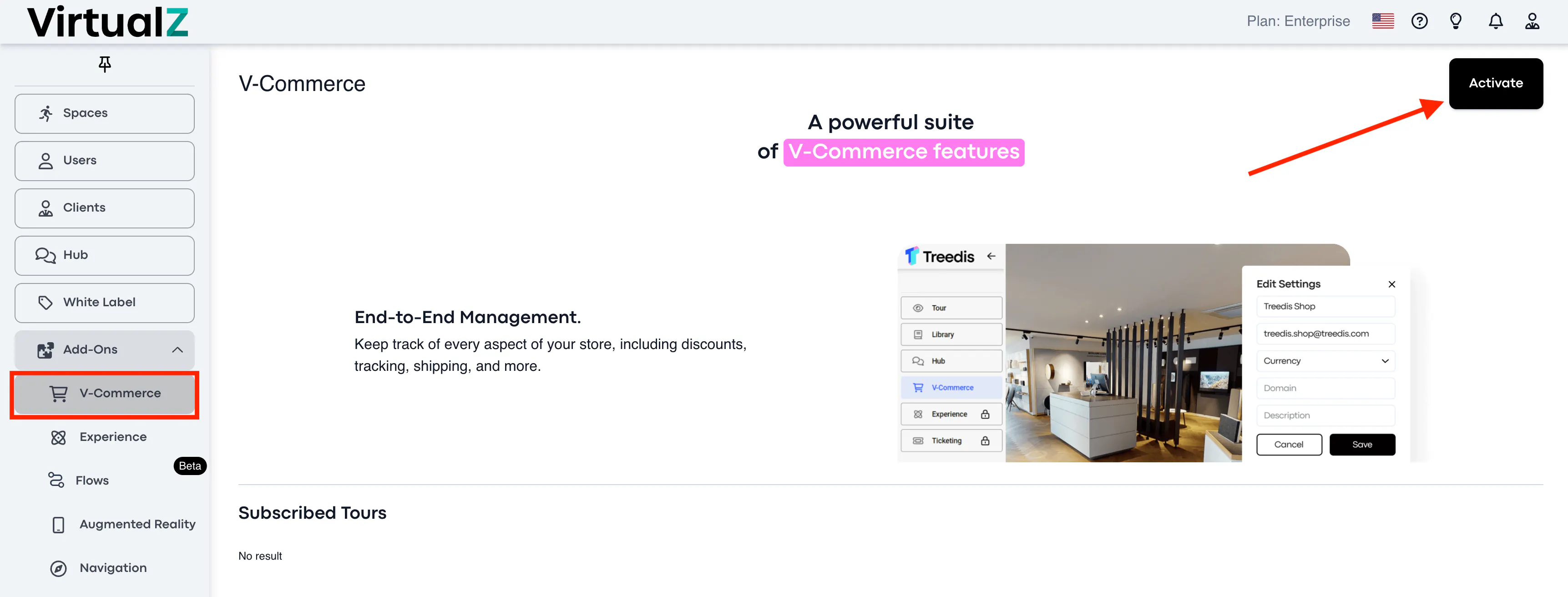
2. Select V-Commerce
After selecting the V-Commerce add on, you'll have the option to activate (formerly subscribe) at the top right corner of the screen.
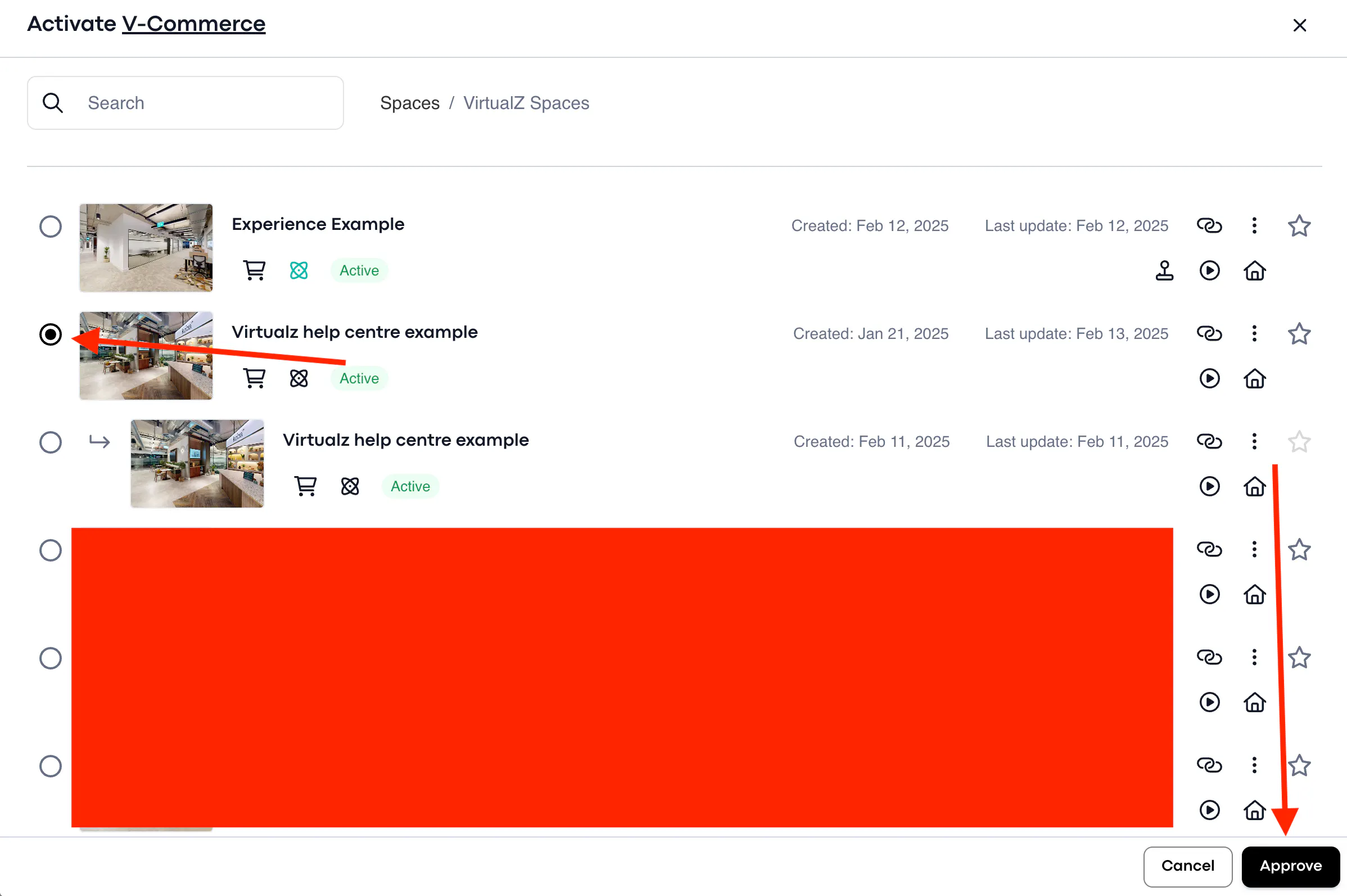
3. Select the relevant tour
You must assign this add on to a tour. You can select any tour.
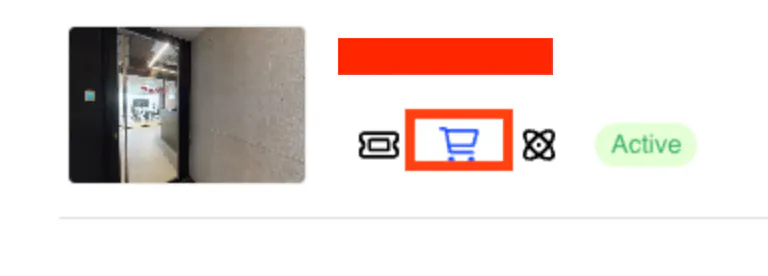
4. Check for the blue cart icon
Once you see the cart icon turn blue, you'll know that you have activated V-Commerce.