Connecting OAuth for Private and Password Protected Models
Integrating your Matterport OAuth within the Virtualz platform guarantees the privacy of your tours, preventing unauthorized access via public links. This feature adds an extra layer of security to your content.
To connect OAuth, take the following steps:
1. Login to your Matterport account.
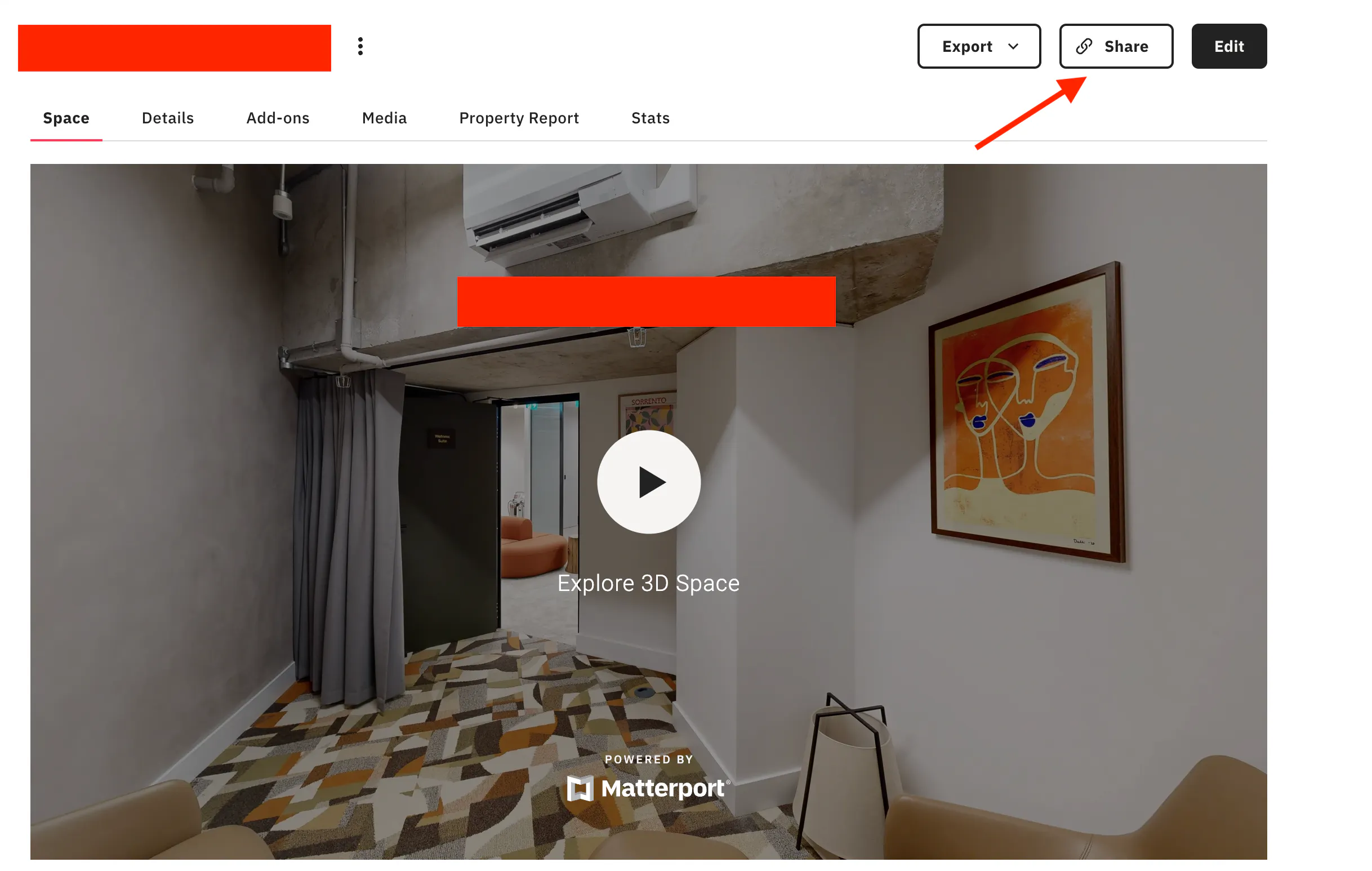
2. Select the 'Share' option on the model that you would like to be private or password protected.
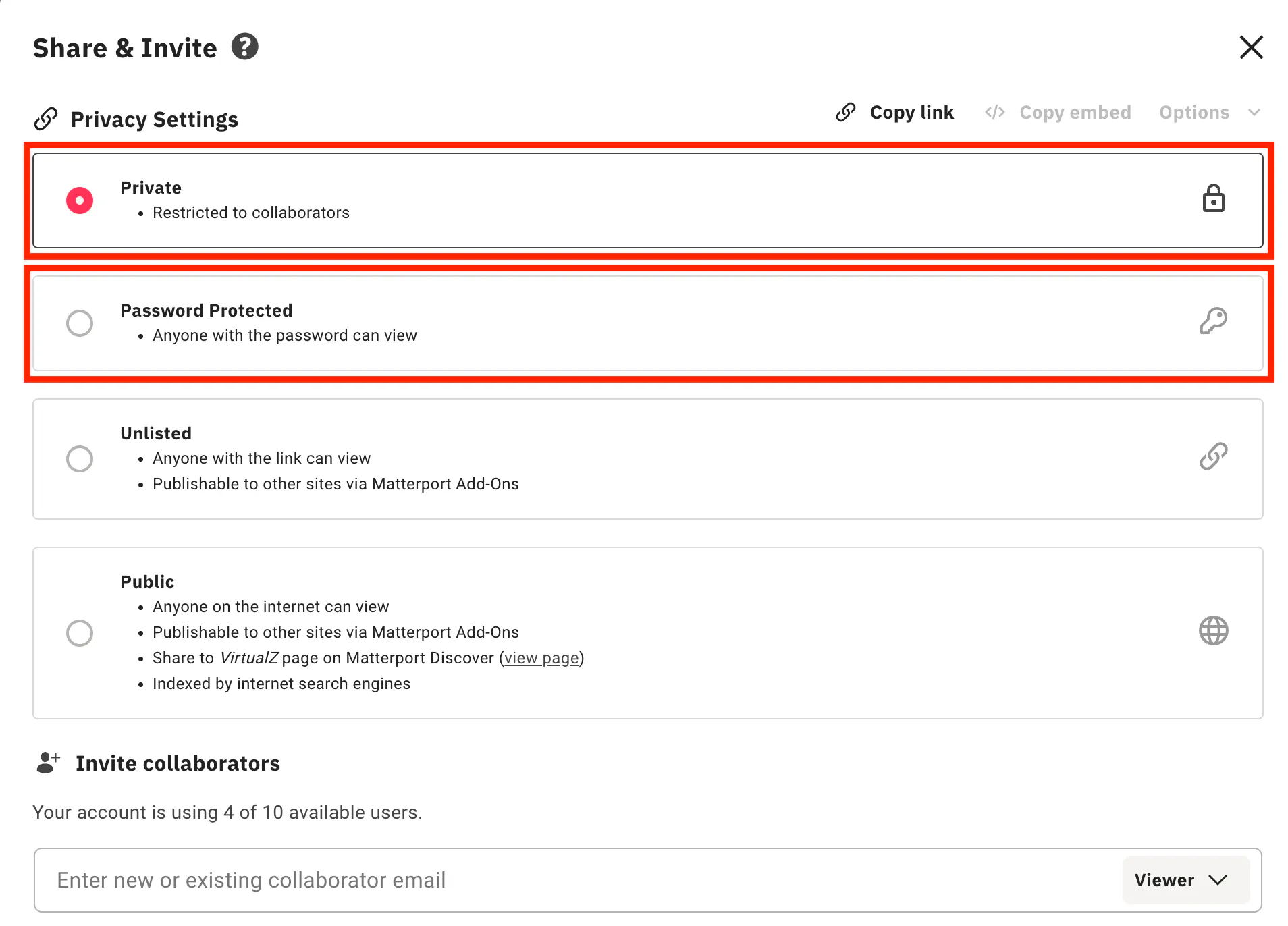
3. Make the tour private OR password protected.
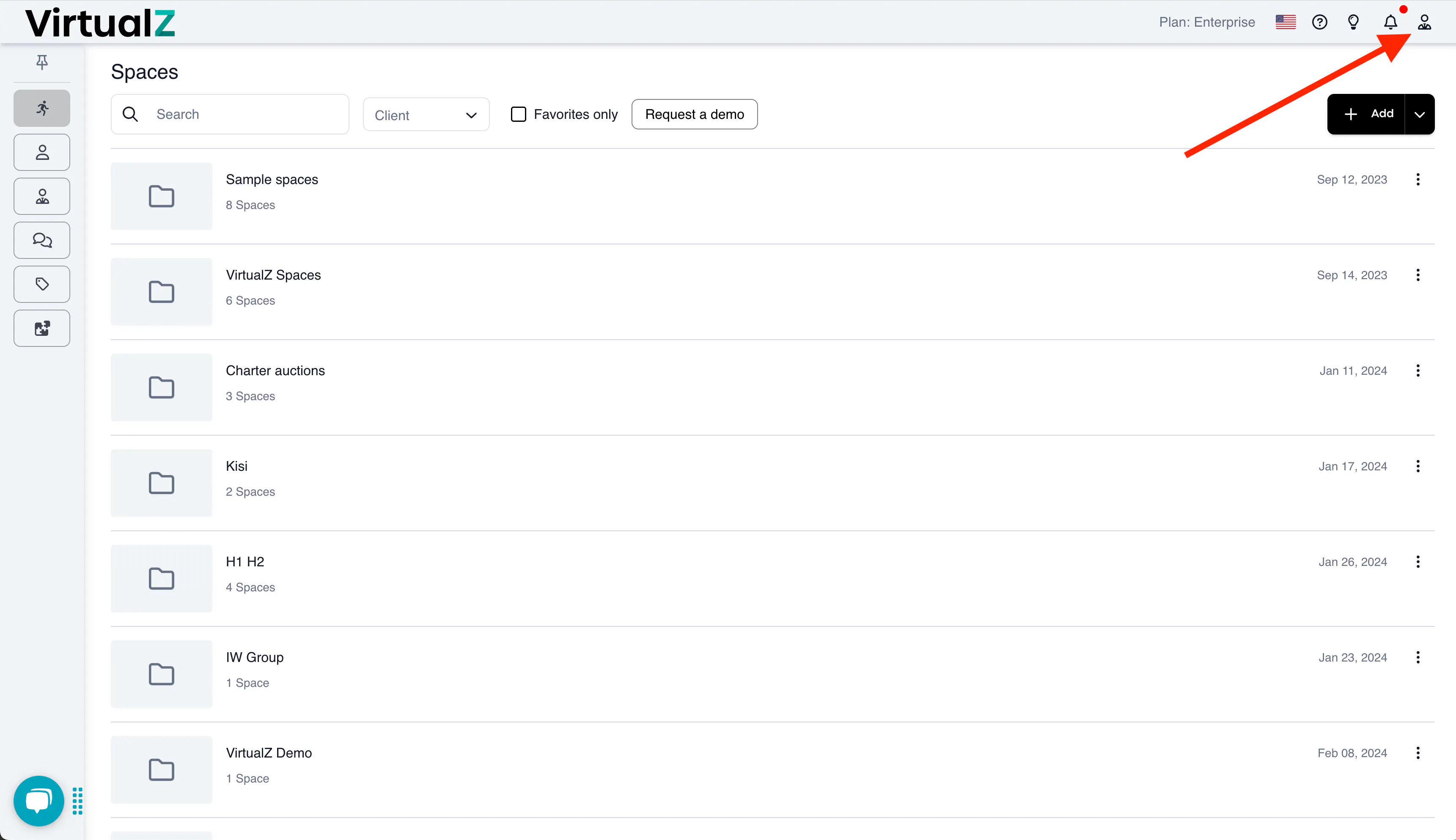
4. Login to your Virtualz account and go to 'Profile'.
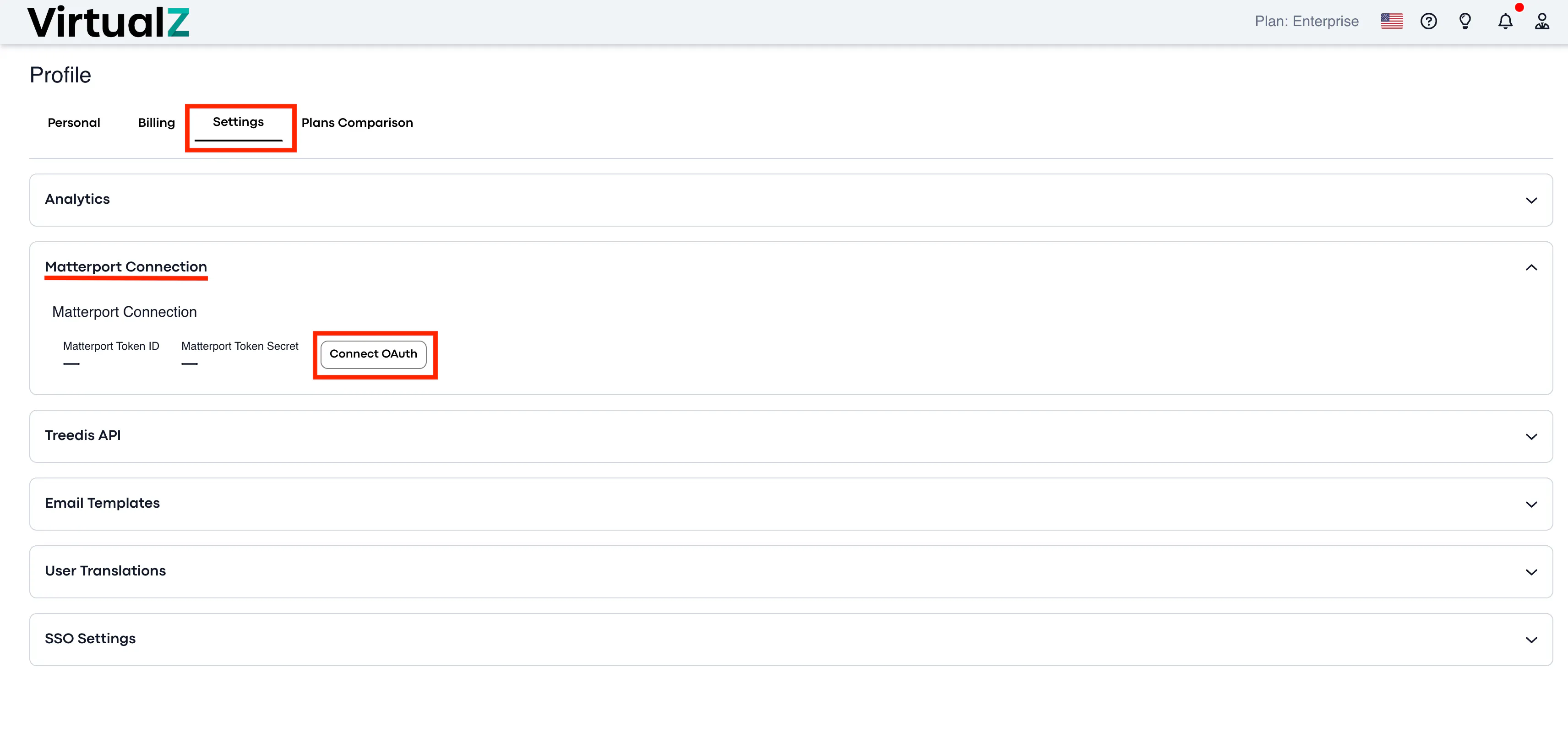
5. Navigate to the Settings dropdown menu and select 'Connect OAuth' under the 'Matterport Connection' submenu.
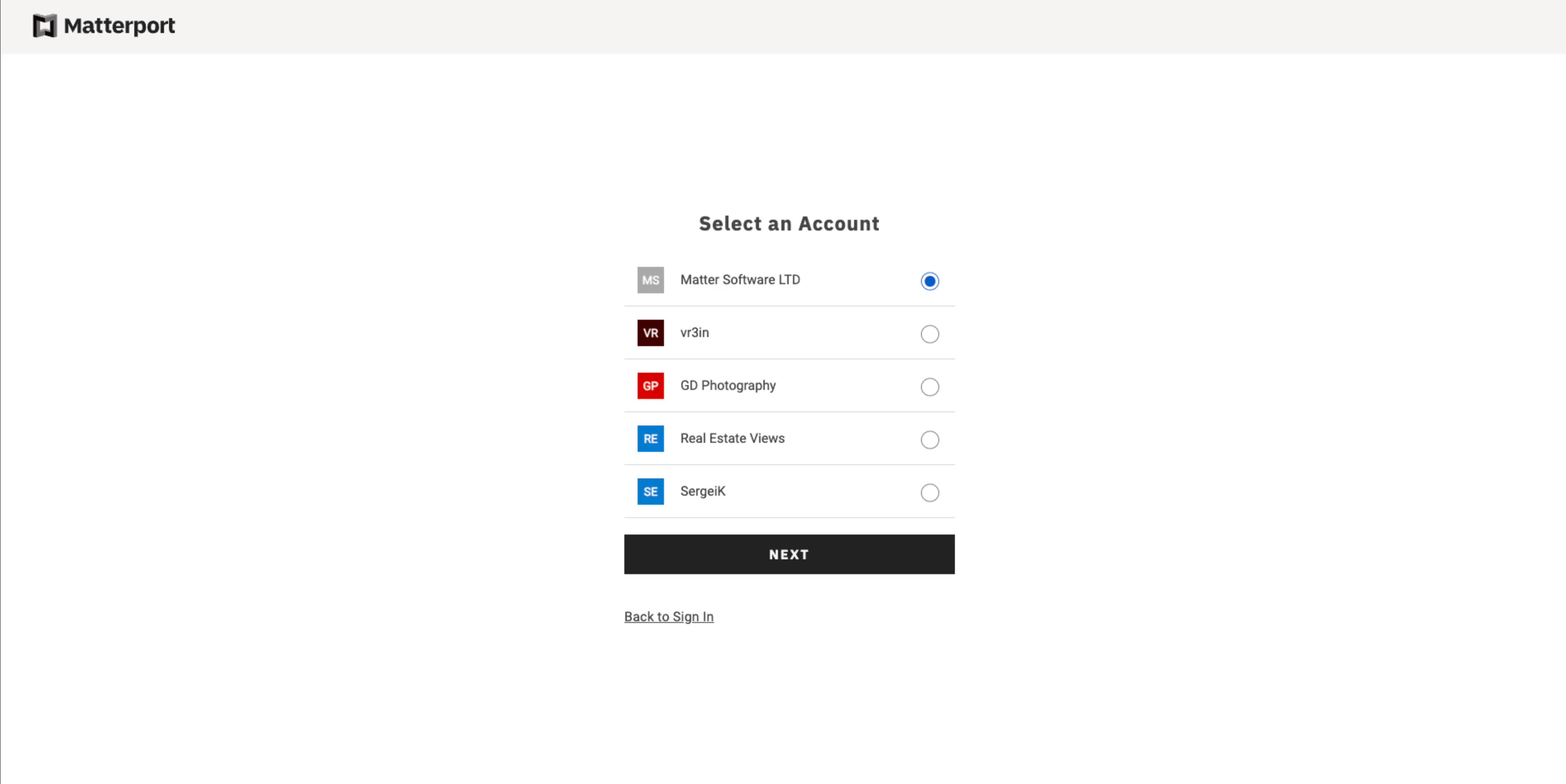
6. Select the account associated with the model that you wish to keep private (or password protected).
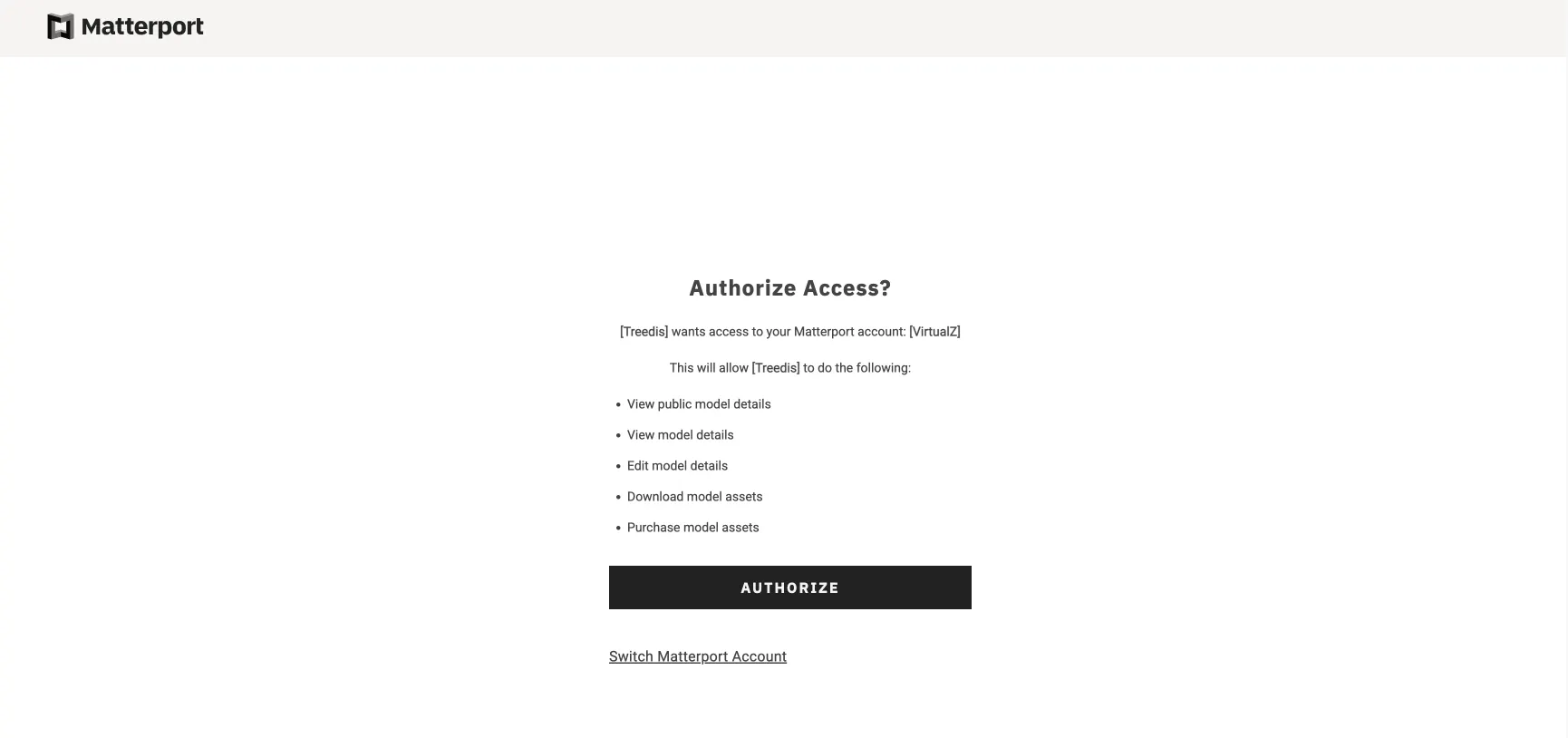
7. Authorize the access.
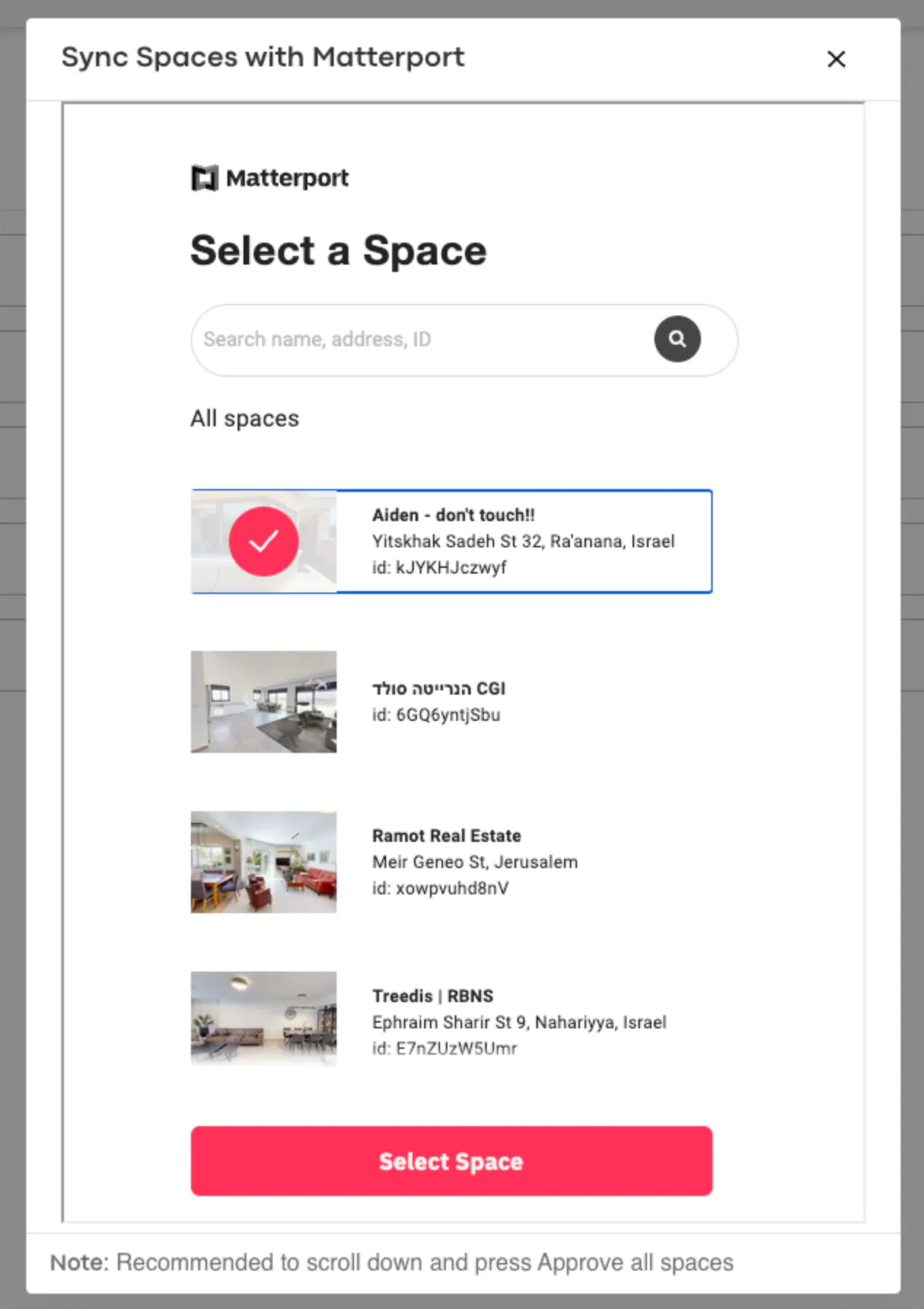
8. Select the relevant space. You can also sync all of your Matterport spaces to Virtualz from this popup.
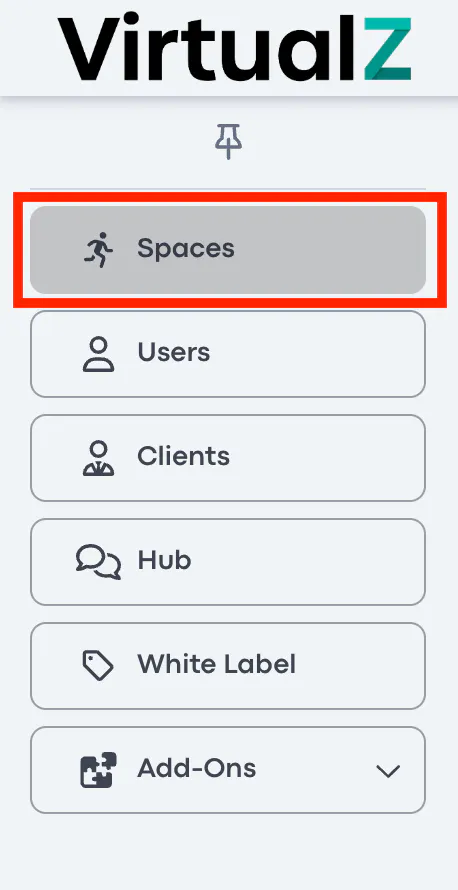
9. Navigate to the spaces page and find the relevant tour.
10. Go to 'Manage' and edit the 'Info' settings.
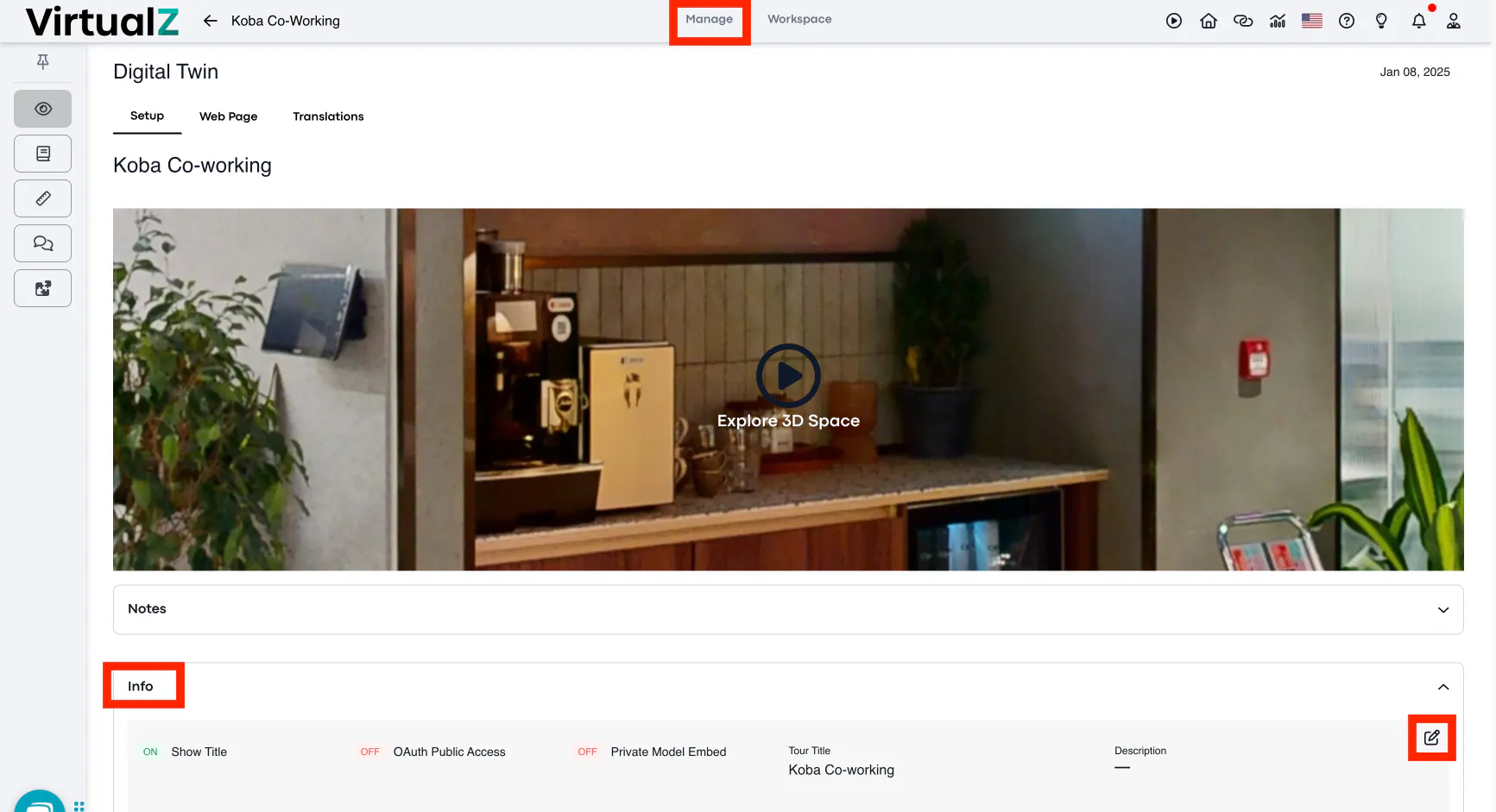
11. Toggle "OAuth Public Access" on.
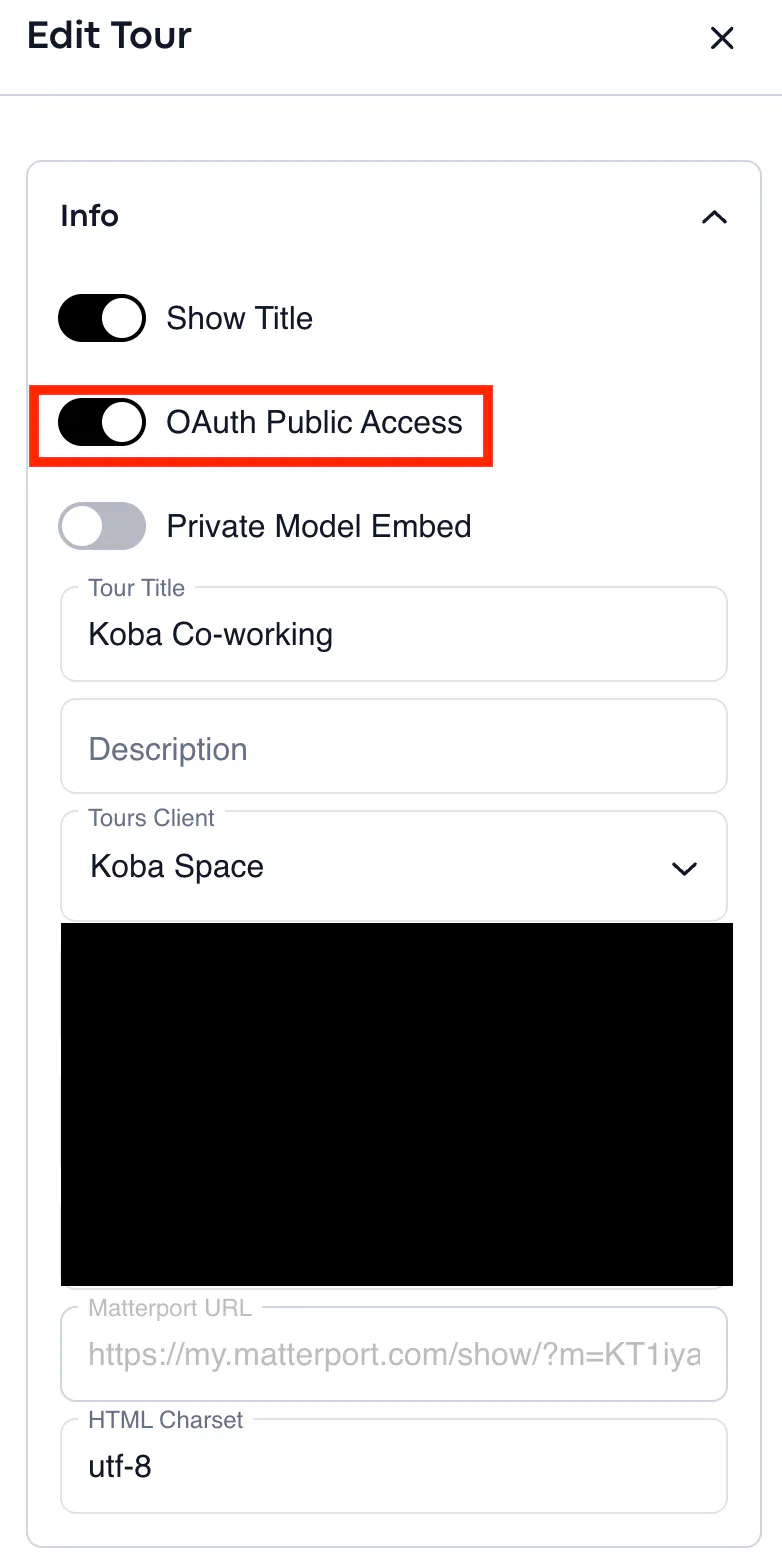
Important Note: Failure to connect OAuth in both the profile settings and tour settings will result in your tour not loading.