Contacts
The Contacts section allows you to manage various email settings related to lead collection, notifications, and customer interactions.
NOTE: If you don't have a Client assigned to your tour, the lead emails will not be delivered anywhere.
Go to the tour's Manage section > scroll down to find the Contacts > click on the Edit button:
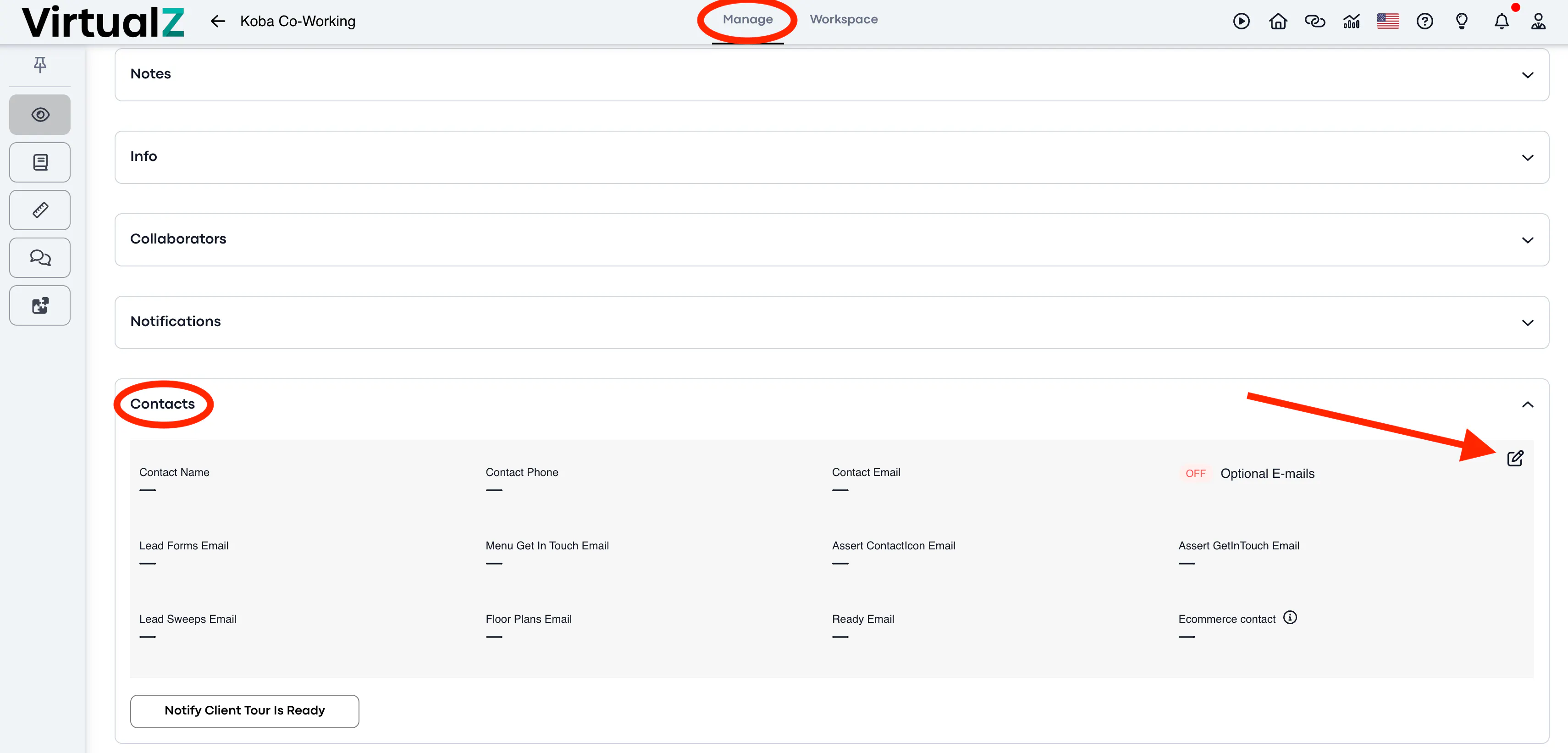
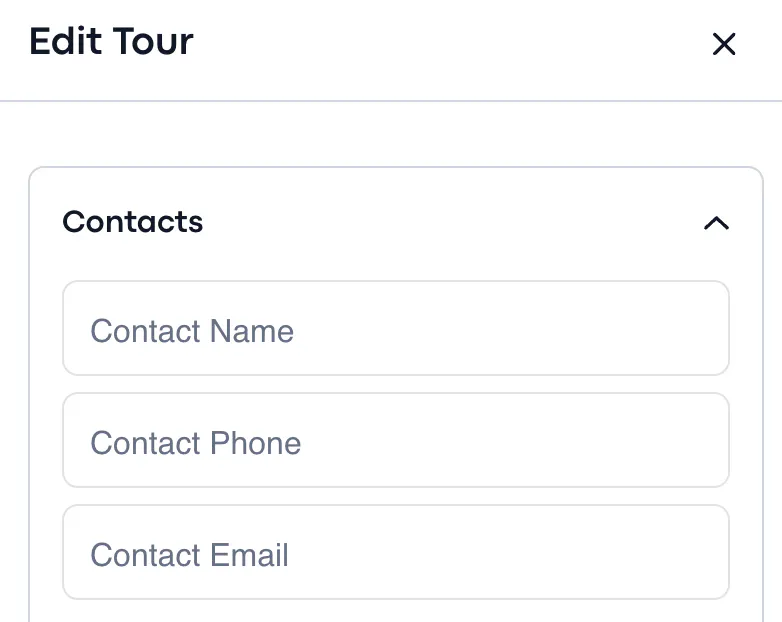
Contact Name, Contact phone, and Contact Email are the details that will be shown in the contact form in the Burger Menu. These are optional fields, if you leave them - the form will show the corresponding information of the assigned Client.
Enable Toggle the Optional Email switch to enable additional contact options:
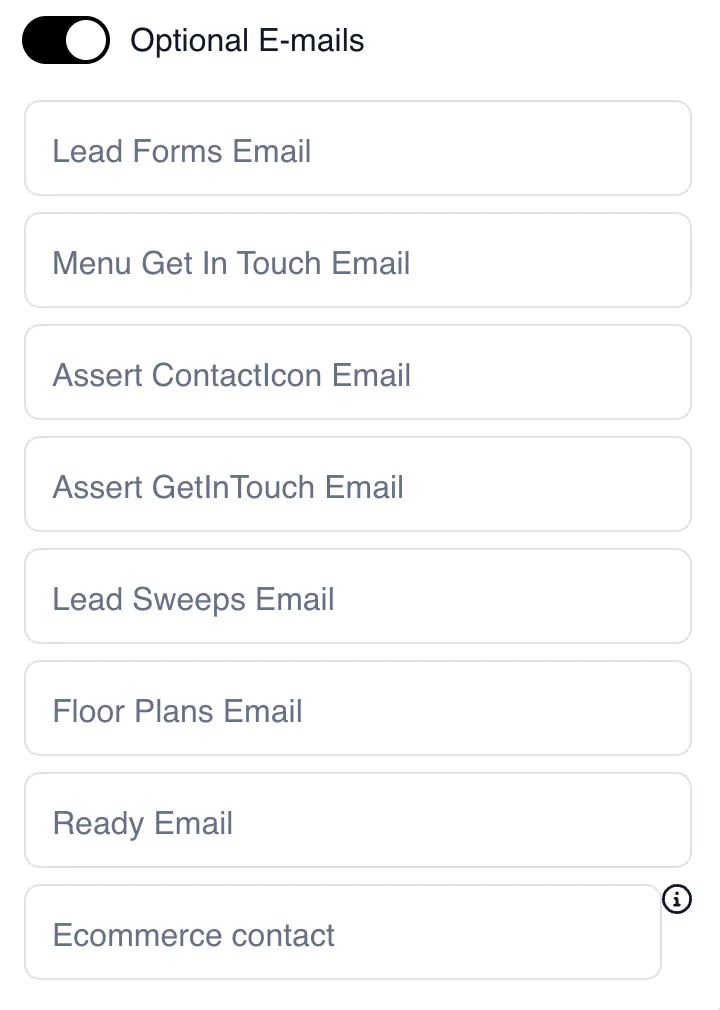
- Lead Forms Email - if you want to collect leads from the form on the IntroScreen, enter the email address where the lead information will be sent;
- Menu Get in Touch Email - enter an email address here to enable the "Get in Touch" form accessible via the burger menu;
- Asset Get in Touch Email - this email is required to enable the "Get in Touch" form on your asset page;
- Lead Sweeps Email - if you make a lead form inside the tour, for instance, in 3D scans, in this case, you need to indicate the email address here to collect the data;
- Floor Plans Email - when a floor plan is ordered, it will be delivered directly to the floor plan section within the tour. If an email is provided here, clients will also receive a notification when the floor plan is ready;
- Ready Email - enter an email in this field to notify clients when a tour is ready to view;
- E-Commerce Contact - this contact will receive emails related to shop requests or needed assistance.
Please note that if you are a White Label user, you will receive a confirmation email to your White Label e-mail address upon registration a WL. If this email is not confirmed, lead form information will not be received.
Fill in the needed forms and do not forget to save the changes.