Manage: Info
“Info” is information that will be displayed in your tour:
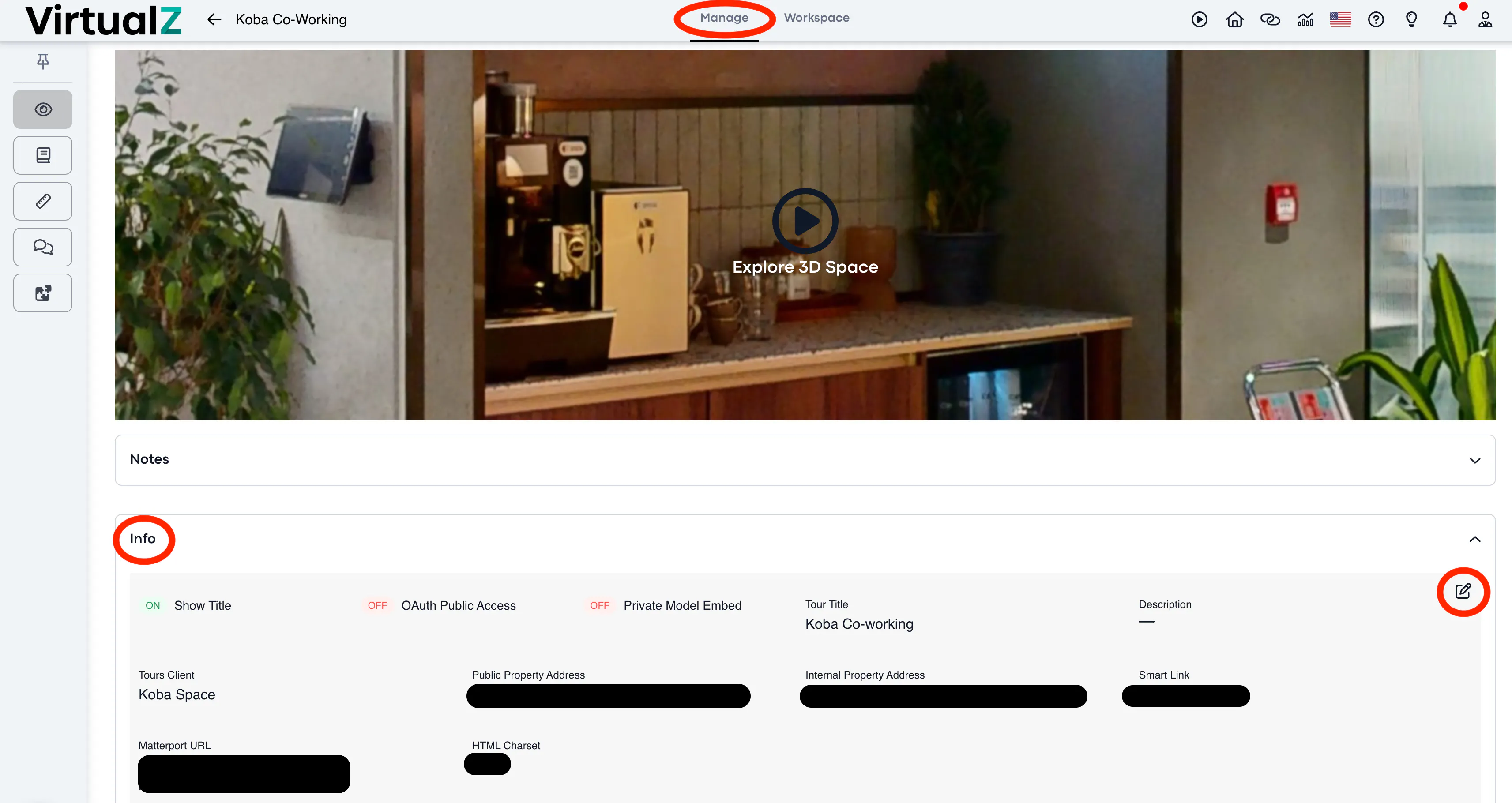
Select the needed space and in the Manage (1) section scroll down a little bit to the Info (2). Here you should press the editing button (3):
Here are the information you can edit:
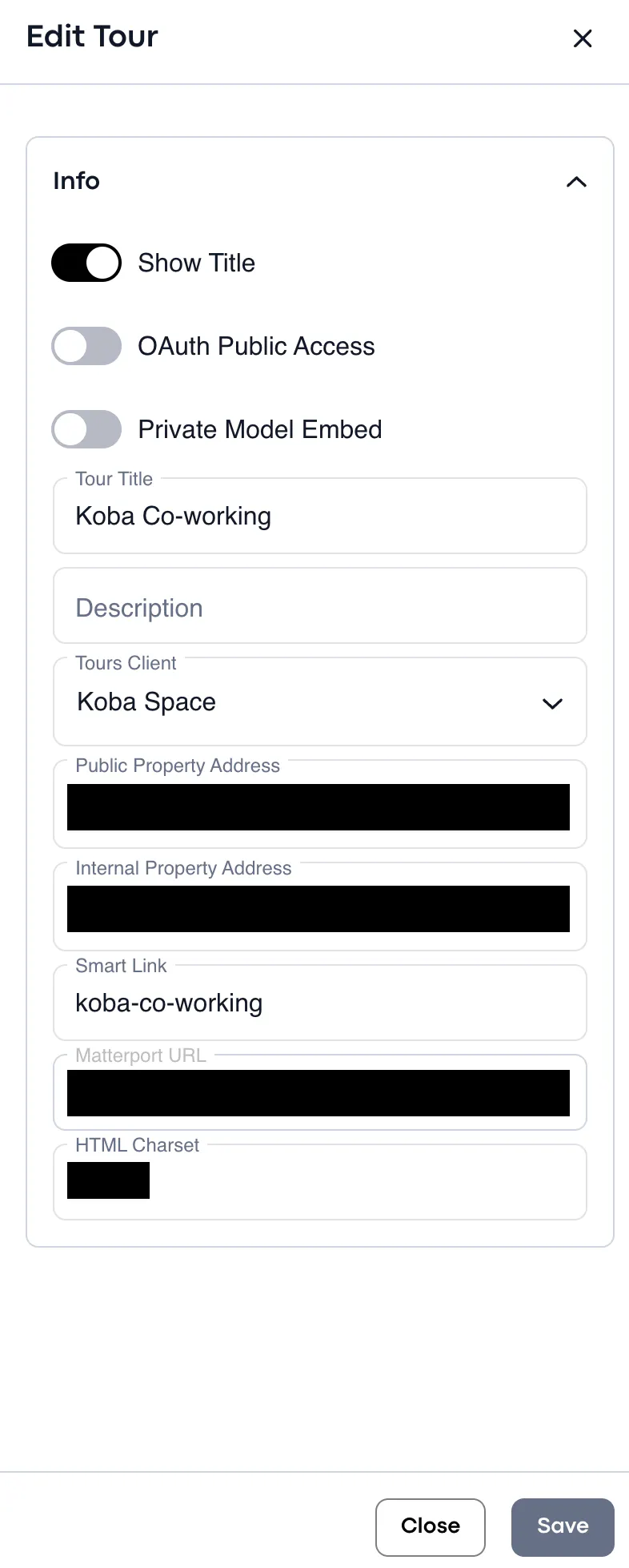
- Enable the Show title toggle if you wish it to be shown on a loading page and then enter the name to the Tour title field below;
- OAuth Public Access - allows you to load private Matterport models in public Virtualz links. The model will appear in Virtualz but won't be accessible through the Matterport link due to its privacy settings;
- Private Model Embed - with PME enabled, Enterprise users can set a curtain tour to appear only; on a specific webpage (contact us for more details if you are Enterprise), see more info on PME here;
- Description - general info about this specific tour (visible only on the Asset Page);
- Tour's Client - assign your tour to the Client's profile. It's important for making Hub calls, appearing Client's logo on the left upper corner of the tour, more details on Clients here;
- Public Property Aссess - displayed at the bottom of the Burger Menu (visible for all users);
- Internal Property Address - will be visible only under Manage -> Info (not visible for visitors);
- Smart Link - You can customize each tour with a unique URL. We recommend setting this up before making the tour public, as analytics will be based on this Smart Link. Avoid using apostrophes and underscores in the link.
- HTML Charset - for website descriptions used by Google Bots or share dialogs (like Facebook), the charset (UTF-8) defines the character set. UTF-8 is the default for most websites, but you can adjust it as needed.
IMPORTANT: Please be informed that it is not possible to edit the Matterport link, in case you have made some changes to the Matterport scans and need to update the tour - you would need to add it as a new tour to Virtualz.