Passwords
You can protect your tour and Analytics page with a password to control access. This ensures that only authorized users can view the tour or access analytics data. Without the correct password, users will be unable to load the tour or view the analytics.
For Tours with Passwords in Matterport
If you set a password for your tour in Matterport, you must activate OAuth in Treedis to ensure proper synchronization. To do this:
- Go to Profile > Settings > Matterport Connection in your Treedis account.
- Enable OAuth.
When OAuth is activated, it overrides the Matterport password when accessing the Treedis tour link. If you wish to keep your Treedis tour password-protected and prevent users from bypassing it, you need to set a password in Treedis as well. This can be done here:
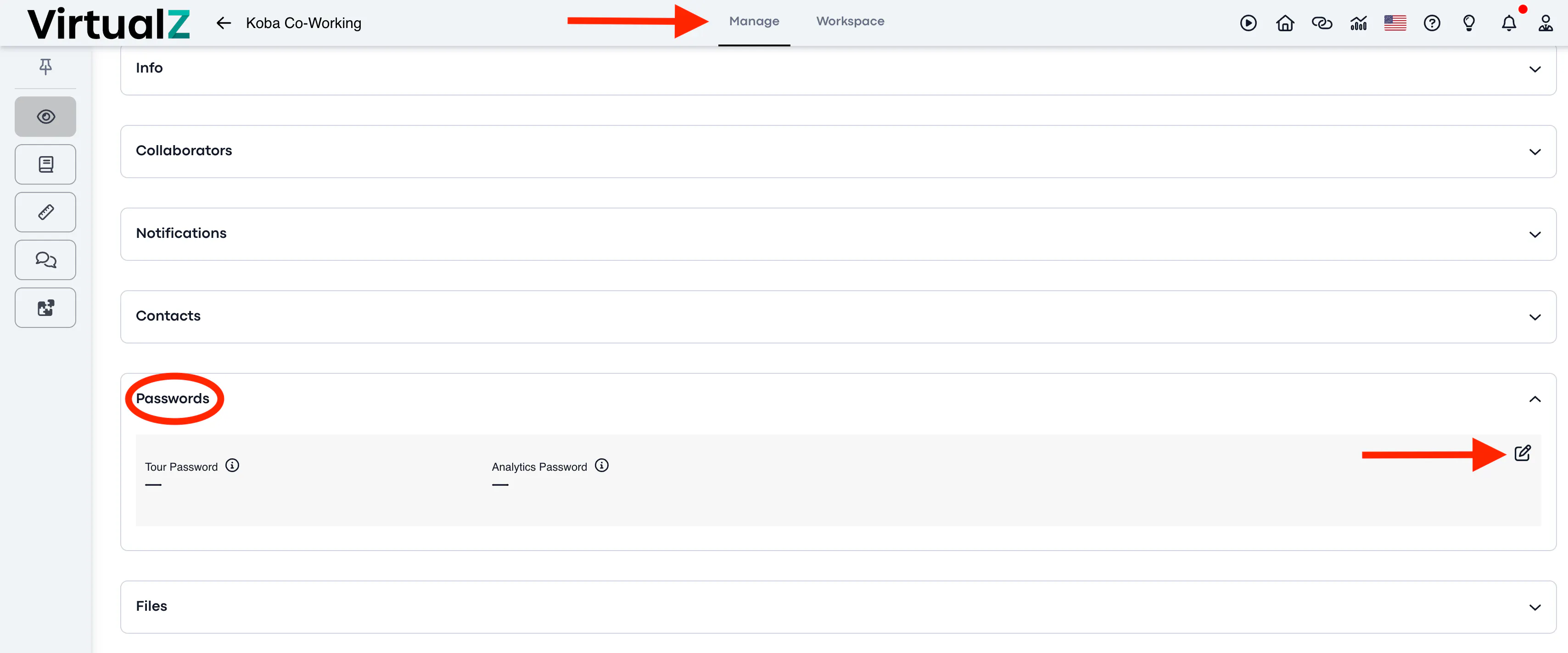
Also, you can set up the password for the tour's analytics.
IMPORTANT: All password-protected tours in Matterport must have OAuth enabled in Treedis. OAuth ensures that all features remain synchronized and adds an additional layer of protection against unauthorized access.
NOTE: If you are trying to add a tour and the system mistakenly indicates that it is password protected (even though it is not), it is likely because the tour is from a Matterport account that is not connected to your Treedis account via OAuth:
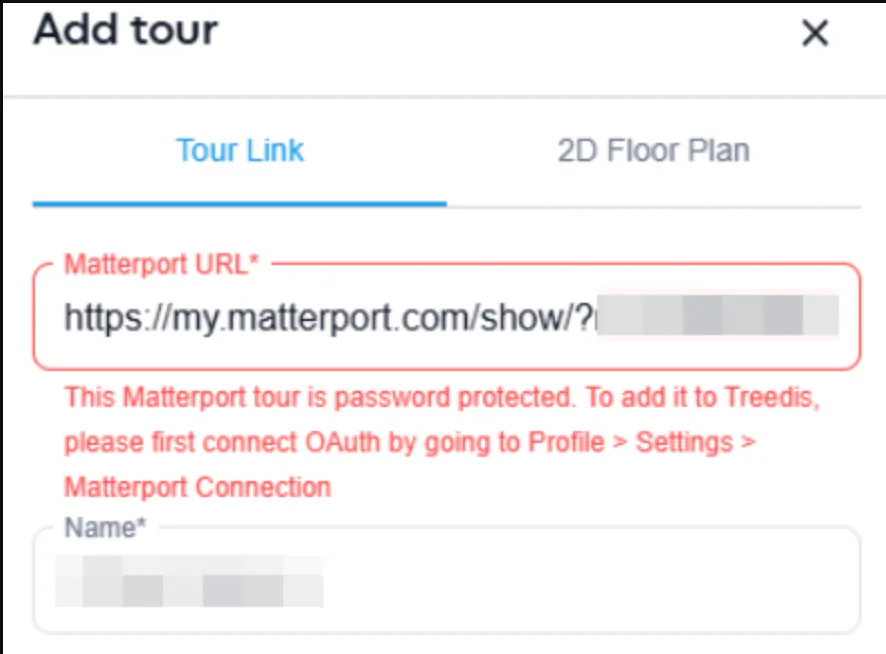
To resolve the issue, you would need to disconnect OAuth, refresh the page, and then attempt to add the tour again. However, if you reconnect OAuth to the original Matterport account later, this tour may stop functioning properly.
!!! Always ensure that the Matterport account associated with the tour is linked to Treedis via OAuth for optimal functionality.