Articles in this section
- Experience Creator: What is it and how to activate?
- Experience Creator: Preparation steps and examples
- Experience Creator: General
- Experience Creator: Timer
- Experience Creator: Experience Book
- Experience Creator: Backpack
- Experience Creator: Locks - General Info
- Experience Creator: Code Lock
- Experience Creator: Keyboard Lock
- Experience Creator: Collect Lock
- Experience Creator: Sequence Lock
- Experience Creator: Pop-up Trivia Lock
- Experience Creator: Genial.ly Lock
- Experience Creator: Conditions
- Experience Creator: Hints
- Experience Creator: Path General
- Experience Creator: Adding Steps to Path
Experience Creator: Hints
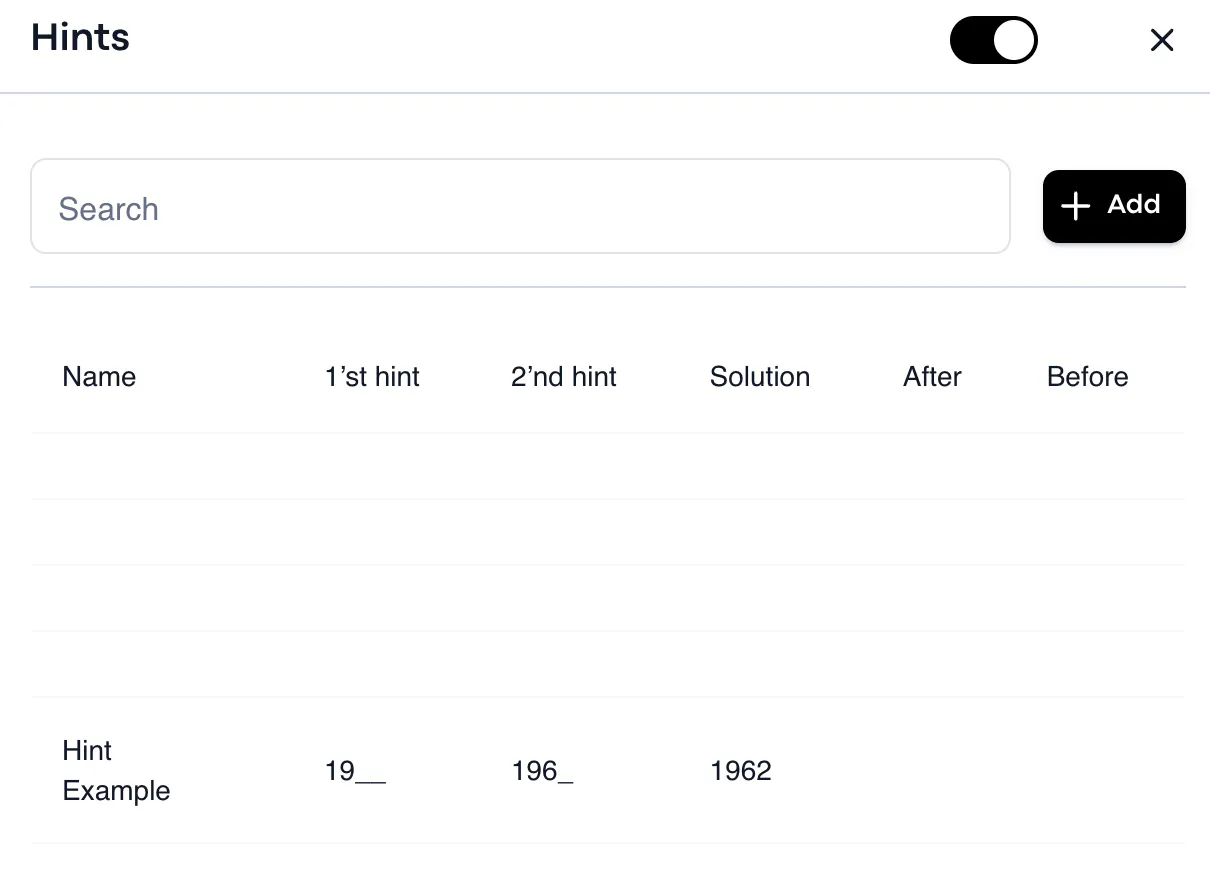
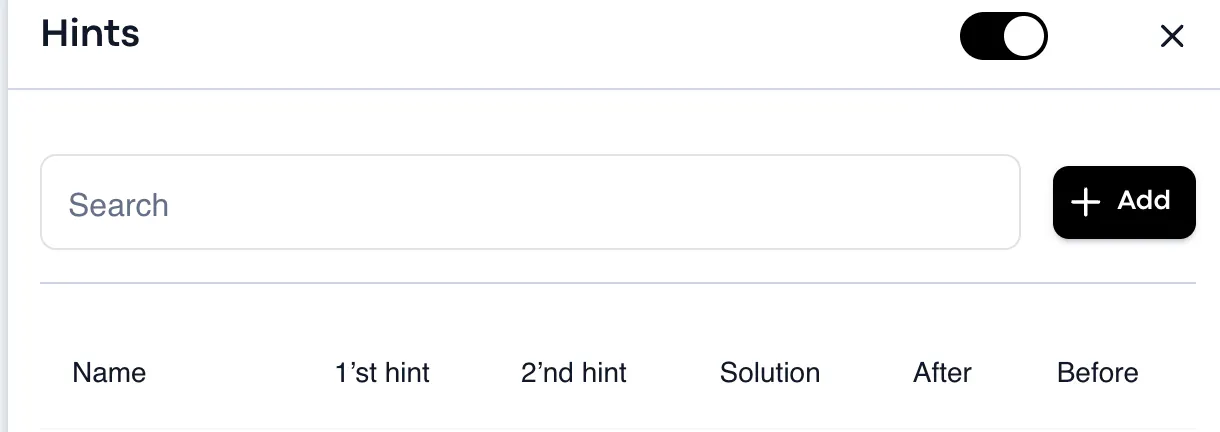
Hints are used when you would like to attach clues to locks in the experience. You can either define the hints individually per lock in the 'locks' section, or you can add them here.
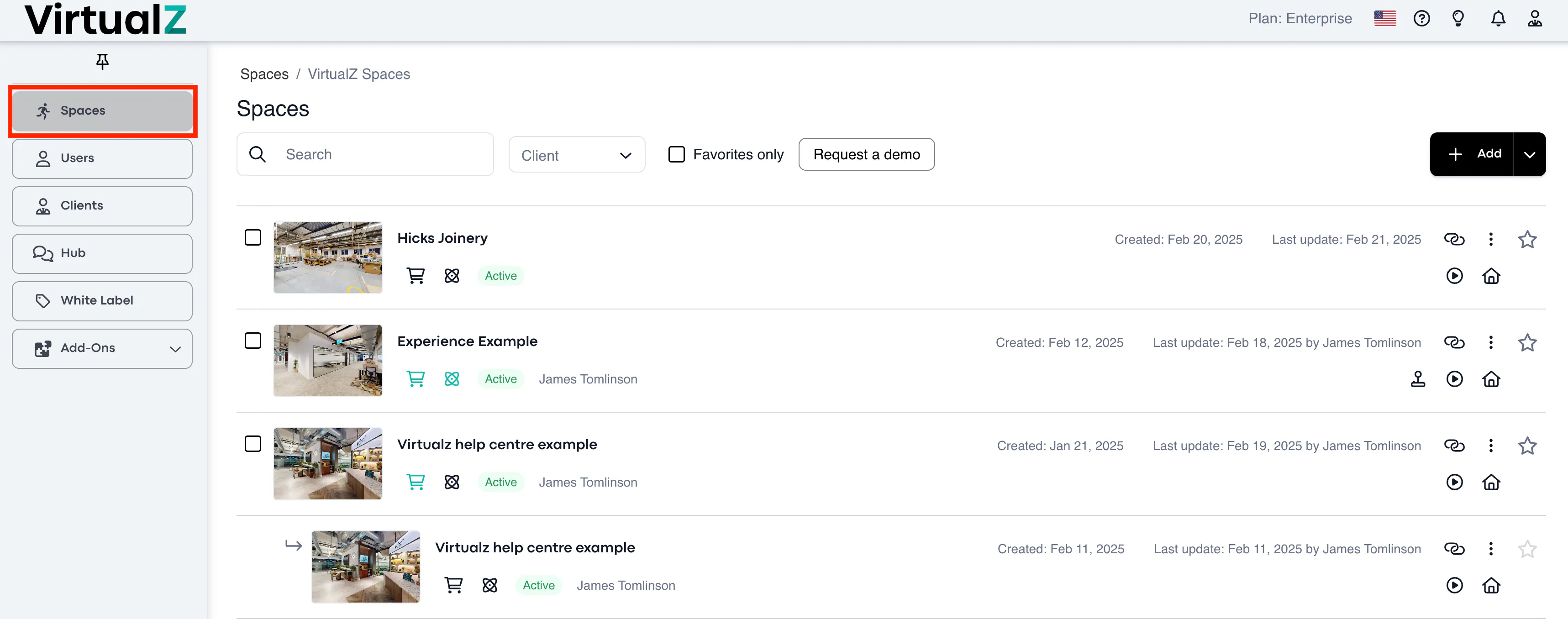
To find Hints, follow this path:
1. Spaces > Select the tour
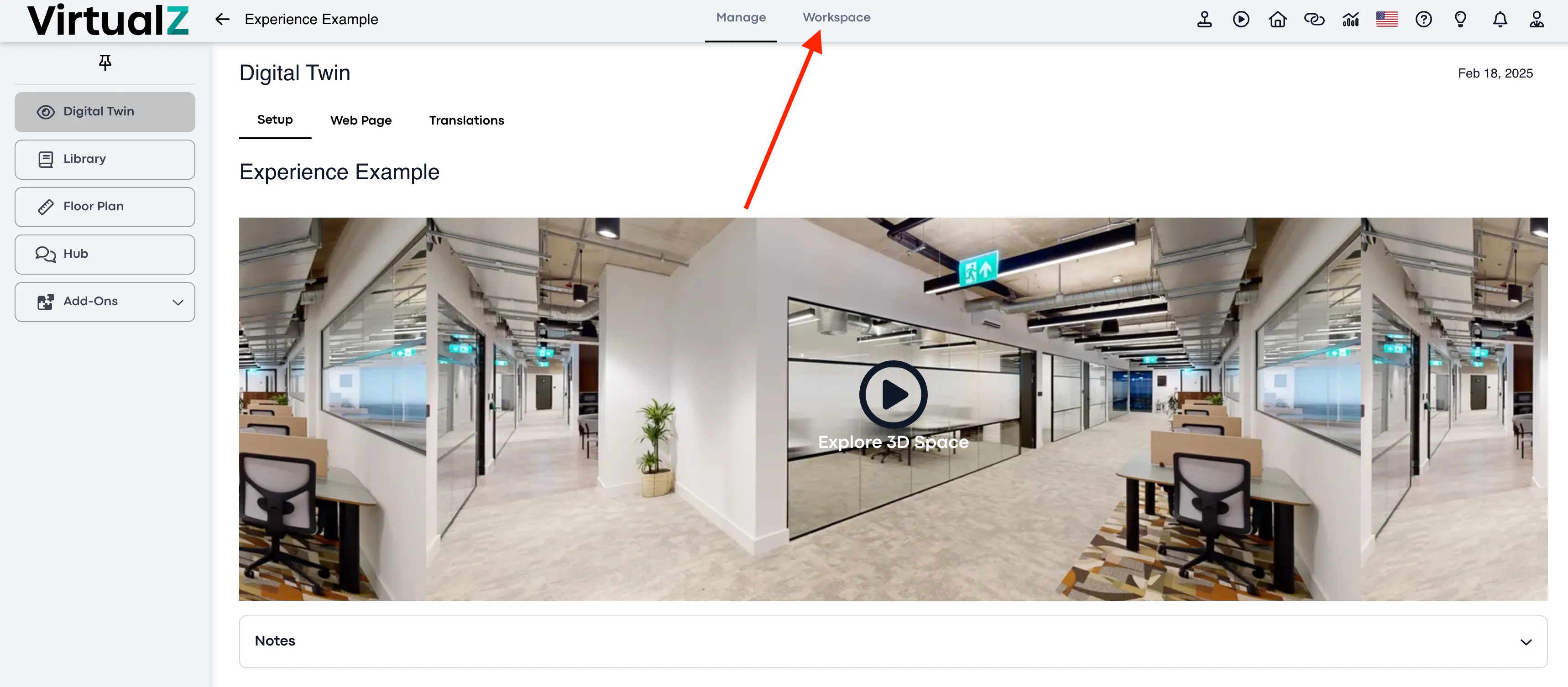
2. Workspace:
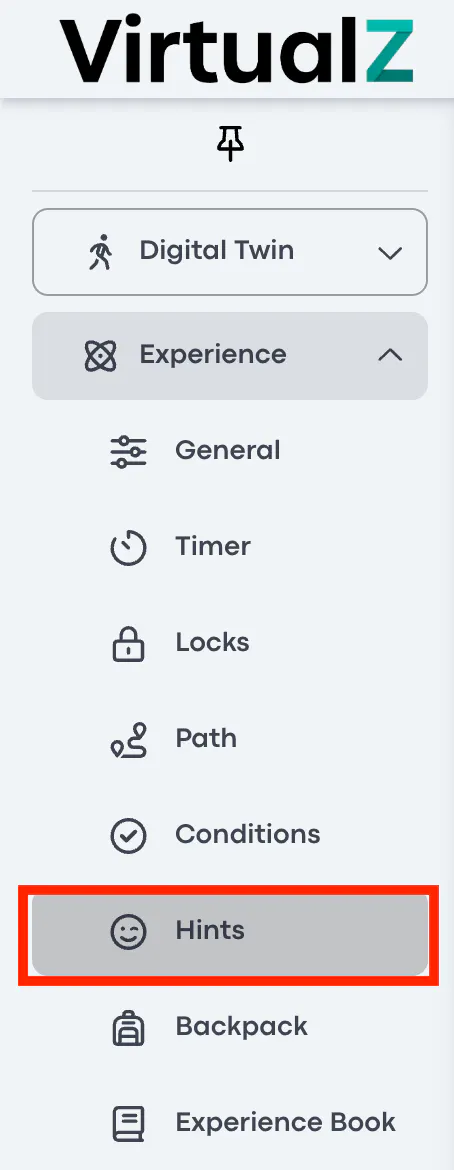
3. Experience: Hints
Functionality
Add Hints
To start adding hints, click on '+Add'
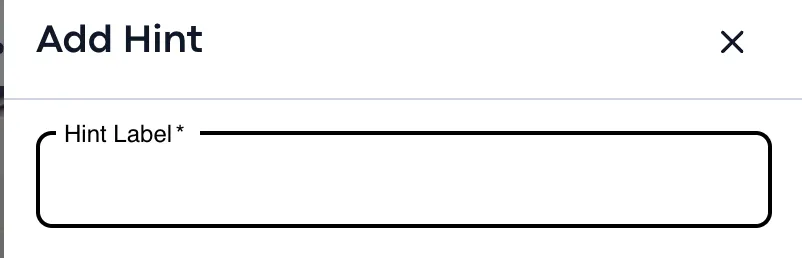
Hint Label
Give your hint an internal label.
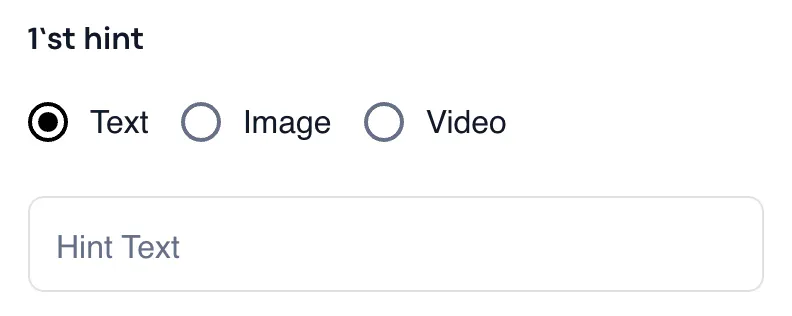
1'st Hint
Here you can provide the first hint as text, image, or video.
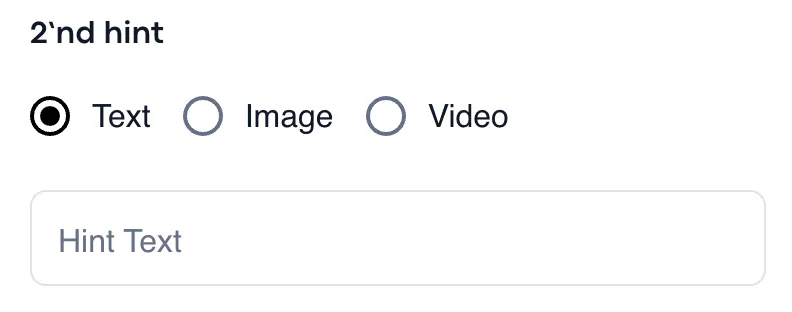
2'nd Hint
Here you can provide a second hint as text, image, or video.
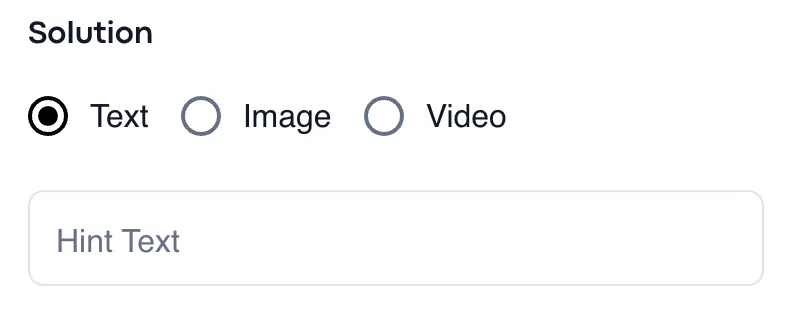
Solution
Provide the solution as a hint either as text, image, or video.
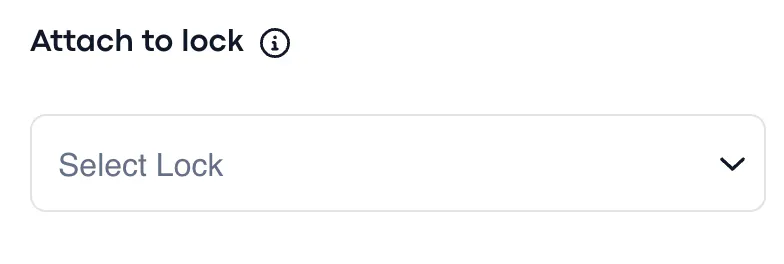
Attach to Lock
Attach the hint to the relevant experience lock.
After adding the hint, it will appear on the page like this: