Articles in this section
- Experience Creator: What is it and how to activate?
- Experience Creator: Preparation steps and examples
- Experience Creator: General
- Experience Creator: Timer
- Experience Creator: Experience Book
- Experience Creator: Backpack
- Experience Creator: Locks - General Info
- Experience Creator: Code Lock
- Experience Creator: Keyboard Lock
- Experience Creator: Collect Lock
- Experience Creator: Sequence Lock
- Experience Creator: Pop-up Trivia Lock
- Experience Creator: Genial.ly Lock
- Experience Creator: Conditions
- Experience Creator: Hints
- Experience Creator: Path General
- Experience Creator: Adding Steps to Path
Experience Creator: Path General
The Path is the route that the user will use to move through the experience.
The Path is the last thing that you should enable while creating the experience. That’s because the effectiveness of the path depends entirely on your locks, media, and other elements that need to be in the tour first.
To find the Path:
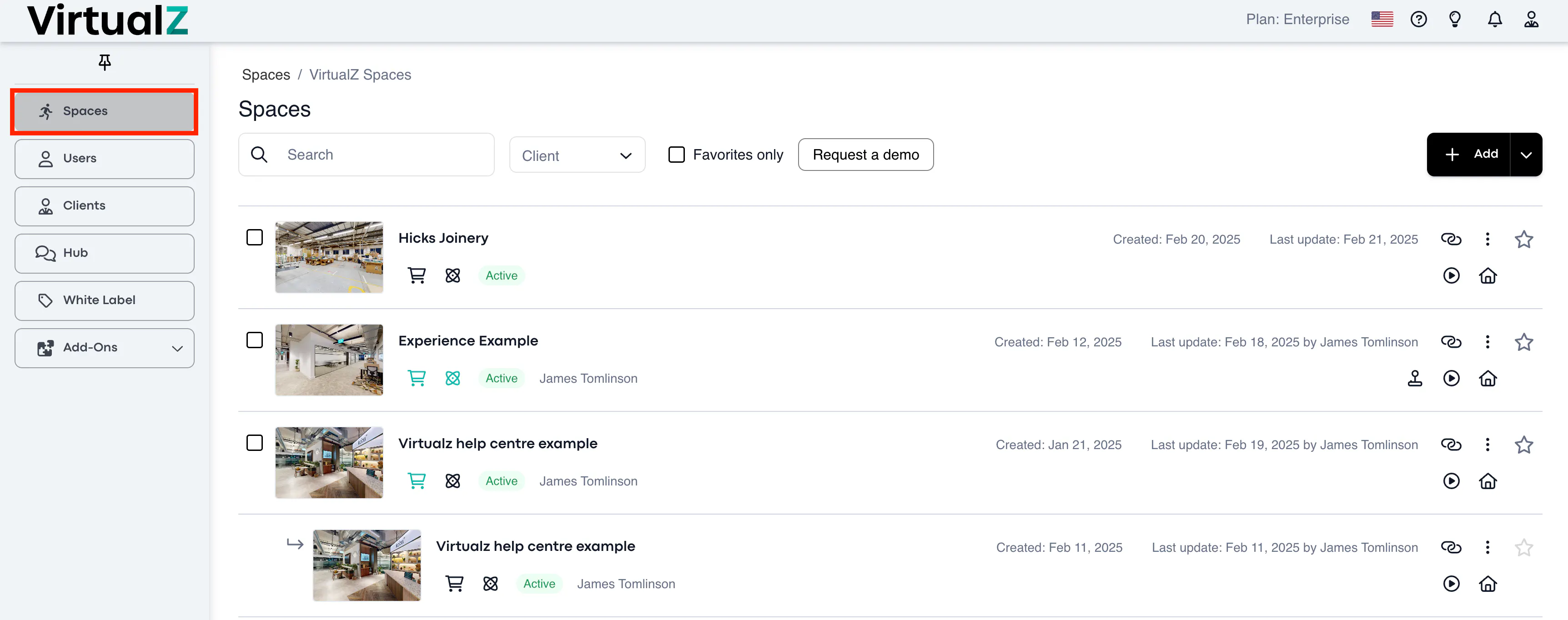
1. Spaces > Select the tour:
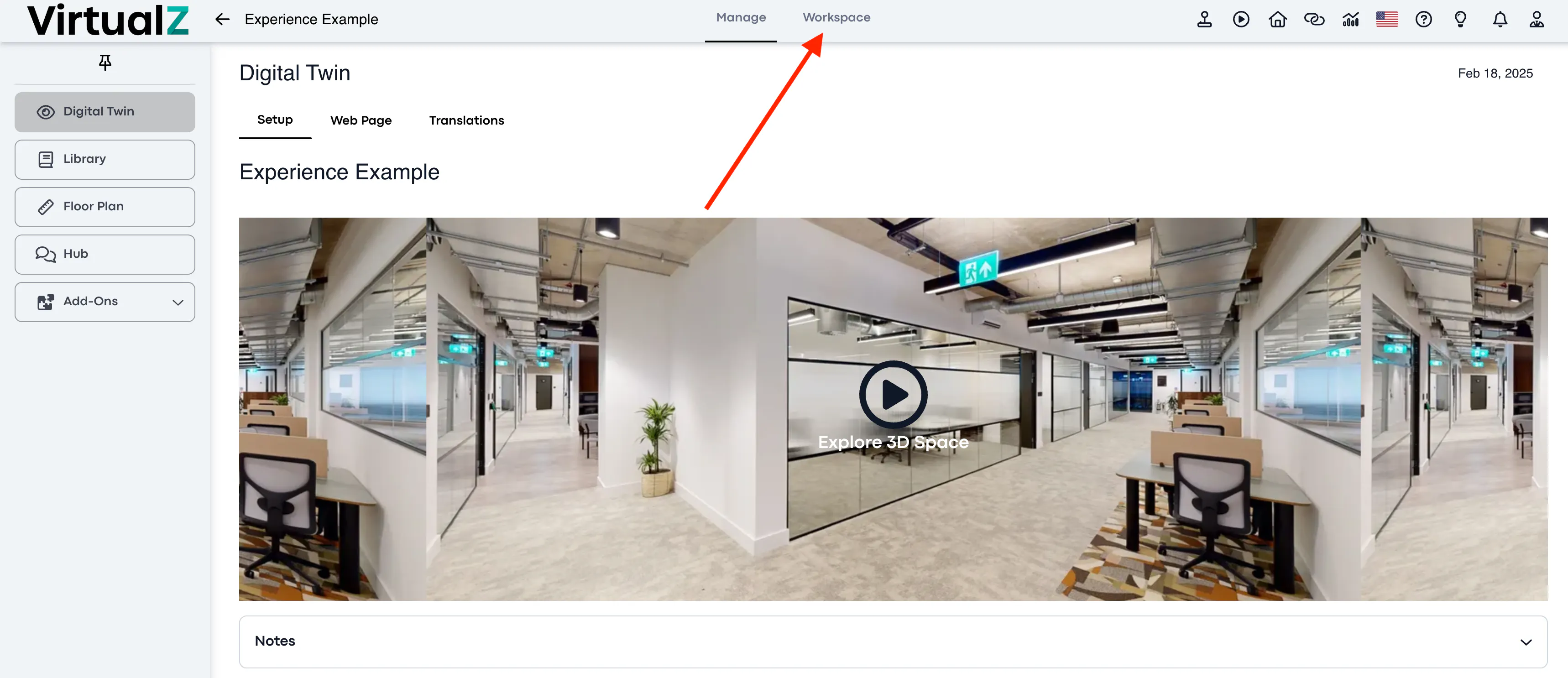
2. Workspace:
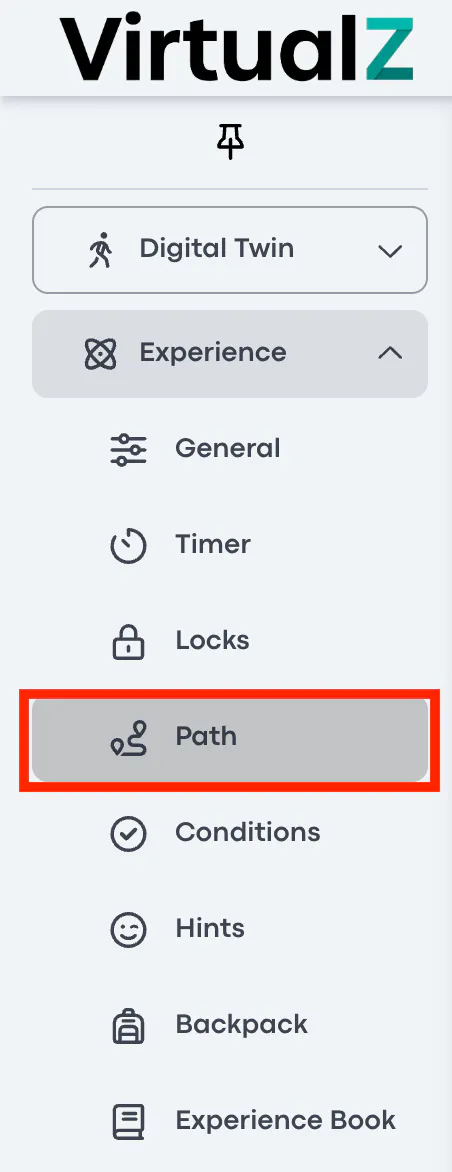
3. Experience > Path:
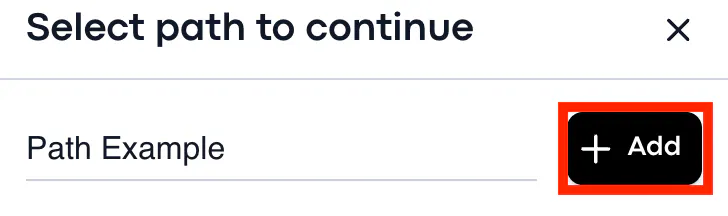
4. Provide a name for the path > Click add:
Functionality
Settings
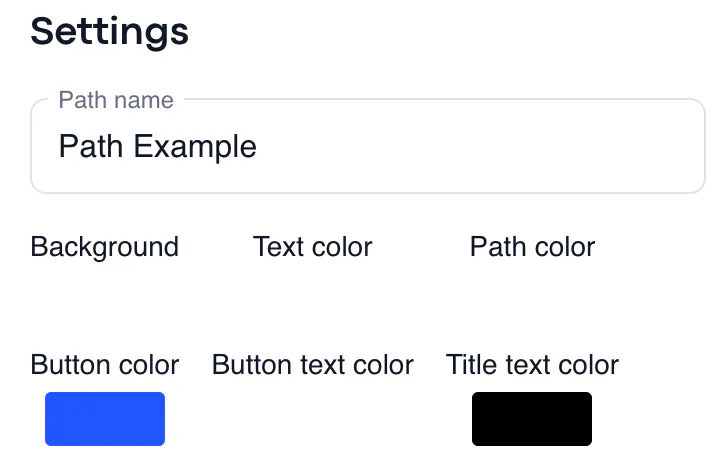
Under the Settings, you have the option to change the color for the path background, button, text, button text, and title text.
Icon
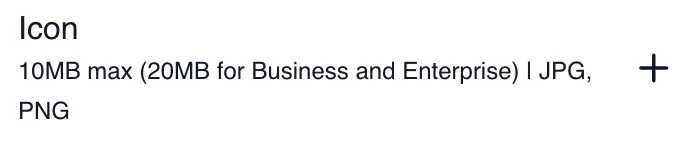
You can add an icon to appear in the path. This can be a person, a logo- anything you'd like to appear in the path, as long as it's a JPG/PNG. The maximum size for Growth users is 10MB and 20MB for Business and Enterprise users.
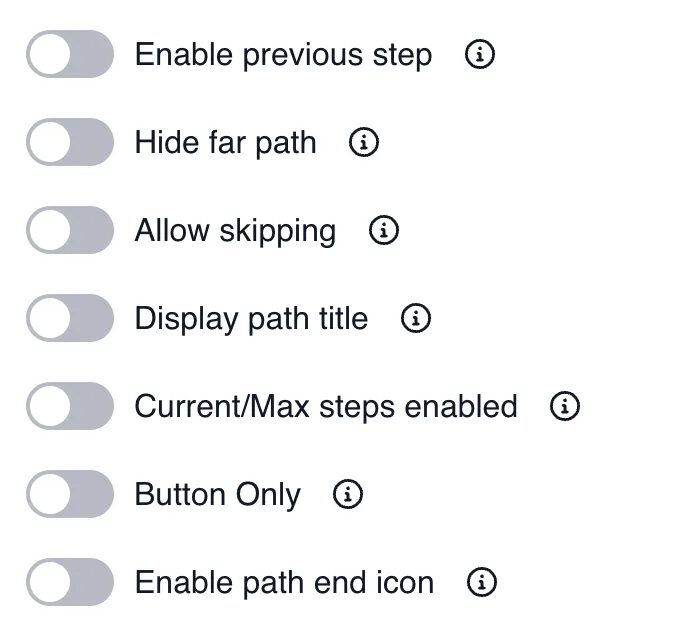
Enable Previous Step: The path will have a 'go back' button that allows users to return to the previous step in the experience.
Hide Far Path: This will hide "Next step trigger" items of steps that is not in current step
Allow Skipping: This will allow users to skip certain steps in the experience. If enabled, once the user clicks on a future step, the path will update and clear all in between steps.
Display Path Title: This will display the path label as defined when creating your steps. The label would otherwise be internal.
Current/Max Steps Enabled: This will display the progress on a label inside of the path.
Button Only: This will only show the button on the path, not the description or label.
Enable path end icon: This will display a 3D icon at the end of the path when the user nears the final step.
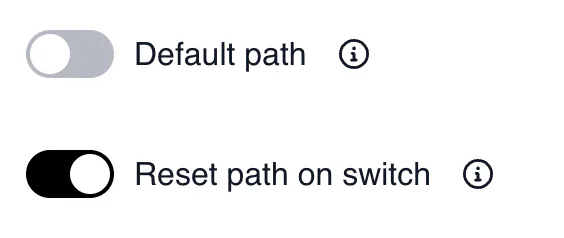
Default path: The default path will appear when the user enters the experience.
Reset path on switch: This feature will reset path progress when user switches to another path.