Articles in this section
- Experience Creator: What is it and how to activate?
- Experience Creator: Preparation steps and examples
- Experience Creator: General
- Experience Creator: Timer
- Experience Creator: Experience Book
- Experience Creator: Backpack
- Experience Creator: Locks - General Info
- Experience Creator: Code Lock
- Experience Creator: Keyboard Lock
- Experience Creator: Collect Lock
- Experience Creator: Sequence Lock
- Experience Creator: Pop-up Trivia Lock
- Experience Creator: Genial.ly Lock
- Experience Creator: Conditions
- Experience Creator: Hints
- Experience Creator: Path General
- Experience Creator: Adding Steps to Path
Experience Creator: Sequence Lock
Sequence Locks are often used to create an effortless flow in the experience. That's because they can be assigned to any media, and are solved simply when clicked upon.
Sequence locks are useful if you'd like to set many hide and/or reveal conditions during the experience without the complexity needed to solve some of the other types of locks.
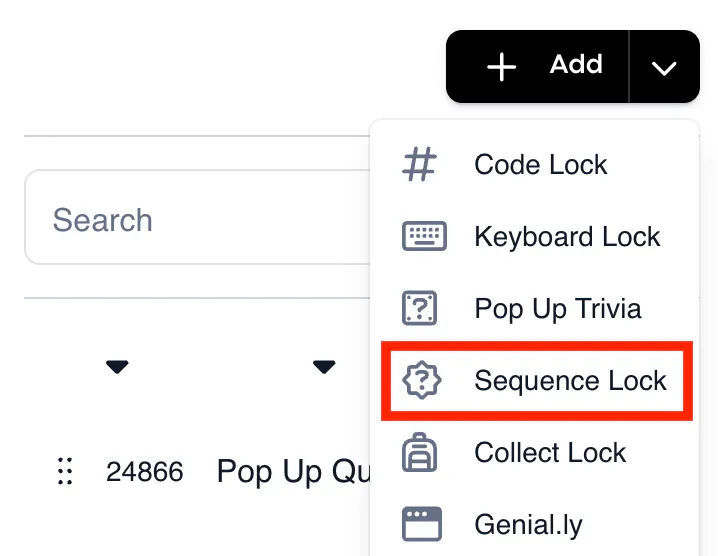
To add a Sequence Lock to the experience, click '+Add' and choose the lock from the list of dropdown items.
____________________________________________________________________________________
General
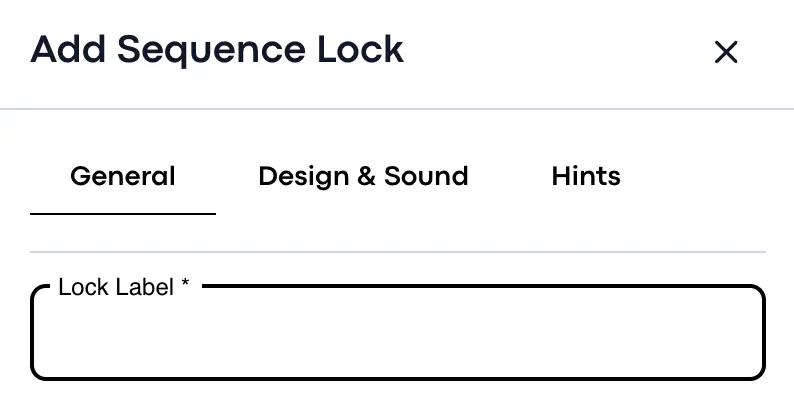
Lock Label: When adding a Sequence Lock, go to the general lock settings to give it a name, or label. This is for your own reference while editing.
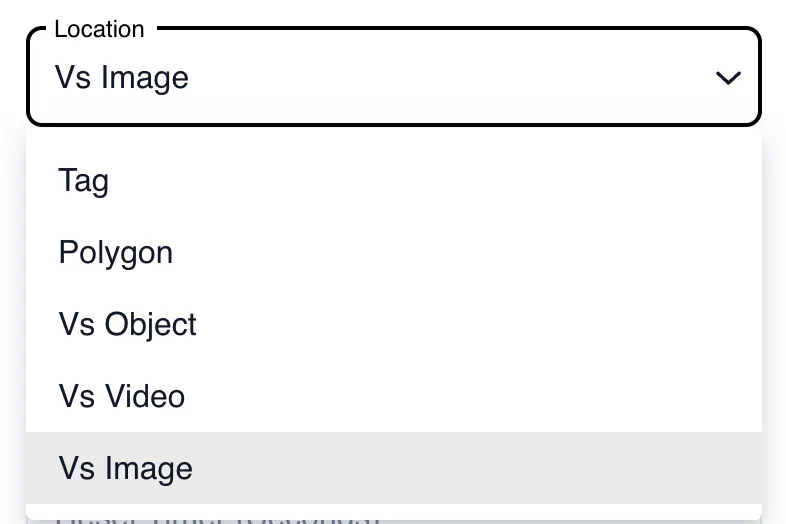
Location: Your Sequence Lock must be assigned to a general location, such as a tag, polygon, or VS video.
Solution: Click on '+' to assign the Sequence Lock to a specific location.
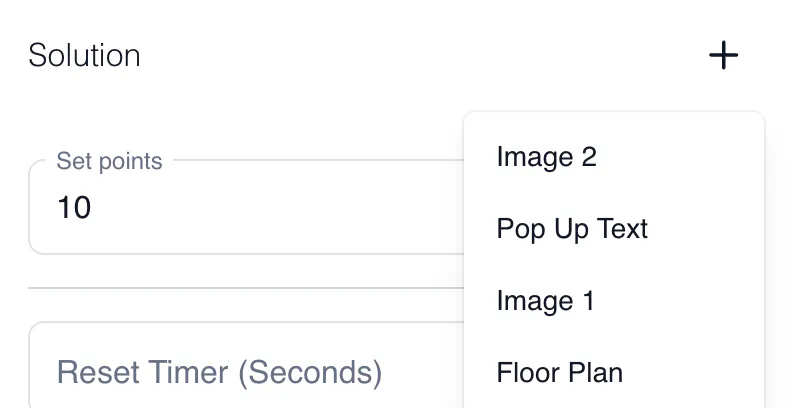
Set Points: You can then either leave the lock points as the amount set for all locks, or you can define the lock points individually for this specific Sequence Lock.

Reset Timer (Seconds): This allows you to set an individual timer for this lock.

Keep Selected Items Highlighted: This allows you to highlight certain locks once selected.

____________________________________________________________________________________
Settings
Guidance Bar Can Be Closed:

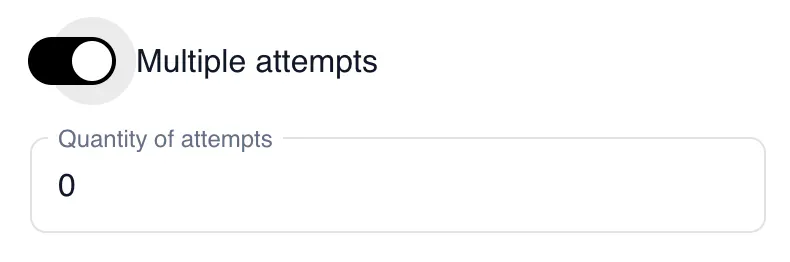
Multiple Attempts
Define how many attempts the user can get to solve the lock.
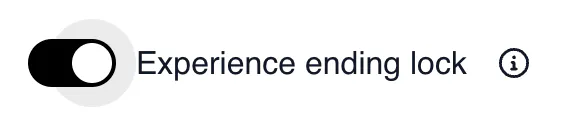
Experience Ending Lock
Toggle this setting on if it is the lock that you would like to end the experience once completed.
____________________________________________________________________________________
Design and Sound
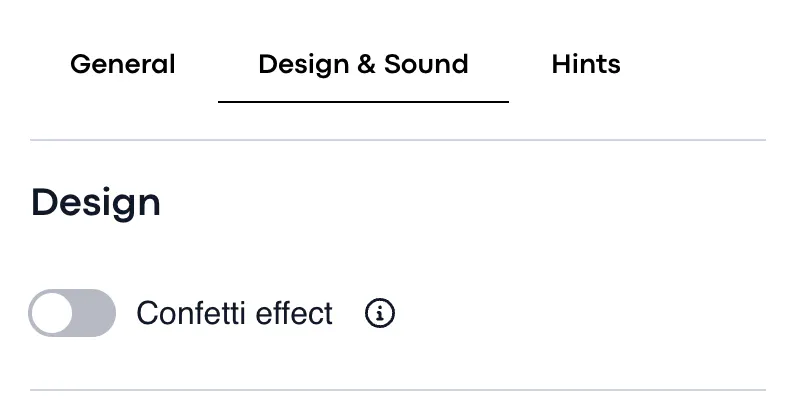
Design: You can choose if you'd like there to be a confetti effect when users answer the lock.
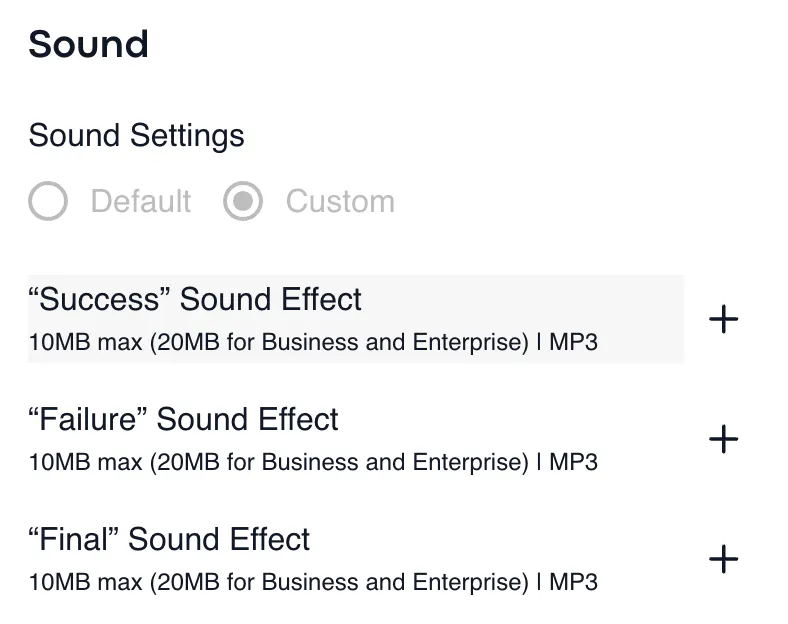
Sound: Here you can decide if you'd like a sound to play when the user either succeeds or fails in solving the lock. You can upload the sound as an MP3 file into the platform. The maximum file size for Growth is 10MB and 20MB for Business and Enterprise.
____________________________________________________________________________________Hints
You can assign hints to your locks individually here.
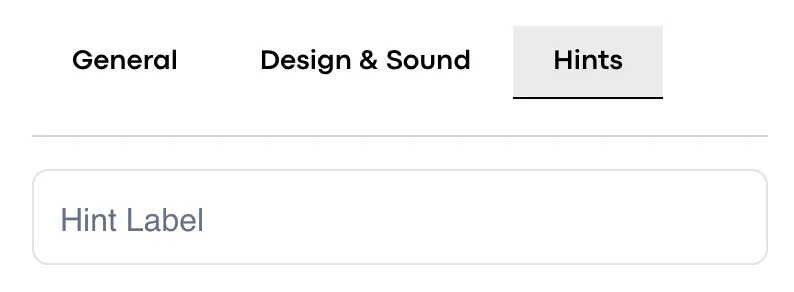
Hint Label refers to the name that you would like to call your hint. This is internal.
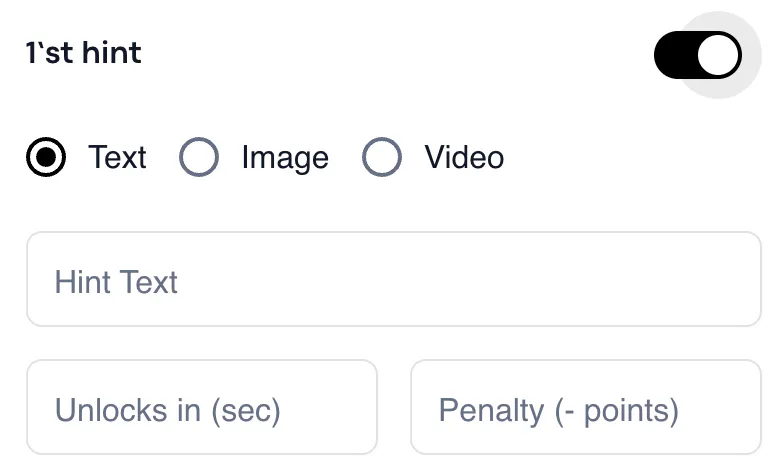
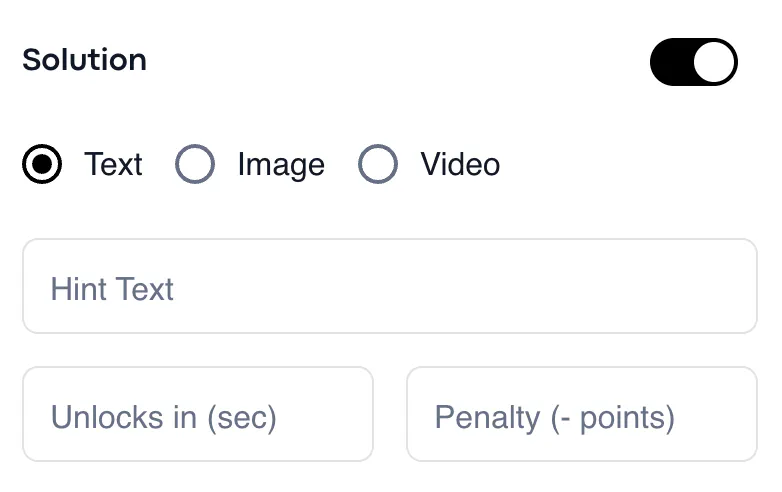
1'st hint: You can set the first hint for the Sequence Lock as either text, a JPEG/PNG image, or a video. You can also define how many seconds it will take for the hint to unlock and how many points will be deducted if the hint is used.
2'nd hint: You can enable a second hint if necessary, according to the same functionality as the first.
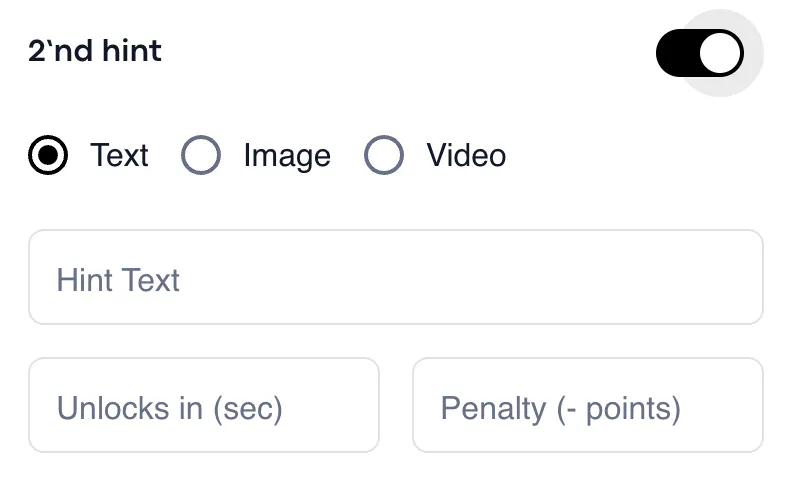
Solution: Your final hint can be the solution to the lock, defined according to the same functionality as the first two hints.
Once you edit your Sequence Lock, it should appear at the bottom of the page like this: