Articles in this section
- Experience Creator: What is it and how to activate?
- Experience Creator: Preparation steps and examples
- Experience Creator: General
- Experience Creator: Timer
- Experience Creator: Experience Book
- Experience Creator: Backpack
- Experience Creator: Locks - General Info
- Experience Creator: Code Lock
- Experience Creator: Keyboard Lock
- Experience Creator: Collect Lock
- Experience Creator: Sequence Lock
- Experience Creator: Pop-up Trivia Lock
- Experience Creator: Genial.ly Lock
- Experience Creator: Conditions
- Experience Creator: Hints
- Experience Creator: Path General
- Experience Creator: Adding Steps to Path
Experience Creator: General
The General settings are where you can give your experience a name, enable video clips, and other features central to the experience.
To reach the General settings, follow this path:
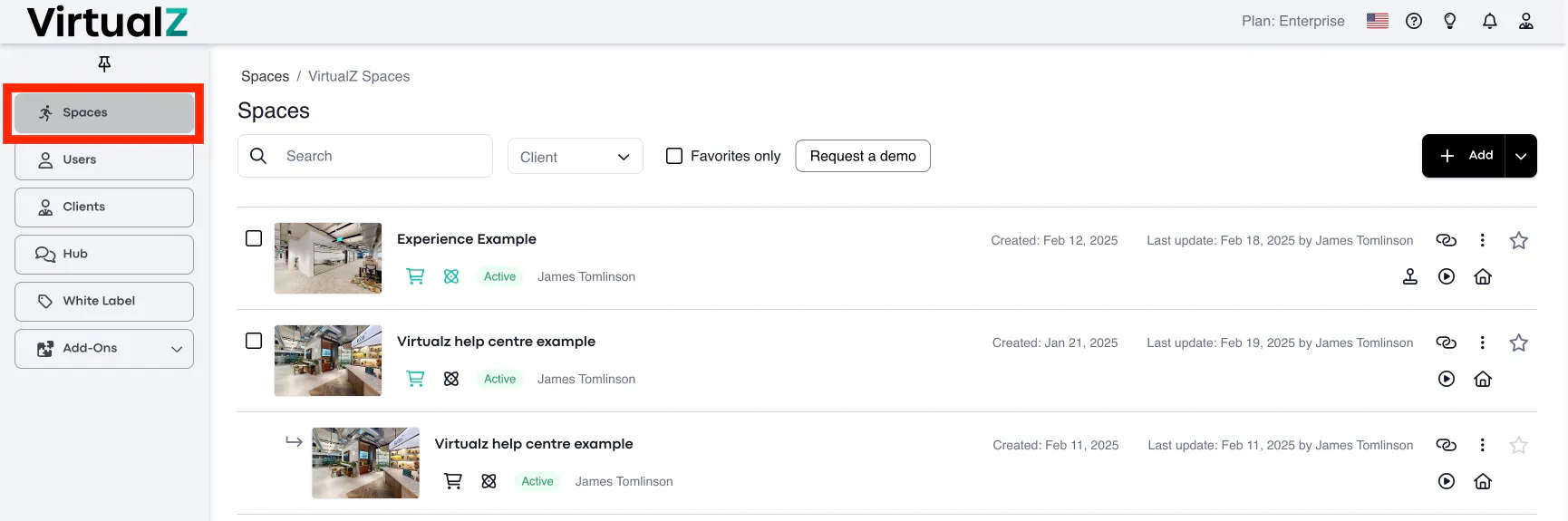
1. Spaces > Select the tour:
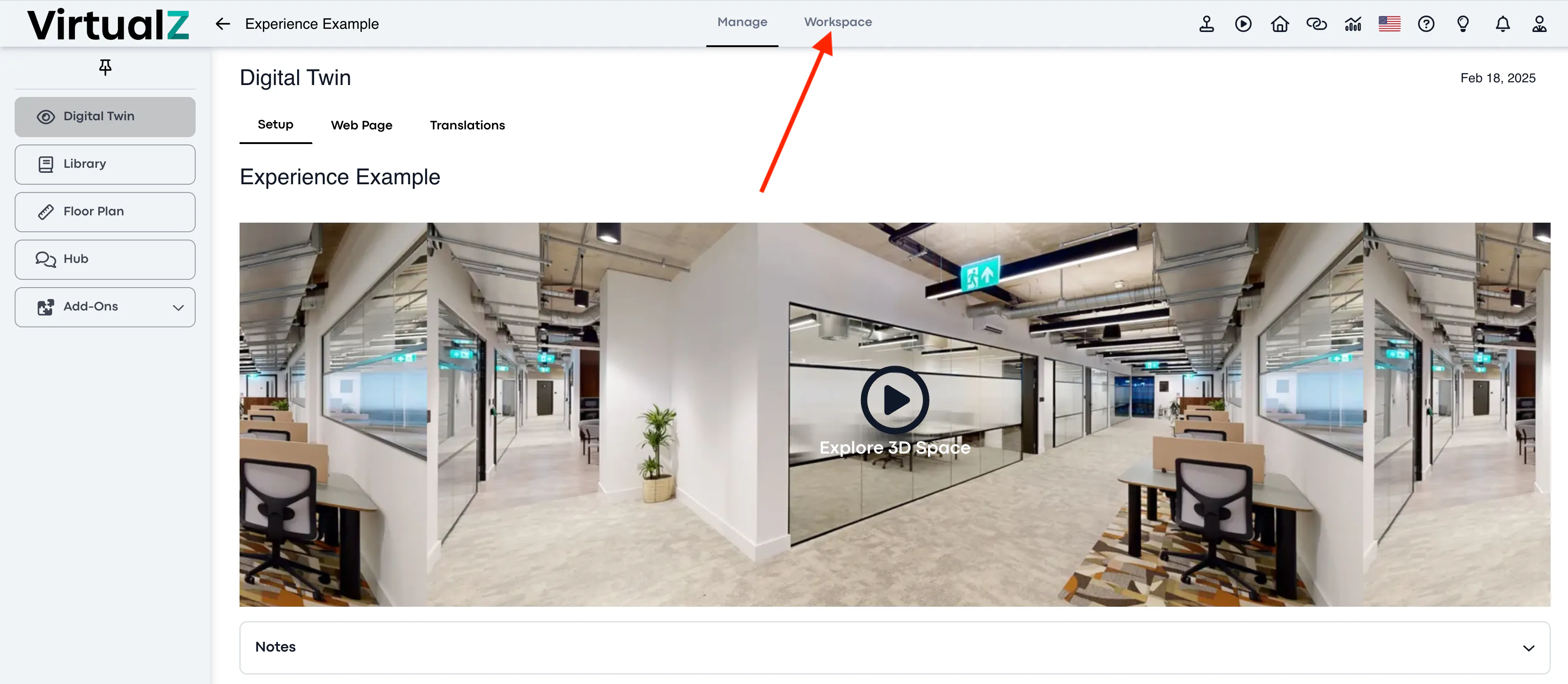
2. Workspace:
3. Experience Creator > General:
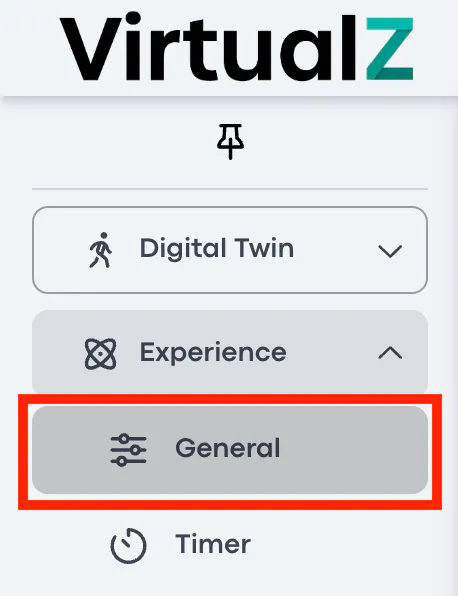
4. Toggle the General ON, and the Experience icon should appear

Functionality
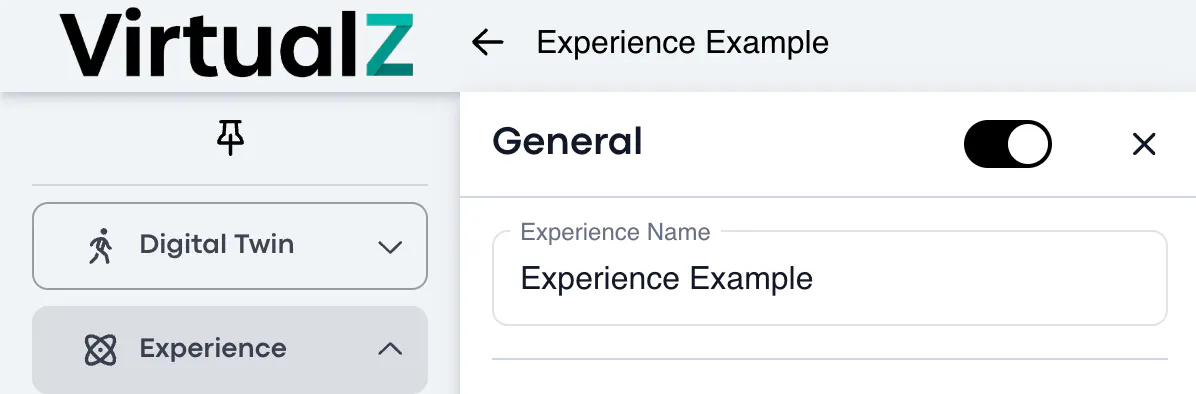
Experience Name
Here you can name your experience.
Answer Correctness Notification
Enable this setting if you'd like users to be notified when they get the correct/incorrect answer during the experience.

Backpack
The backpack allows users to collect content throughout their journey. This is helpful if you want to incorporate instructions or tips into the experience that users can constantly refer back to.

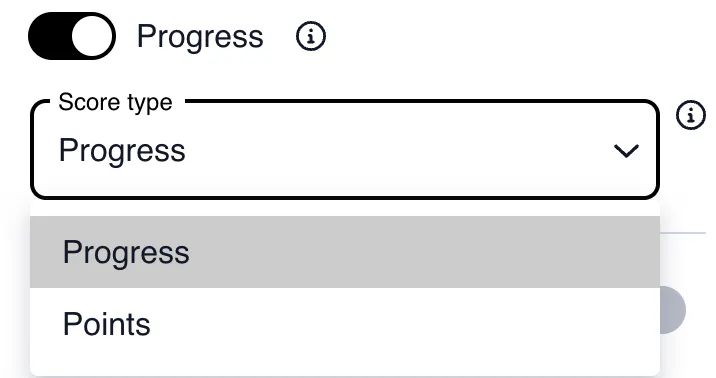
Progress
Enabling this feature allows users to see how far they have come in the experience, either through points or progress steps.
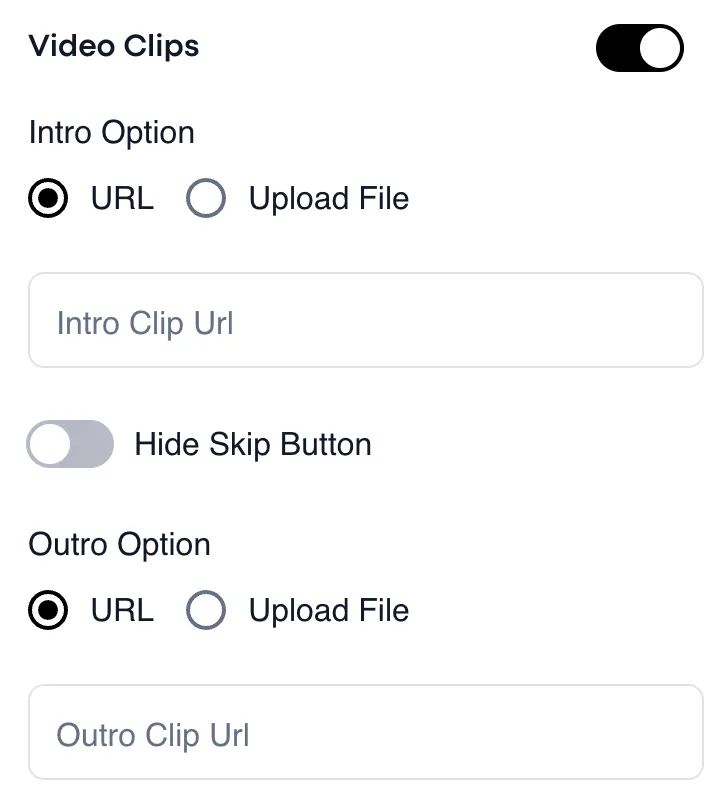
Video Clips
Enabling video clips gives you the option of inserting an intro and/or an outro clip to the experience. Enable this if you'd like to give the users context to the experience before they start their journey.
You can either upload your videos or paste their URL.
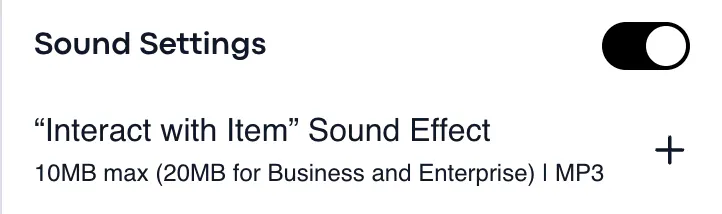
Sound Settings
Enabling sound settings gives you the option of uploading an MP3 file to play when users interact with items in the experience. The max file size for Growth users is 10MB and 20MB for Business and Enterprise users.
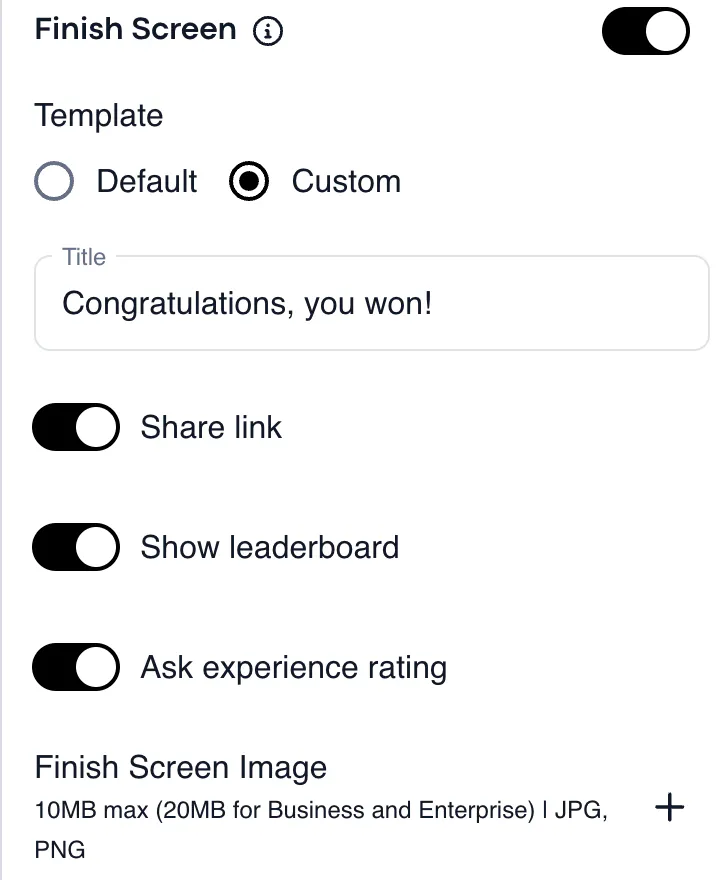
Finish Screen
You can decide if you'd like a finish screen to popup at the end of the experience.
The Default template allows you to insert text that you would like to appear.
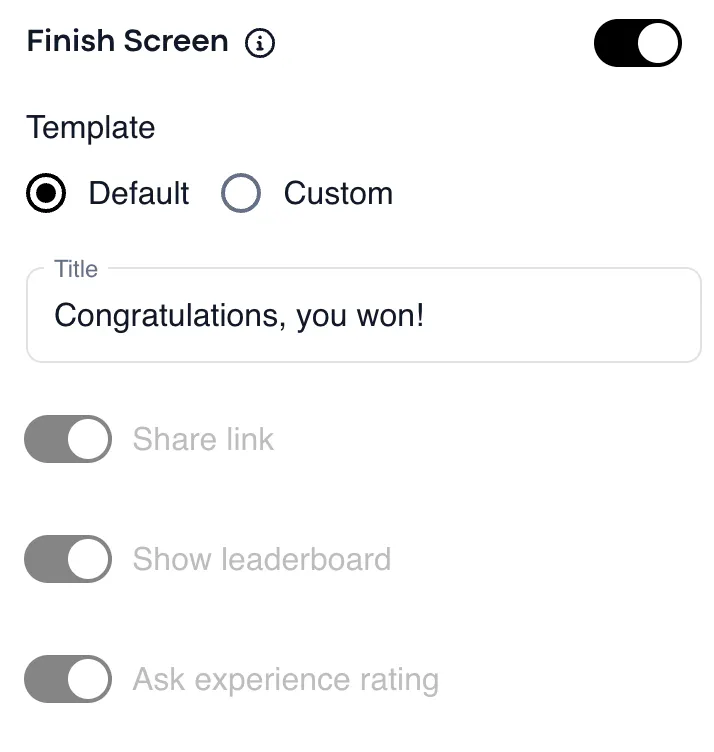
The Custom template allows text and the option for users to share a link to the experience, to show the leaderboard, and to leave an experience rating.