Articles in this section
- How to add a tour to the system using the Matterport link?
- How to add a tour to the system if I don't have Matterport tour link?
- CGI: General overview
- Private Model Embed (PME)
- Who is User, Client, Agent and Collaborator
- Can I merge several spaces / tours into 1?
- How to get a deep link for location in the tour?
- How to Zoom in/out on the tour?
- Can I translate my tour into different languages?
- How to add music to the tour?
- Can I add the image / pdf file to the Burger Menu?
- Floor Plan: How to order?
- How to change the password?
- How to collect Leads from the tour?
- How to activate the Registration form for Experience tour?
- Types of Tour Error: Troubleshooting Steps
Can I add the image / pdf file to the Burger Menu?
To add an image or PDF to the Burger Menu as an "iframe," start by uploading your file to a hosting service like ImgBB*. Once the file is uploaded, it is very important to copy and paste its link accurately. Be sure to select the HTML full link format as shown below, which should begin with https:// and end with .jpg or .png
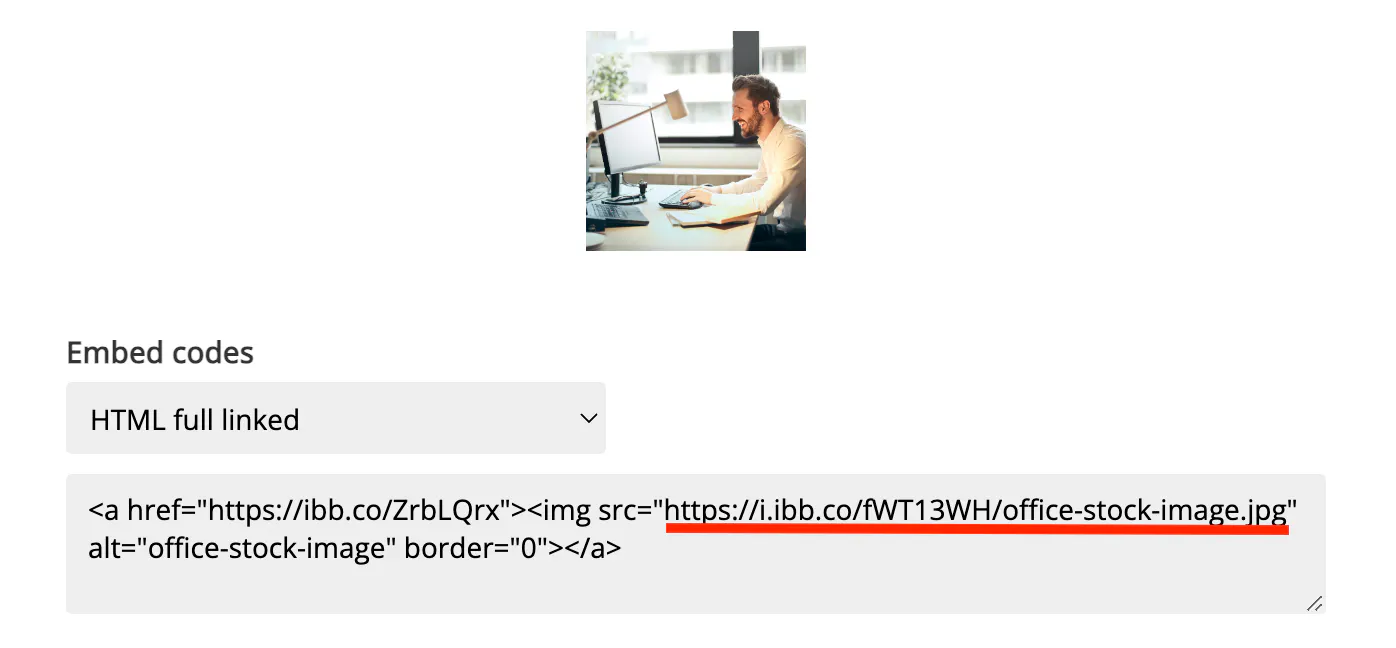
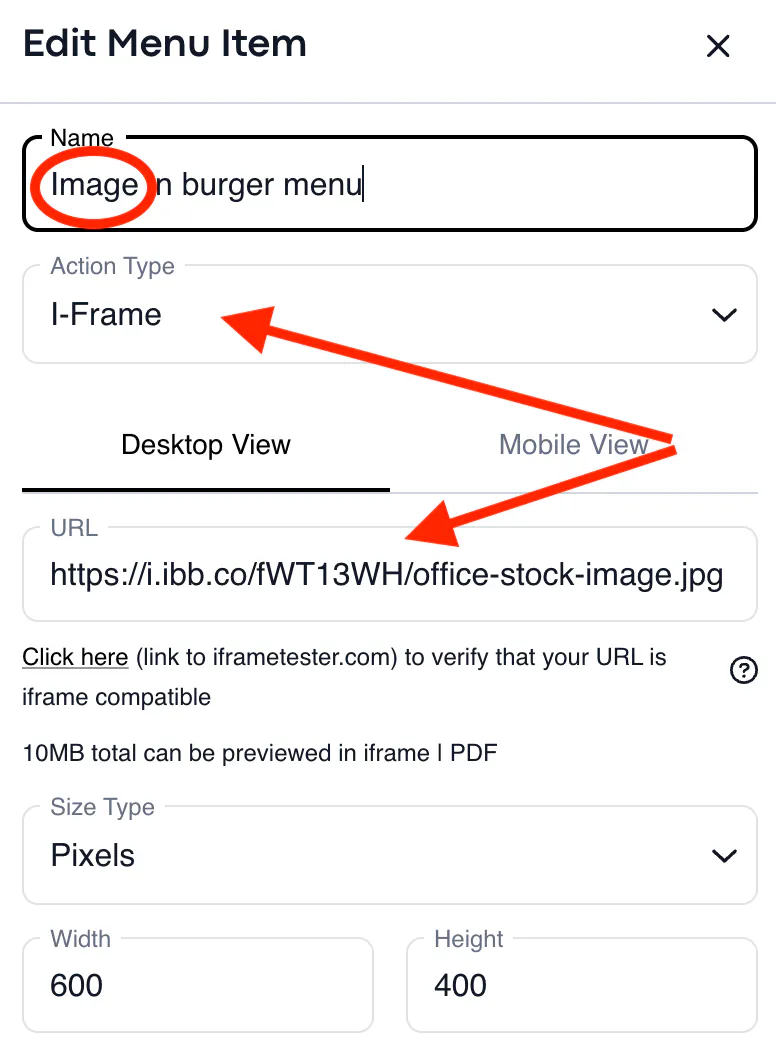
Now in Workspace, add the Burger Menu item with "i-frame" action type. Here are the settings as they should be (size, width, and height can be set manually according to your files and needs):
Image
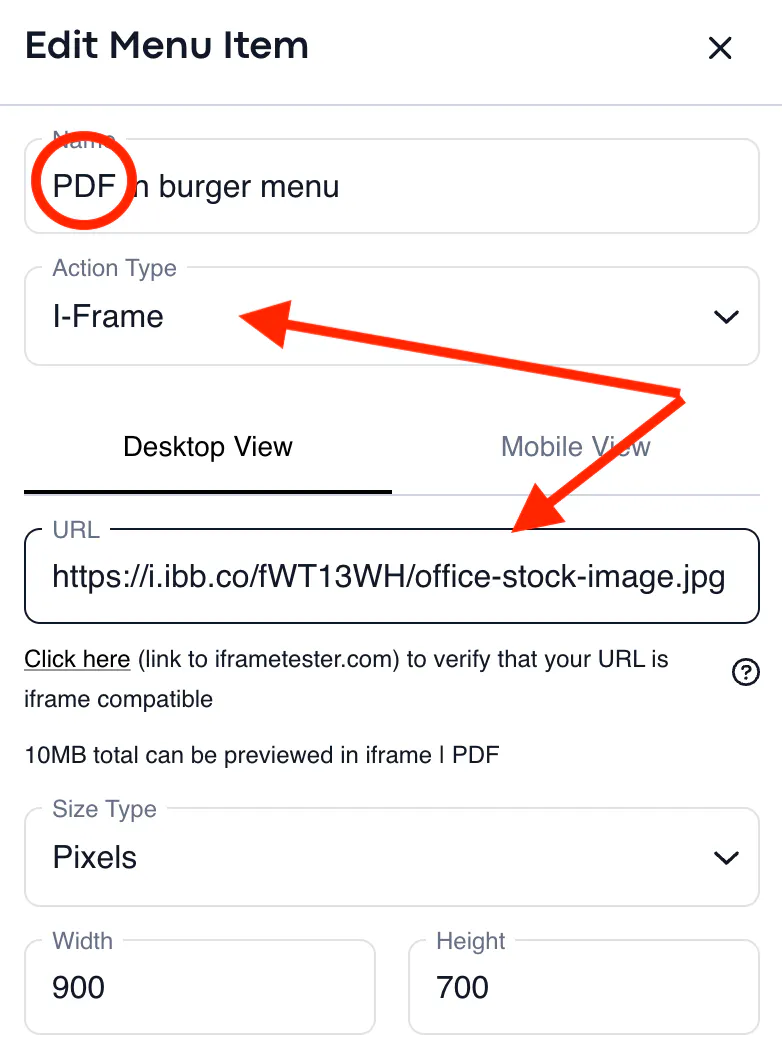
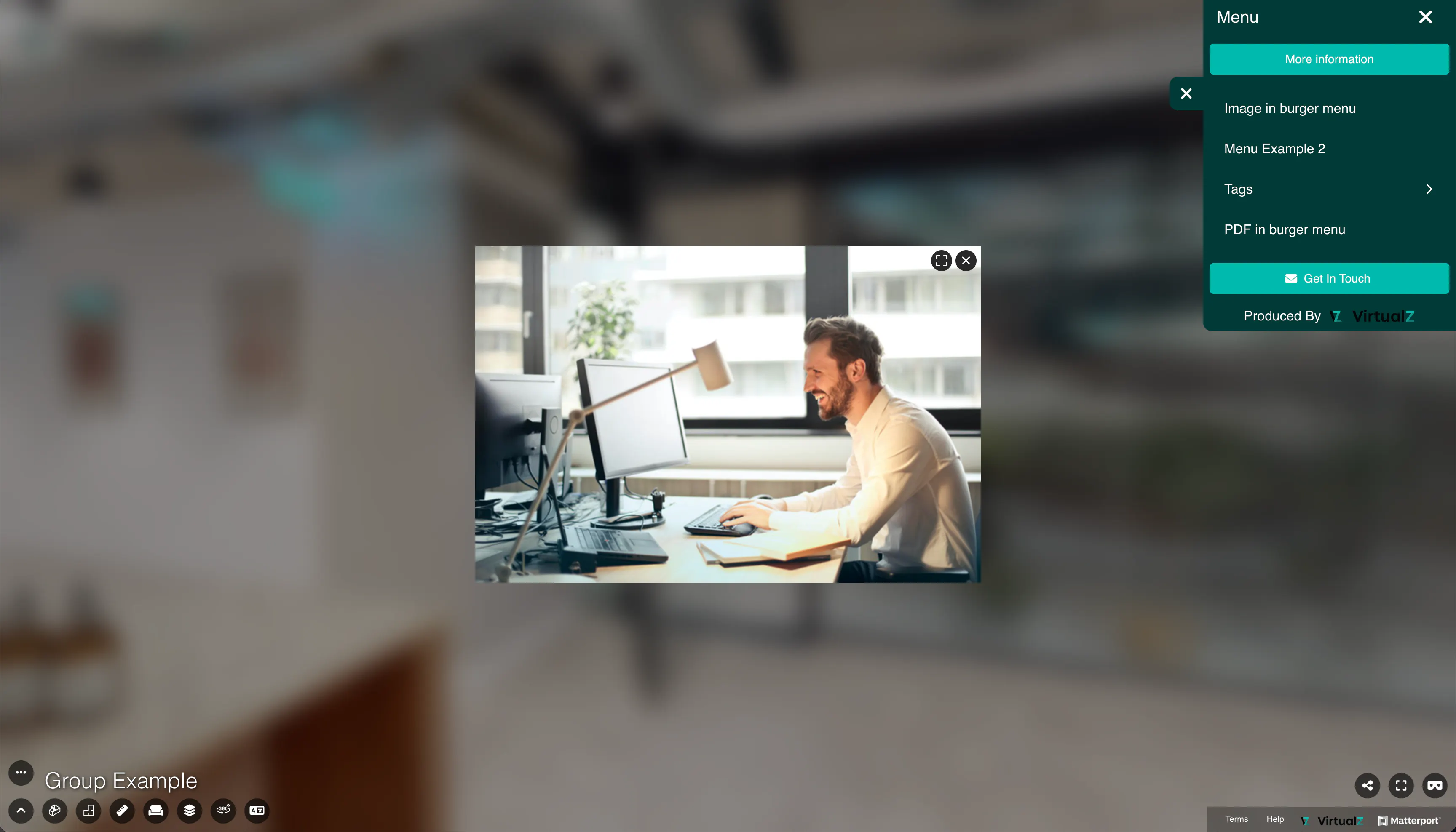
Do not forget to save the changes. Here is how the image and pdf files will look like in the tour:
*The hosting service mentioned in this article serves as an example only. You are free to use and embed the files from any other website that can be iFramed. Here is the iFrame tester to check whether your website can be used: https://iframetester.com/