Articles in this section
- How to add a tour to the system using the Matterport link?
- How to add a tour to the system if I don't have Matterport tour link?
- CGI: General overview
- Private Model Embed (PME)
- Who is User, Client, Agent and Collaborator
- Can I merge several spaces / tours into 1?
- How to get a deep link for location in the tour?
- How to Zoom in/out on the tour?
- Can I translate my tour into different languages?
- How to add music to the tour?
- Can I add the image / pdf file to the Burger Menu?
- Floor Plan: How to order?
- How to change the password?
- How to collect Leads from the tour?
- How to activate the Registration form for Experience tour?
- Types of Tour Error: Troubleshooting Steps
Can I translate my tour into different languages?
Yes, you can translate the tour to any language you want. The process is the following:
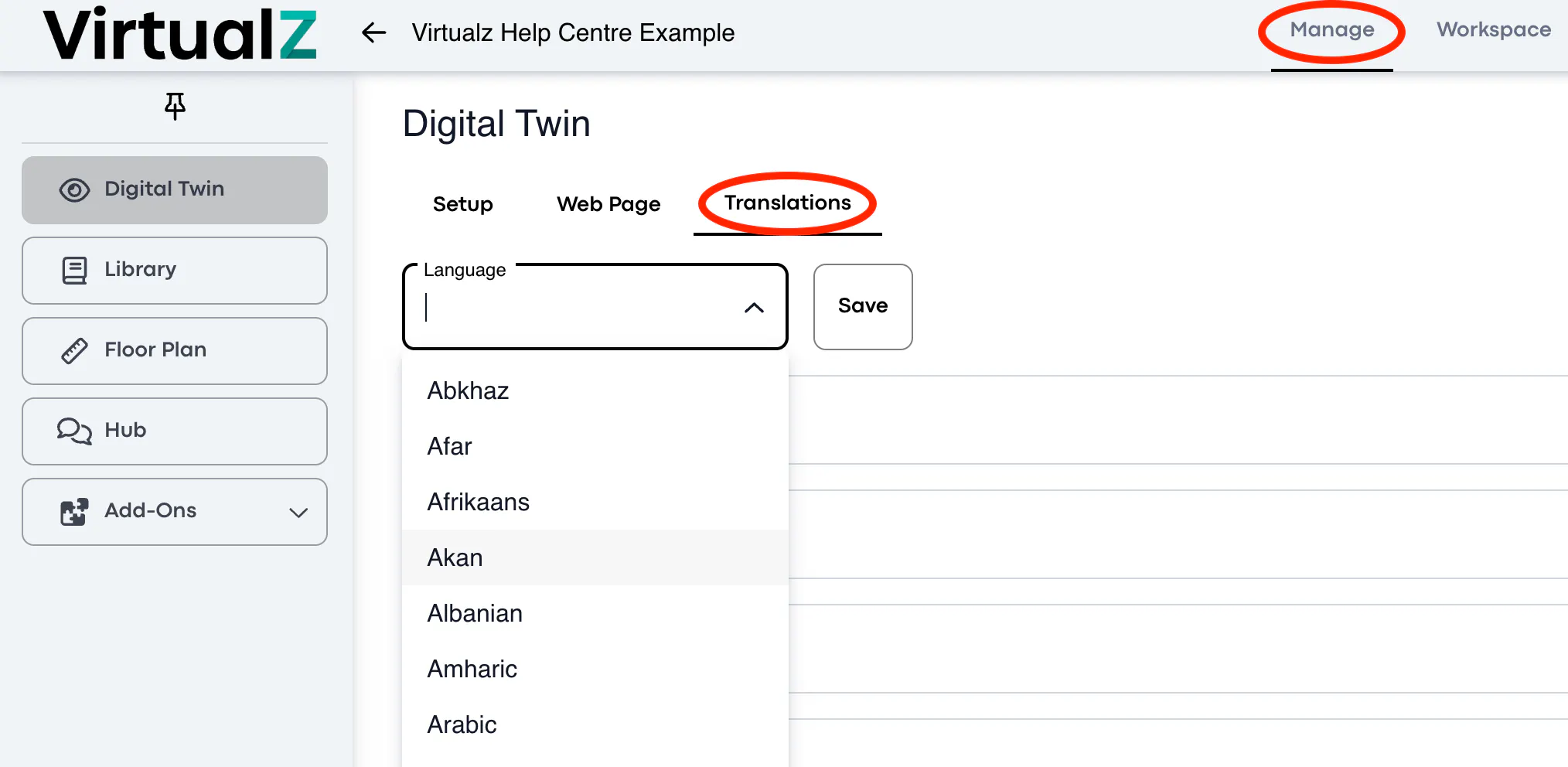
Open the tour Manage section > go to Translations > choose the needed language > click Save:
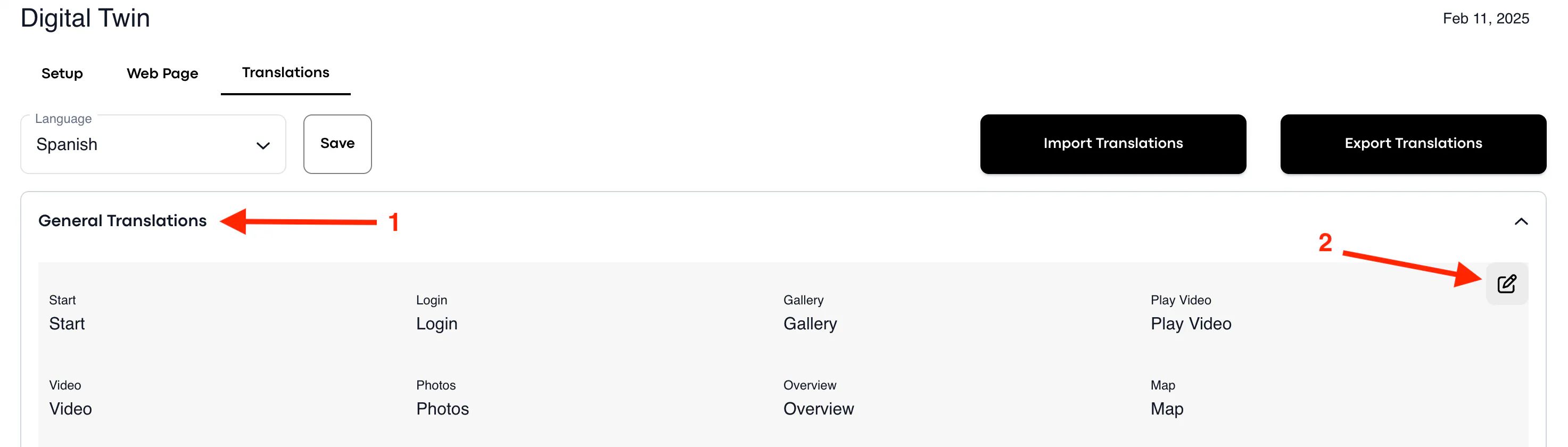
You should now open the category where you would like to have the items translated > click on Pencil icon to make the changes:
Erase each title and provide the translation for the needed functionality in your tour:
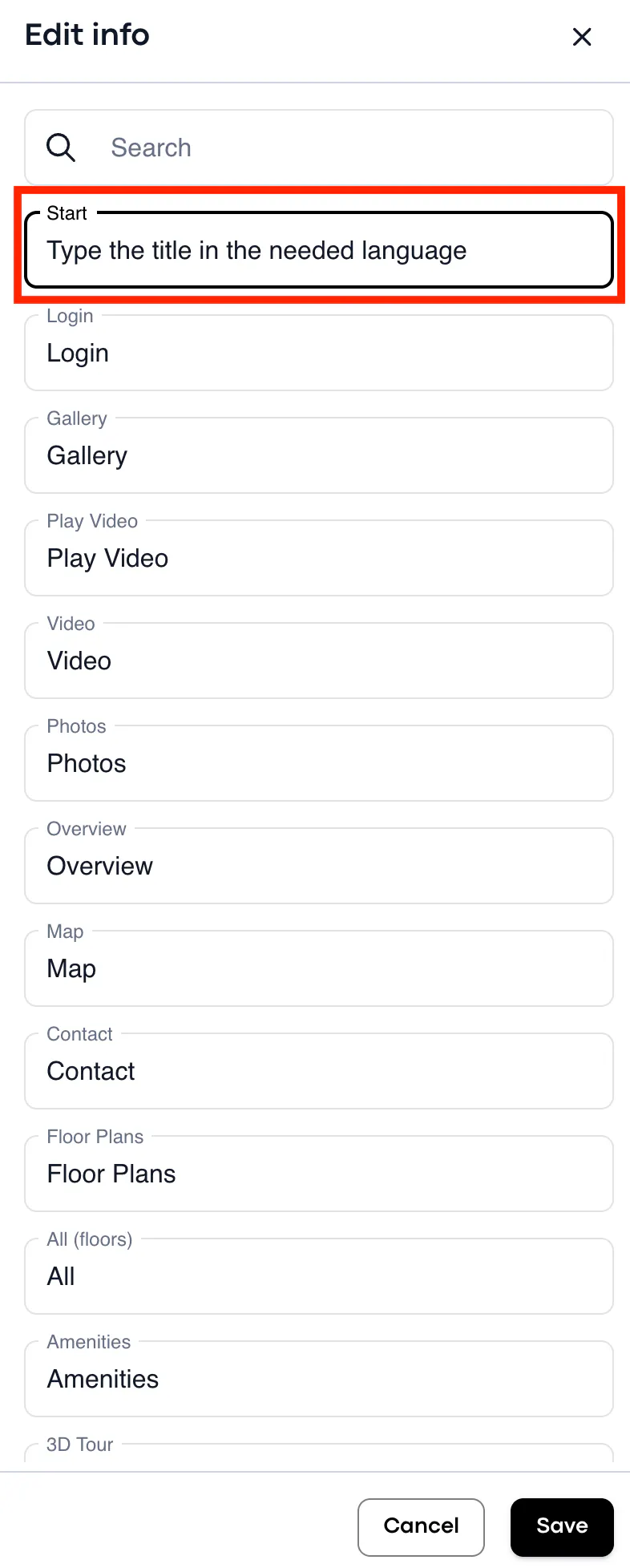
Do not forget to save the changes!
How to Create Several Languages for One Space
If you want to have your tour translated into several different languages, firstly you need to duplicate the needed tour. Create as many duplicates as languages you want to have:
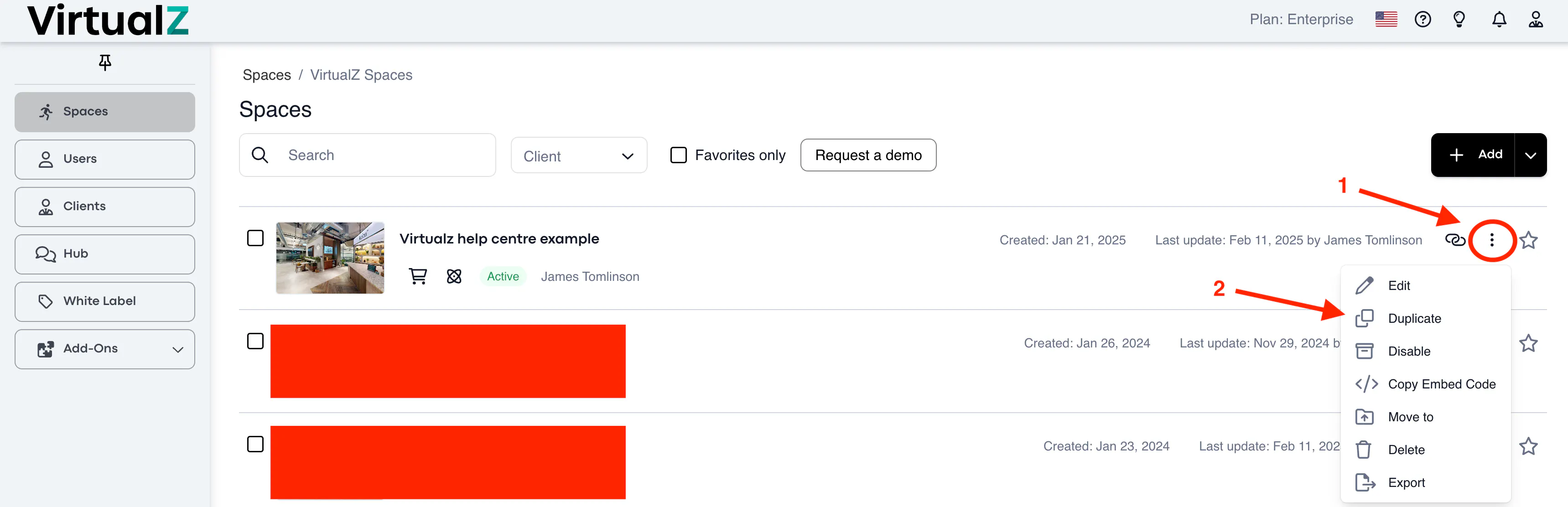
Open the duplicated tour > Manage section > Translations > select the language and proceed with creating the translations as was described above.
Let's say you want the tour to be in English and Spanish. So once you have manually translated all items to Spanish on a duplicated tour, you must go back to the main tour and select the original language (e.g. English), so the system creates a switcher on your space.
NOTE: When you select the language on your main (original) tour, you don't need to create any translations on it.
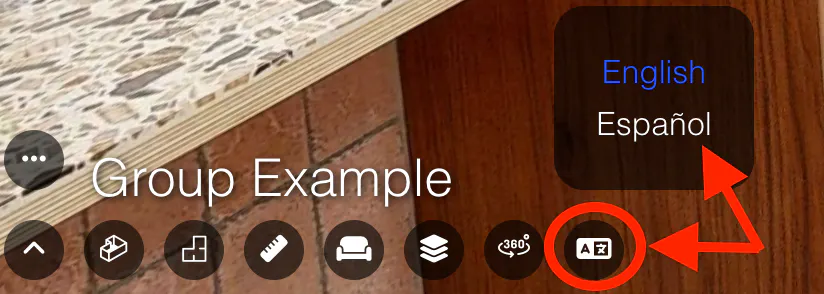
When you have finished with the translation, share the tour link of the main tour, it will have a Language button at the bottom left corner, which allows users to switch between languages directly in the tour:
TIP: there is an option to export the translation from one tour and import it to another one with the Business and Enterprise plans:
