Articles in this section
- How to add a tour to the system using the Matterport link?
- How to add a tour to the system if I don't have Matterport tour link?
- CGI: General overview
- Private Model Embed (PME)
- Who is User, Client, Agent and Collaborator
- Can I merge several spaces / tours into 1?
- How to get a deep link for location in the tour?
- How to Zoom in/out on the tour?
- Can I translate my tour into different languages?
- How to add music to the tour?
- Can I add the image / pdf file to the Burger Menu?
- Floor Plan: How to order?
- How to change the password?
- How to collect Leads from the tour?
- How to activate the Registration form for Experience tour?
- Types of Tour Error: Troubleshooting Steps
Types of Tour Error: Troubleshooting Steps
Virtualz users may occasionally encounter some errors while loading their tours. Each error has its specific cause, and in this article, we aim to explain them to help you resolve the issues quickly and efficiently.
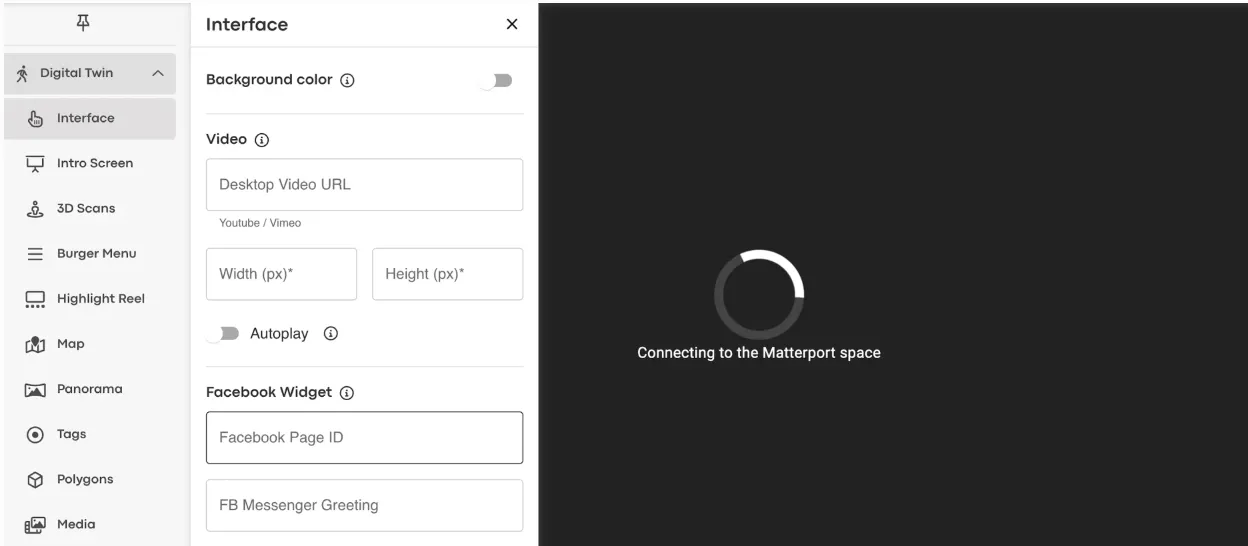
If you see a message 'Connecting to the Matterport space' in Virtualz workspace which doesn't allow to make any changes on the space:
- Check if the Matterport tour is set 'Public'. If so, then click to connect OAuth in Virtualz Profile > Settings > MP connection.
- If the Virtualz workspace works, but the public tour displays 'Connecting to the Matterport space' error:
- There is a need to check if your White Label solution has active subscription and if the DNS records are active and working.
If you face 'Oops, model not available' error:
- Check if the Matterport tour is set 'Public' in the MP settings. If so, check if OAuth is not connected to wrong Matterport account, making the tour inaccessible.
- If the Matterport tour is set 'Private', make sure OAuth is connected in Virtualz profile + enable the 'Public OAuth Access' toggle under a tour Manage section > Info.
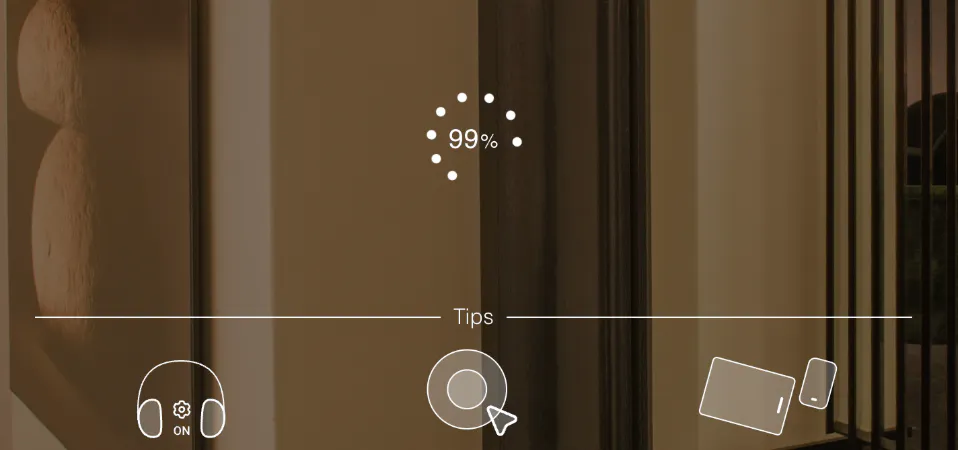
When you open a Virtualz tour, it loads but then stuck at 14% / 99% / 100% and keeps spinning with no result:
- 14-20% = if the Matterport tour is set 'Public', check if OAuth is not connected to wrong Matterport account, making the tour inaccessible.
- 14-20% = if the Matterport tour is set 'Private', make sure OAuth is connected in Virtualz profile + enable the 'Public OAuth Access' toggle under a tour Manage section > Info.
- 20-100% = Virtualz tour configuration reasons: corrupted VS item (3d object) added to the Virtualz tour; too many Media items added to the tour with no render range; Facebook web widget added wrong in the Interface section.
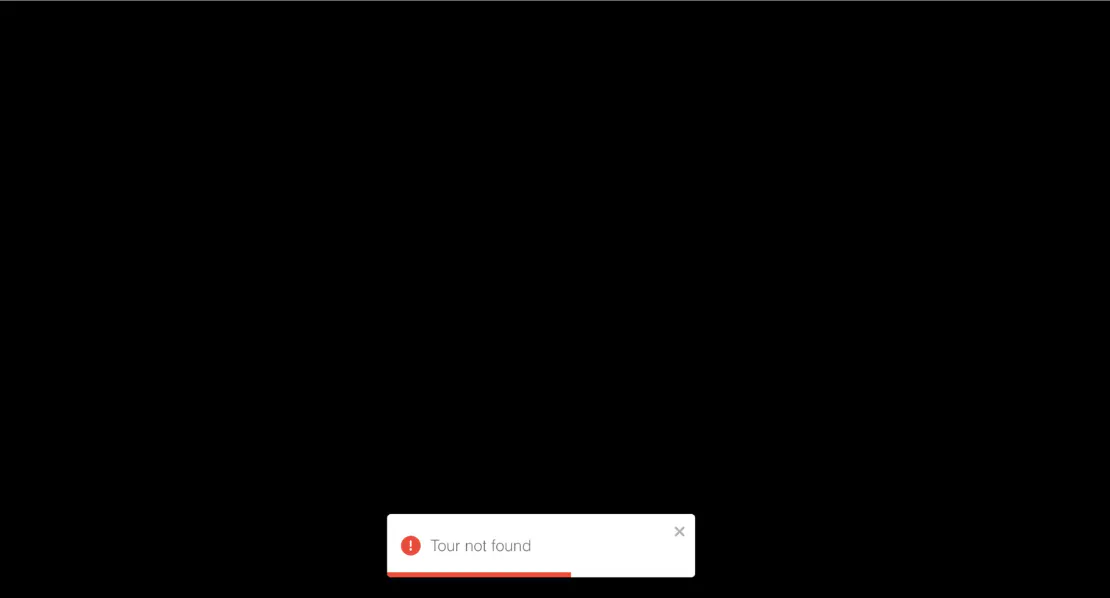
If your Virtualz tour displays a 'Tour not found' notification:
- Check if the Virtualz smart link doesn't include an apostrophe symbol ( ' ) or underscore ( _ ). Smart link is set up in the tour Manage section > Info.
- Your Virtualz account has no active subscription. In such case, please contact the Support team via email support@virtualz.com